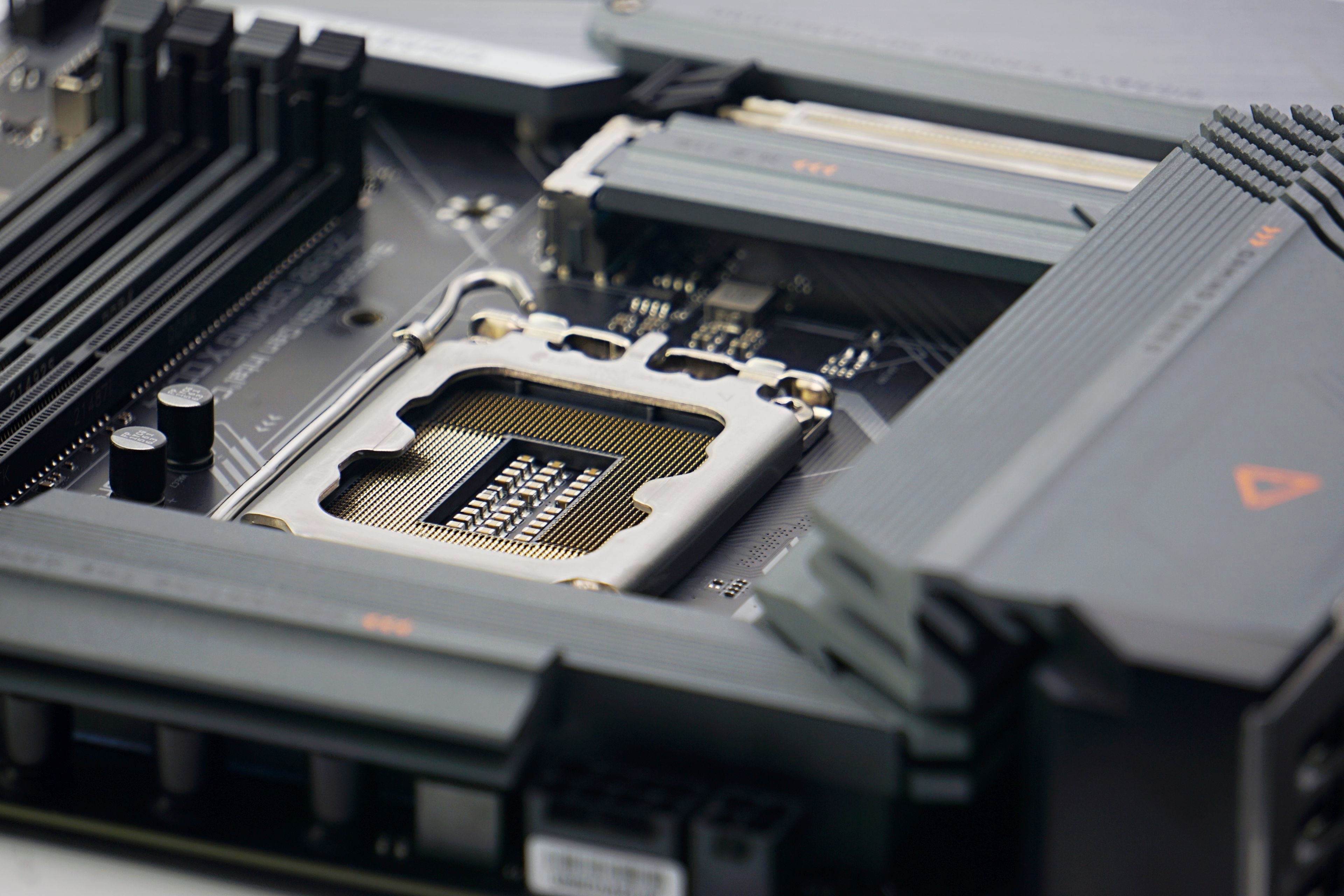
Here we have a test of the latest motherboard, which is designed primarily for the needs of Intel Alder Lake processors. It is also compatible with Raptor Lakes, but most importantly we finally have a tough opponent for the MSI Pro Z690-A DDR4. That board has set the bar really high among the cheaper models. But Gigabyte also has one ace up its sleeve in the low-end segment. The Z690 Gaming X DDR4 motherboard is truly a class act!
What it looks like in the BIOS
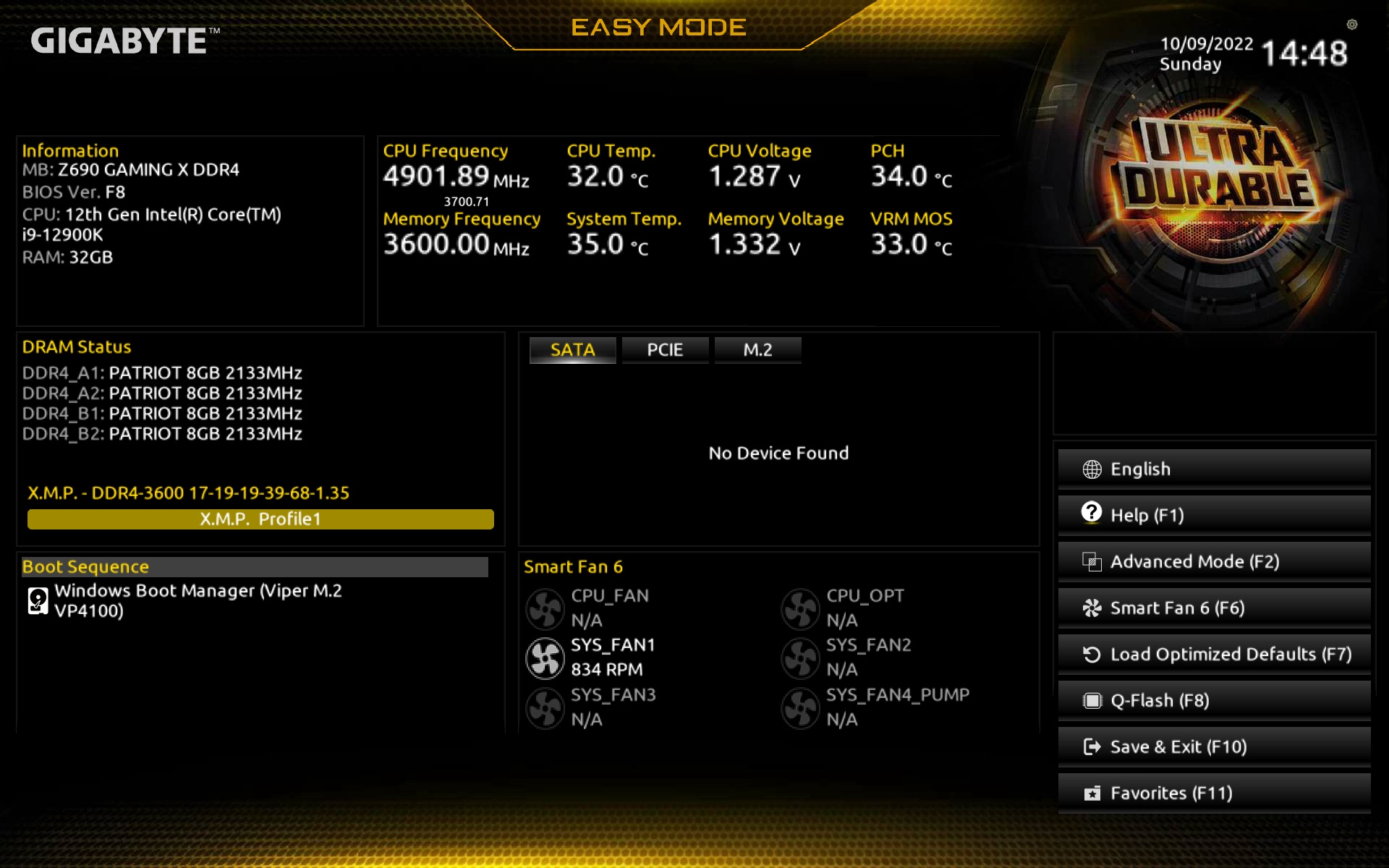
The UEFI color scheme is not according to the “Aorus” boards, but according to the cheaper Ultra Durable ones. However, this does not change the functionality. The very first screen of the Easy Mode contains all the basic information about the installed hardware. It is possible to activate the memory profile (XMP), have an overview of connected storage, fans or temperature of the CPU, chipset or VRM MOSFETs.
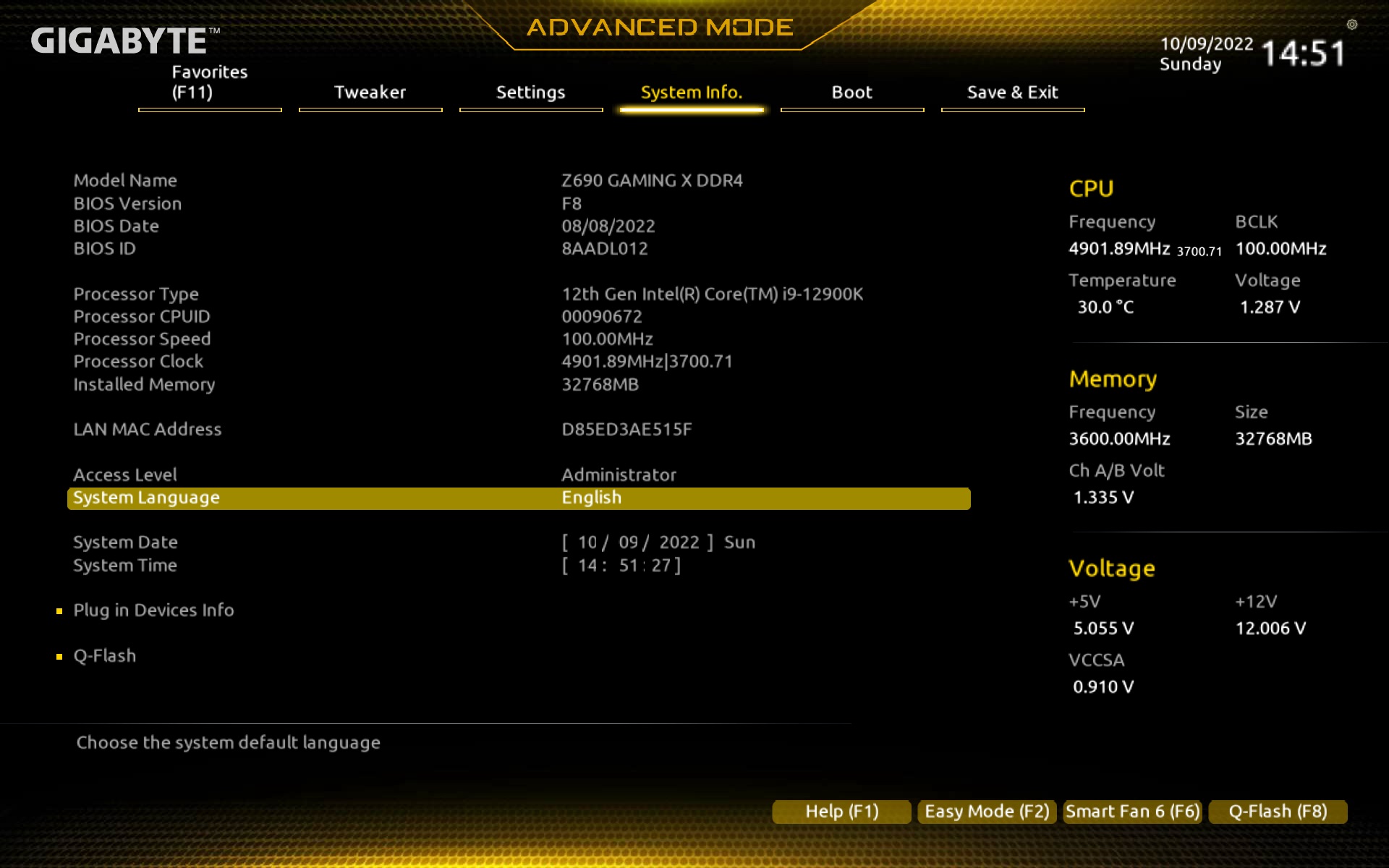
For a more detailed detection of the components you have to go to the advanced mode (via the F2 key) to the “System info” tab, where you can also find, for example, the MAC address of the network adapter.
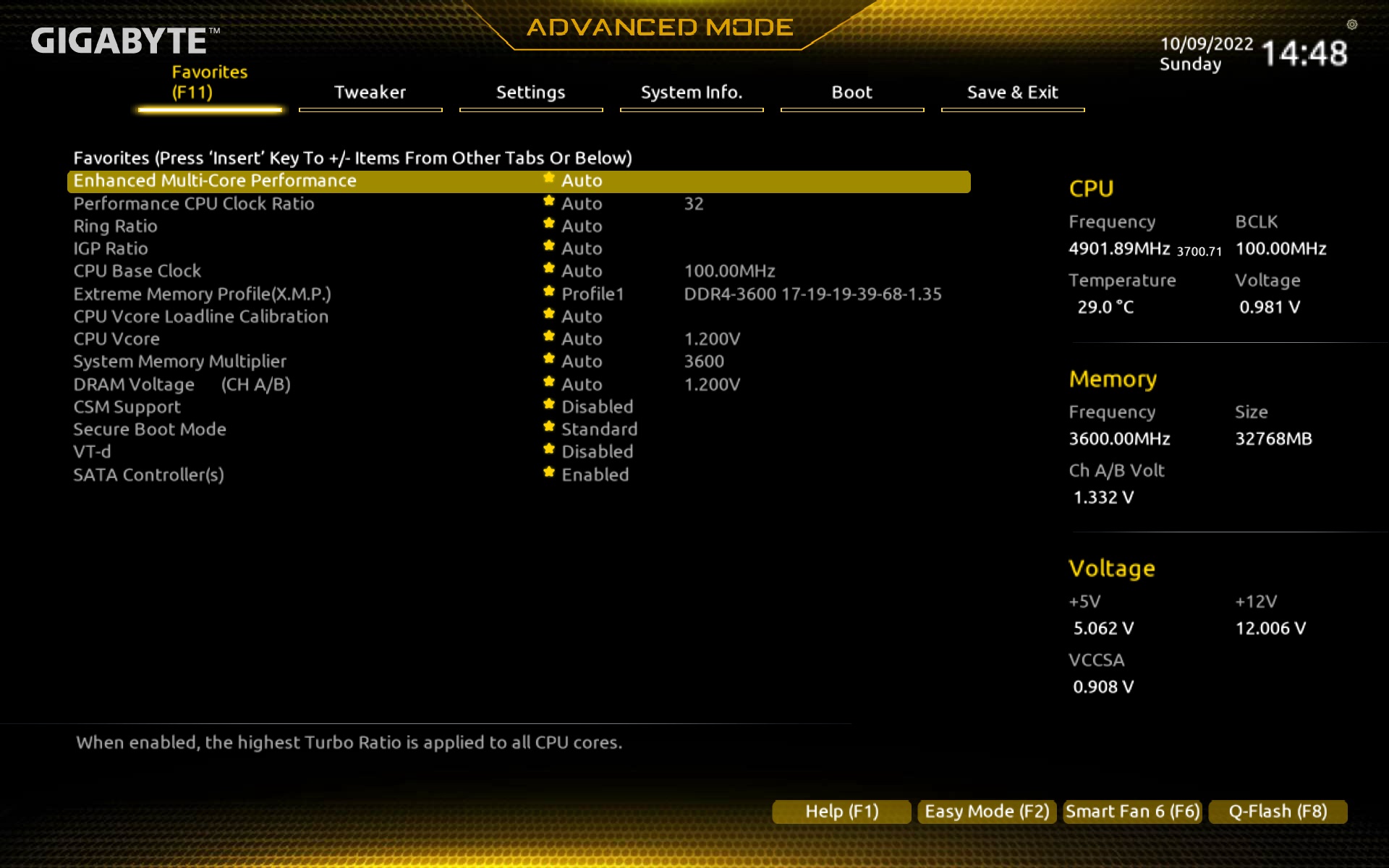
“Tweaker” is a tab for more detailed tuning of the processor, memory or VRM. In the tests we leave almost everything at default settings (including the LLC) to preserve the boards’ “identity” and get them to the situation they will be used in practice in the vast majority of cases.
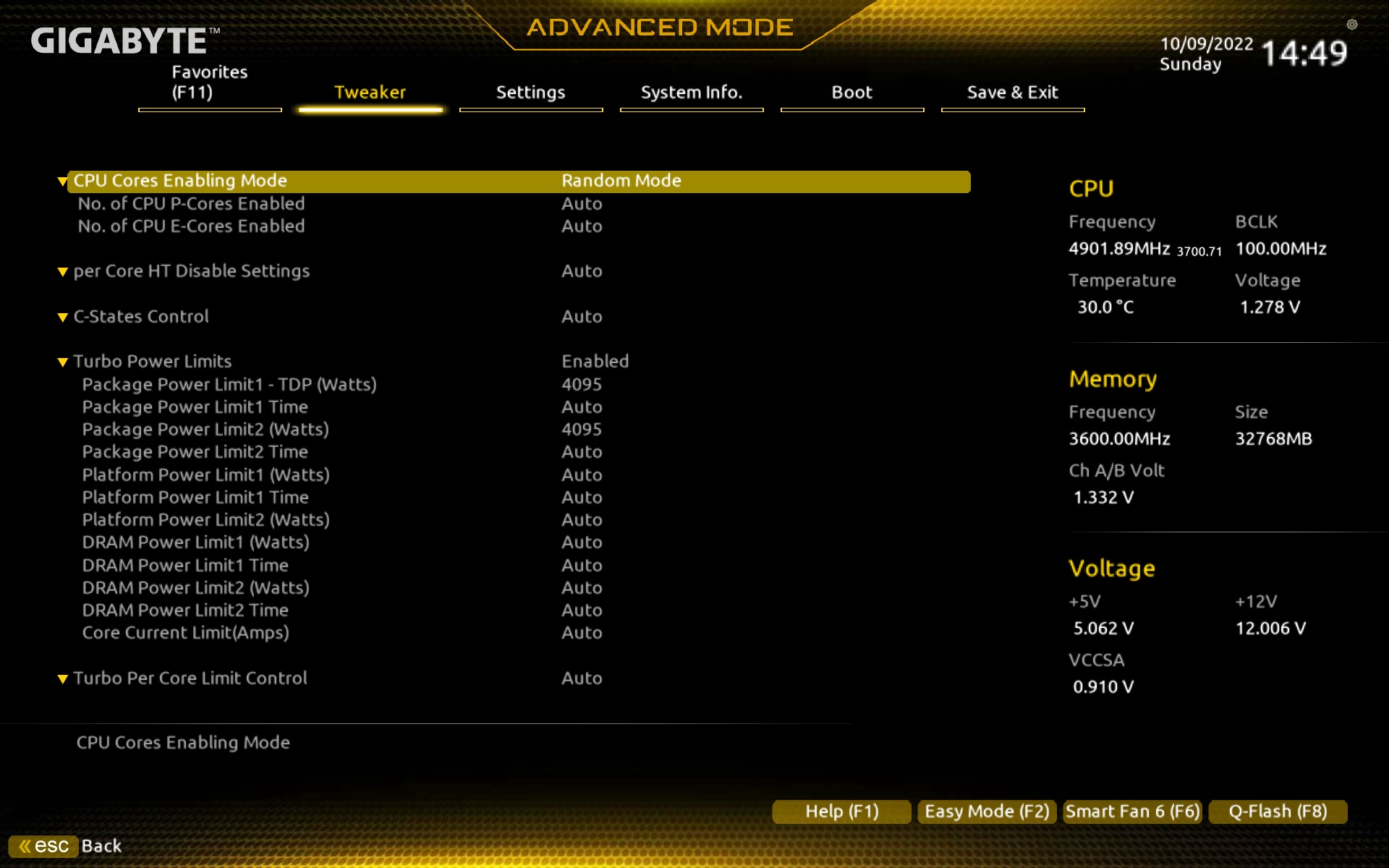
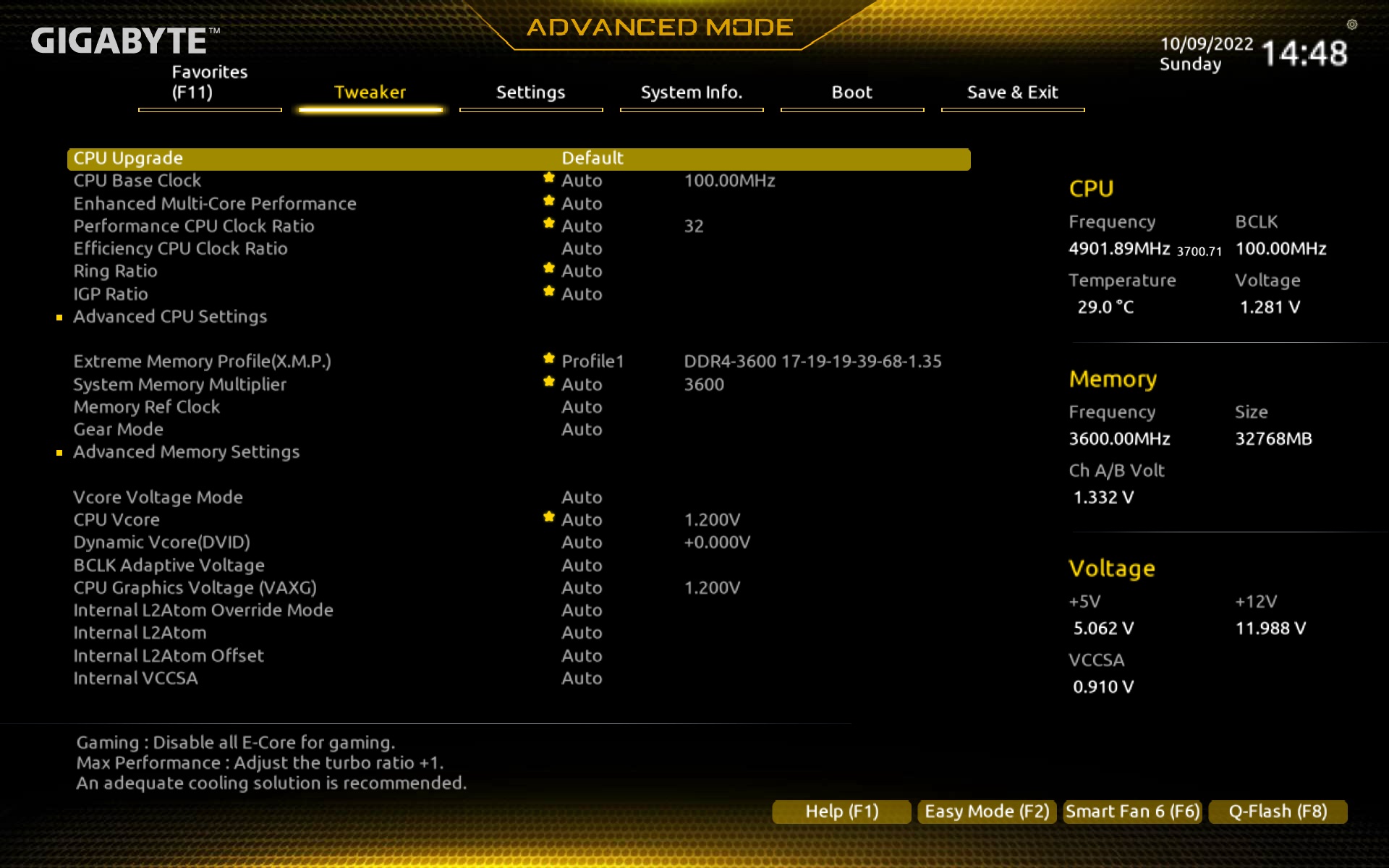
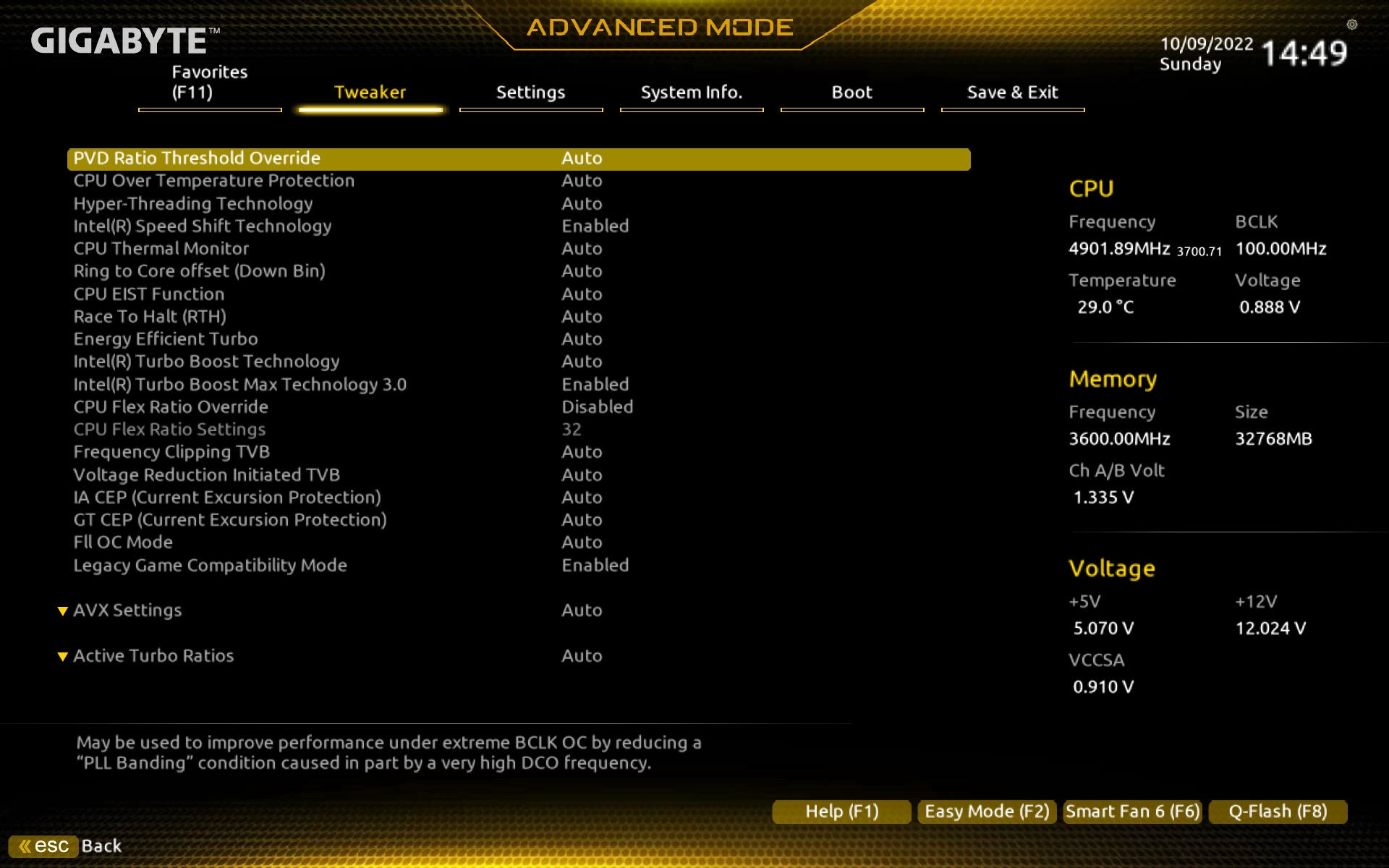
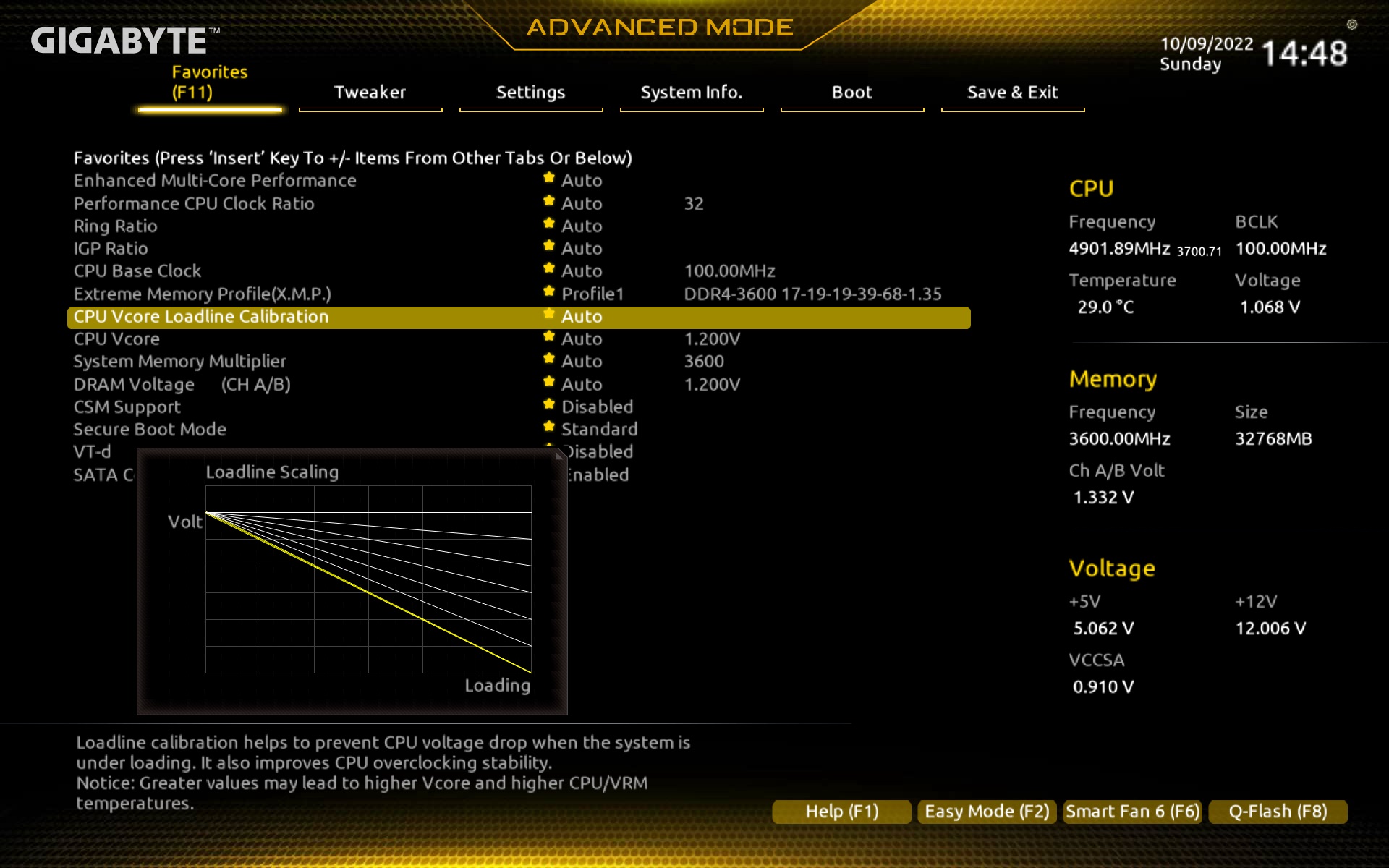
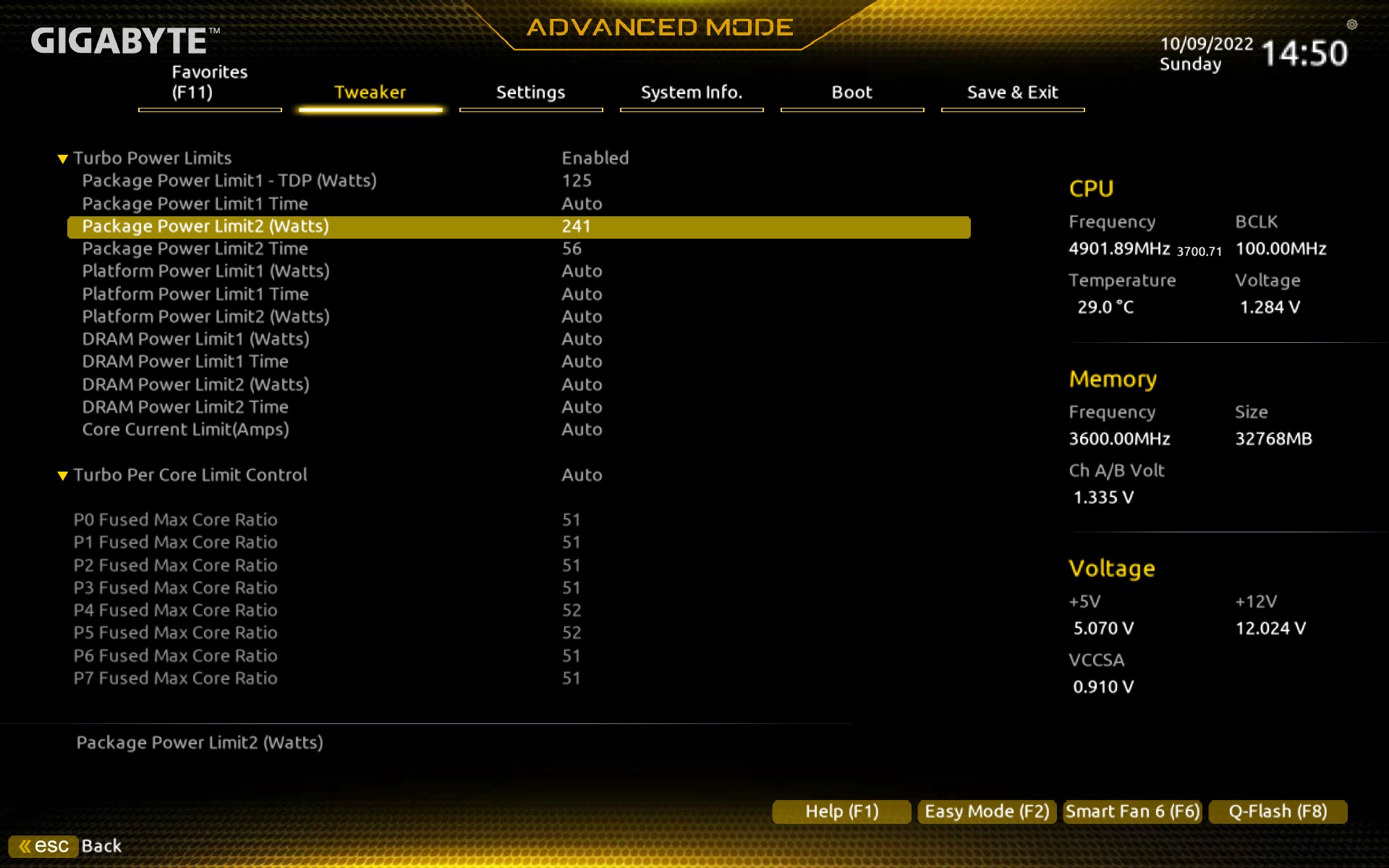
There is one thing, regarding the power supply, which we are nevertheless adjusting. Namely, power limits. We set these manually to unlimited (for all tests) and then according to Intel’s recommendations, including accepting the Tau timeout for a short-term load with 241 W for PL2.
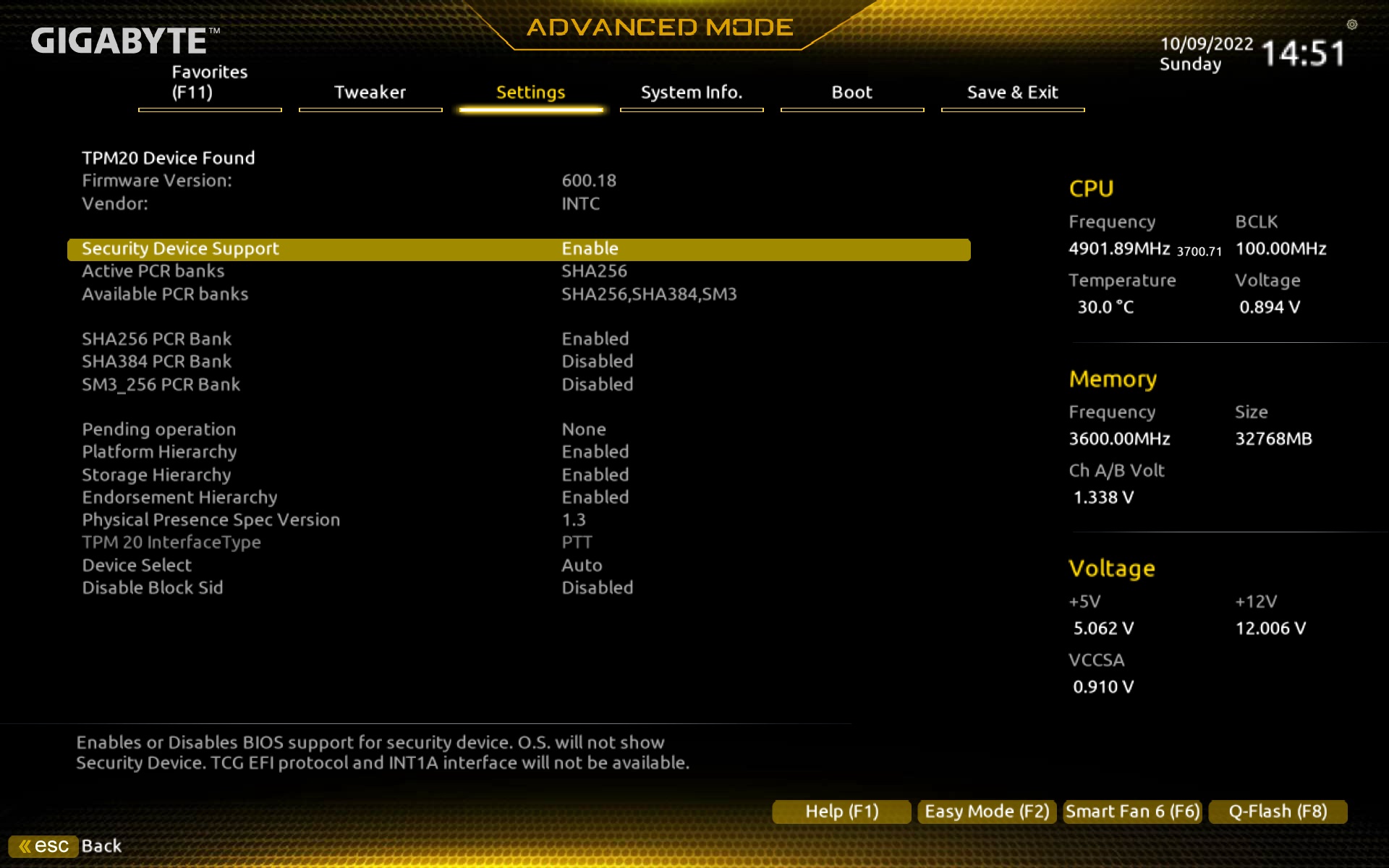
The board also includes an encryption security module (TPM), which is already active by default.
BIOS updates are traditionally done via Q-Flash and support for Intel Raptor Lake processors is already promised in the current F8 version from August 2022.

The fan management interface is as we’re used to with Gigabyte boards – with extremely detailed customisation options. Basic things like selecting control by type (PWM/DC) or adjusting the fan curve depending on temperatures is a given. Beyond that (which not every board can do) is the selection of alternative temperature sensors to manage the regulation. And there are quite a few of them, including critical spots around the PCI Express ×16 slot (according to this point the system cooling can be well optimized with respect to the graphics card) and the processor VRM.
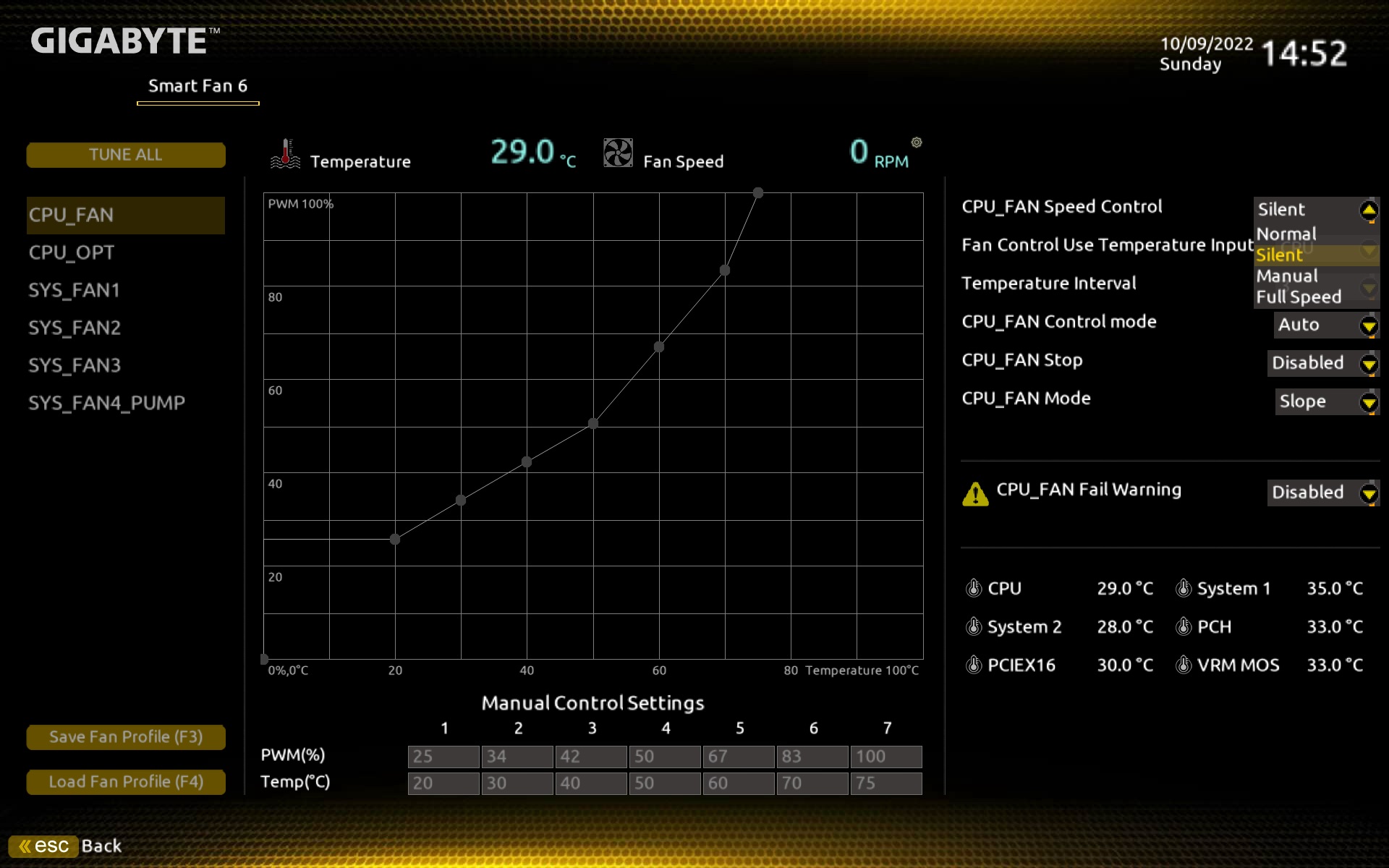
However, in our traditional testing of individual connectors, we found that the system fan connectors needed a higher PWM intensity to force their activity. For example, we didn’t get the Noctua NF-A12x25 PWM fan below 840 rpm (at 31 %), although it can start from about 230 rpm. This is a notable finding, and we will cover the issue of PWM control on the fan connectors in more detail in future motherboard tests.
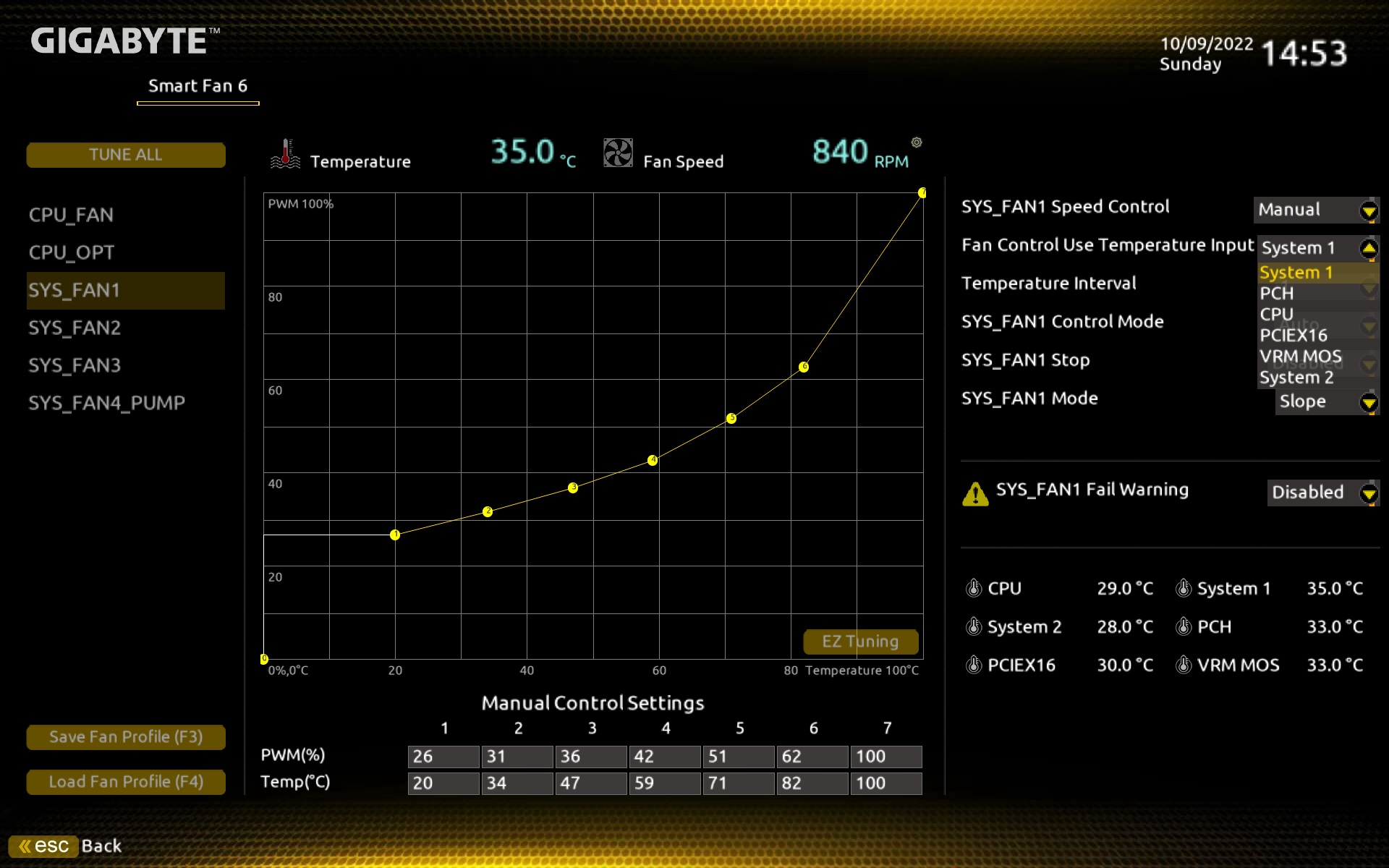

We know that the system connectors in this respect normally lag behind the more “sensitive” CPU_fan connector, but we haven’t paid any particular attention to it. But now it turns out that on at least some boards it may not be possible to slow the fans down sufficiently via all connectors. And especially with system ones that count on low speed, it can be an unpleasant surprise in the end.