The rise of AI models for content generation has been meteoric. Practical scenarios for using AI in everyday work are emerging alongside sample applications. Highlights include online services or Photoshop’s AI tools for advanced photo editing. However, not everyone wants to pay a subscription fee. We’ll explore what the open-source graphics editor Krita lets users achieve with free local AI models and how to run them on a gaming graphics card.
Add-on configuration options
The configuration window can be accessed by clicking the gear icon in the add-on dock.

The panel we know from the installation will open. In the side menu you will find the following items:

Connection – used to set up a server for AI Diffusion, where you can choose between a local, custom solution or an online service. You can select the server installation directory and monitor the status including GPU acceleration type. It also shows a list of available models, extensions and their installation status.
Styles – Allows you to manage and edit image generation styles, including model selection and their configuration (e.g. VAE, resolution, SAG). You can set keywords for default and negative prompts and customize generation parameters, for example if you want more photorealistic output or drawings. It also offers a choice of quality presets for different scenarios, including a fast or a detailed mode.
Diffusion – contains the selection area settings for generating images, including parameters such as growth, background blur, and selection offset. The user can also activate a NSFW filter to automatically block explicit content. These options allow fine-tuning of the work with selection areas and customizing them according to the project requirements.
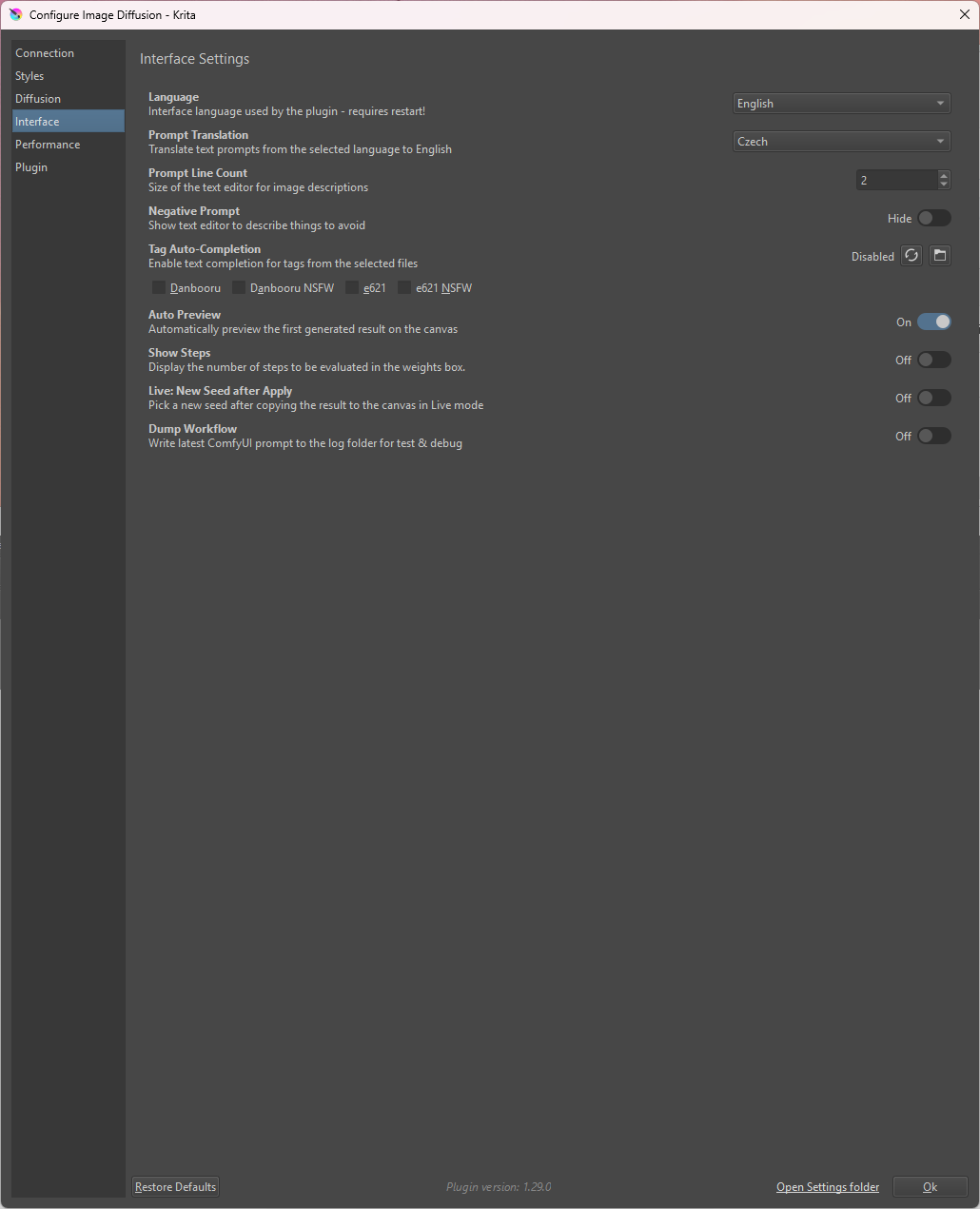
Interface – allows to choose the language of the interface. You can also enable prompt translation, which allows you to type your input directly in your own language. You can also enable autofill of tags, or features such as automatic display of results on the canvas and display of generation steps. The user can also configure the generation flow, such as saving the outputs to a log for tuning.

A non-English prompt is no longer an issue after enabling prompt translation; however, we seem to have overlooked the driver.
Performance – used to set the performance, including the size of the memory for the history of generated images (RAM and drive). It allows you to optimize generation according to hardware using preferences and adjust parameters such as maximum number of batch tasks, resolution and maximum number of pixels. This allows one to achieve a reasonable compromise between quality and generation speed.
Plugin – shows the version of the plugin, allows you to set up checking for updates and their downloading. Most importantly, you’ll find links to documentation, support and community information on GitHub, the wiki, or a link to the GitHub or Discord forums.
Detailed screenshots of the individual tabs, available features and settings in the current version are shown in the screenshots below.




⠀