We recently looked at different profiles in AMD Software, and today we’ll dive deeper into adjusting the fan control settings in more detail. First, we’ll test how fan performance affects the card’s behavior across the entire working range of fan speeds. Then we’ll focus on how fan control behavior differs between automatic and manual fan-speed settings, and on how to set the fan-control curve settings for the card.
Compared with similar tests I ran on GeForce cards, Radeon behavior differs quite a bit. For example, the GeForce RTX 5070 Ti handled the load even with its fans stopped by lowering GPU clocks and voltage, cutting power draw by 170 W. The Radeon, at high temperatures, only reduced power from 331 W to 296 W and then shut down PC due to overheating.
Another issue appears when setting the temperature-to-fan-speed curve. In manual mode, control clearly behaves differently than on full auto. If your card shows high hotspot temperatures even at relatively low average GPU temperatures, third-party tools may be the more sensible option.
Otherwise, you don’t have much room to maneuver when setting the curve control points, and the control reacts aggressively to small temperature changes—apparently because it follows the hotspot temperature, whose readings vary far more than when control is based on average GPU temperature.
This is clearly visible in the following comparison with control based on the fan curve from AMD Software, taken from the most recently tested setting.
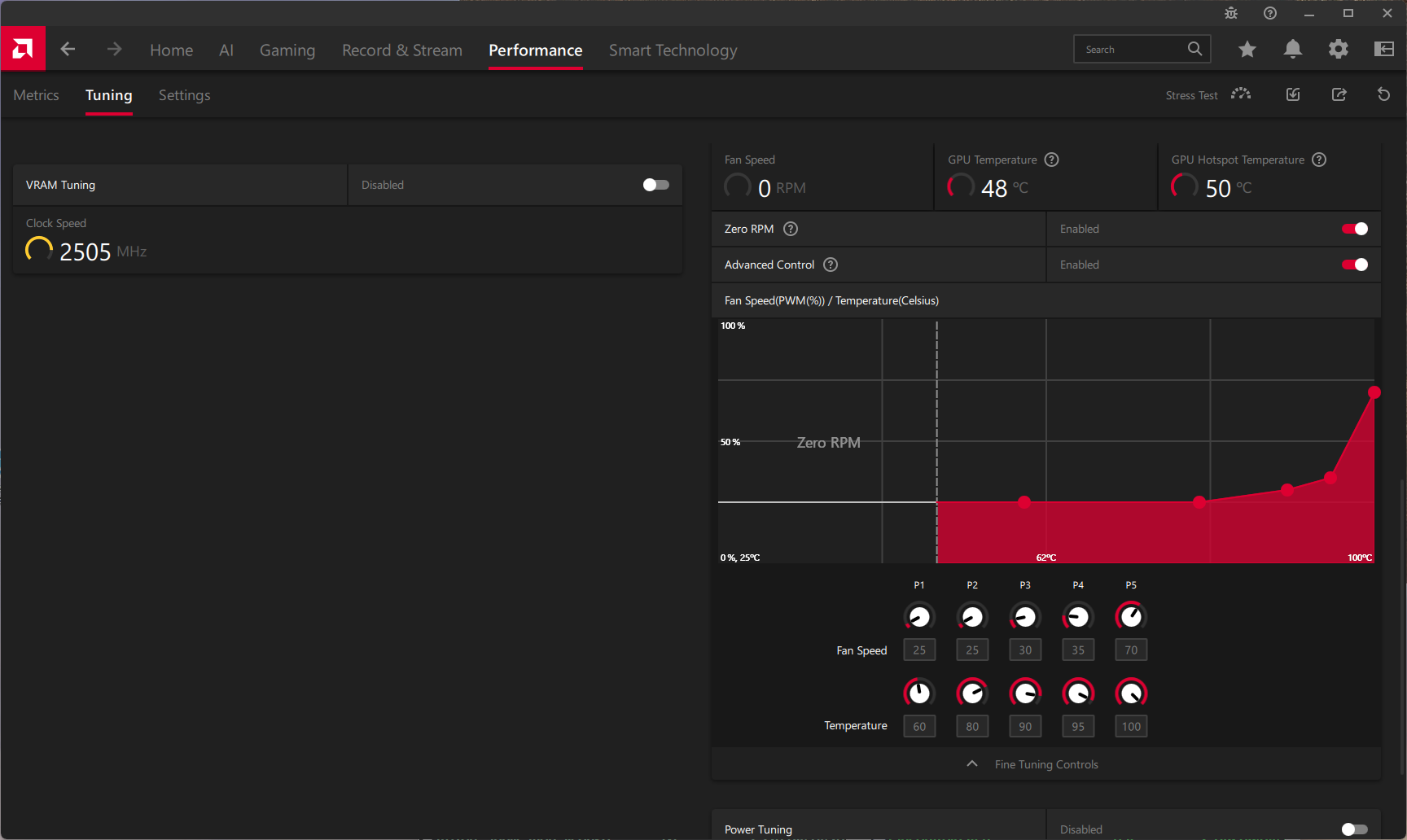


Defaults | Custom fan curve
Downside of this setting is that even if the hotspot temperature exceeds 100 °C, the controller won’t raise fan speed above 70%.
On the positive side, cards with larger coolers are a bit easier to tune with the control curve. Because the hotspot temperature doesn’t climb as close to the upper limit, you have more headroom for adjustments. Even so, the curve won’t differ much: if you want a more refined response, expect a long gentle slope and a steep ramp at the end.
If you want more refined control behavior, you’ll likely need third-party apps that let you control fan speed by average GPU temperature or set fan behavior for hotspots above 100 °C. Fan Control, for example, allows this.

It also helps to configure the card so the GPU runs cooler—for example by undervolting. That lowers hotspot temperatures and reduces the cooler’s workload.
English translation and edit by Jozef Dudáš