The TUF GeForce RTX 5070 Ti has a heatsink large enough to mount 140 mm fans. Swapping them is easy: remove a few screws and lift off the shroud with stock fans without breaking the warranty seal. We’ll use that to try a niche option—the low-profile 140 mm Arctic P14 Slim PWM PST. The card gets wider but keeps a reasonable height and, at similar temperatures, runs way quieter.
Card with 3× Asus Axial-tech fans (stock)
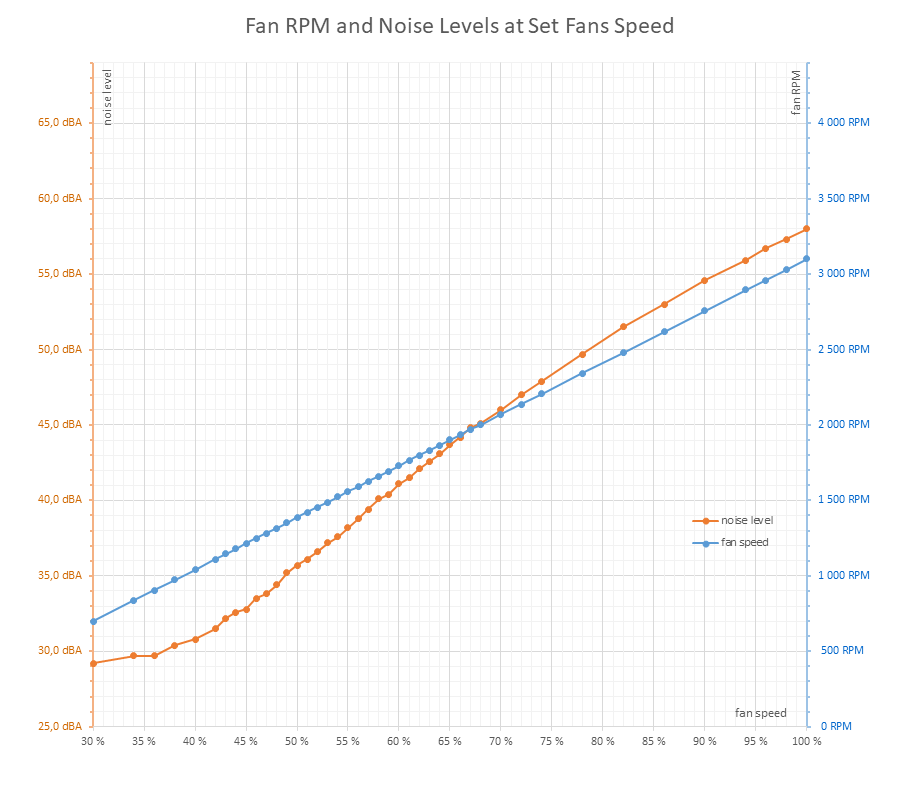
Before we get to the results with the pair of Arctic P14 Slim fans, we’ll first look at how the card performs with the bundled Axial-tech fans. The first chart shows its noise levels across the entire fan-speed range.
We’ll measure how fan speed affects the card’s behavior across its full fan operating range. Because there are fifteen steps, we’ll use short loops of the Cyberpunk 2077 benchmark with the RT Medium preset at 3840 × 2160 and DLAA.
Before the main run, we start with a warm-up loop: four passes at a fixed 45% fan speed. It isn’t included in the charts. The charts begin with the first measurement at 30% fan speed—the lowest the NVIDIA interface allows. Even if a lower setting were available, it wouldn’t make practical sense: at very low fan speeds and GPU temperatures above 85 °C, the control logic throttles GPU power, which in turn lowers clocks and performance.
Fan speed increases in 5% increments from 30% to 100%, with four loops at each setting. Only a few seconds separate the runs, so the card and the system remain warmed up.
We report values from the fourth pass (or the third, if the last run misbehaves). This chapter shows simple charts that show the overall trend as fan speed changes. The next chapter includes detailed interactive charts for each tested setting along with the exact measured values.

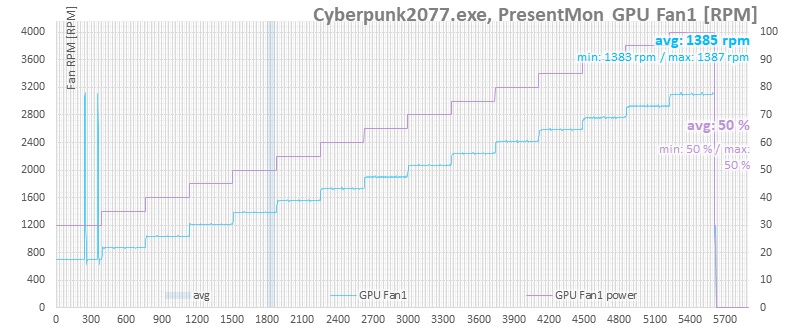
The next chart shows fan speed in the light-blue series. The fans are controlled by the card, with their duty set manually in MSI Afterburner.
At the lower limit, they start at 30% duty at roughly 630 RPM. At 100%, they spin at about 3100 RPM.
In the next chart, CPU temperature is shown in red and total CPU load in blue. As the card’s fan speed rises, case airflow increases, which slightly lowers the CPU temperature.

Performance doesn’t change dramatically. With a cooler GPU, clock speeds rise slightly and so does performance, but frame rate increases by only a few tenths of a frame per second.

It’s more evident in GPU clocks than in overall performance. Early on—when the card was starting to overheat—there were significant clock drops. Once cooling was adequate, the clocks climbed only slowly.

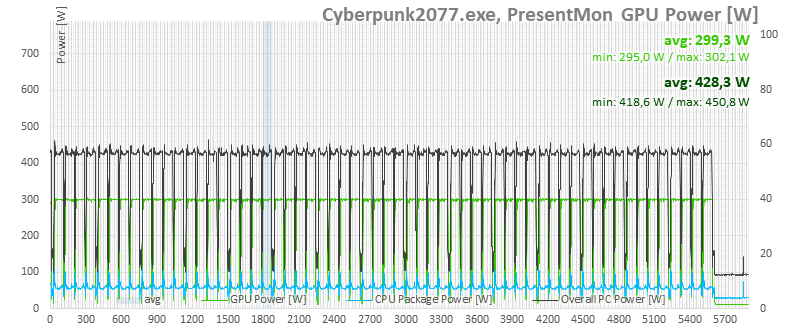
Just to be sure, we’ve got power consumption graphs for the whole setup and for the card itself, based on what the monitoring shows. There’s no noticeable performance throttling here yet.

⠀