


The information embargo on Z890 motherboard tests (and also Intel Core Ultra 200S/Arrow Lake CPUs) is over. We kicked off our tests with an in-depth analysis of the MSI MAG Z890 Tomahawk WiFi motherboard, which also sheds light on the features of the Core Ultra 7 265K CPU. Primarily though, this will now be about the Z890 Tomahawk, which in some places has some major changes from its last generation.
What it looks like in the BIOS
The graphical interface has undergone a significant transformation. Functionally, however, not much has changed. You’ll probably get used to everything fairly quickly, where the main EZ Mode window structures everything into logical segments.

For example, preset profiles with variously defined power limits have been added to the EZ Mode area. Firstly, it is the “Intel Default Settings” with PL1 and PL2 at 250 W, and through other, more aggressive options, where PL1 is already different from PL2, you can also get to a setting with no power limits. Here, for more powerful processors, the available cooling performance of the CPU cooler will already be the typical limit. The individual profiles will naturally differ from processor to processor. You can also switch between them in the advanced settings in the “Overclocking” tab.


You will be prompted to decide between the “appropriate” profile right away, even before entering the Click BIOS. This is because you will be stopped by a window where you must select one of the options (Intel Default Settings/MSI Performance Settings/MSI Extreme Settings/MSI Unlimited Settings) to continue.

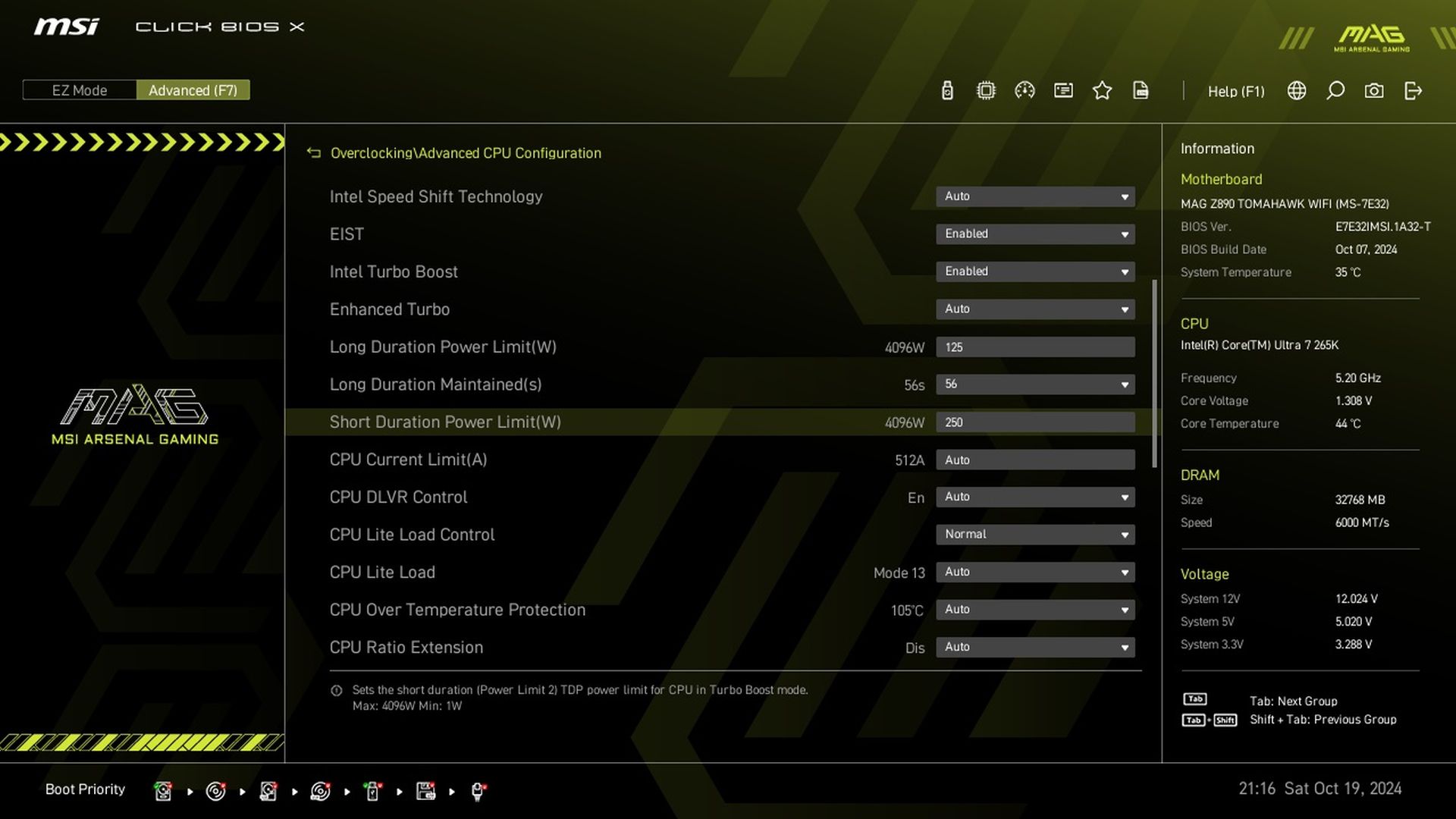
In the advanced settings in the “Advanced CPU Configuration” section, it is as always possible to set both PL1 and PL2 limits exactly to your liking by entering specific numerical values in watts. This can be done, for example, also with the application of the Tau time limit for short-term loads.

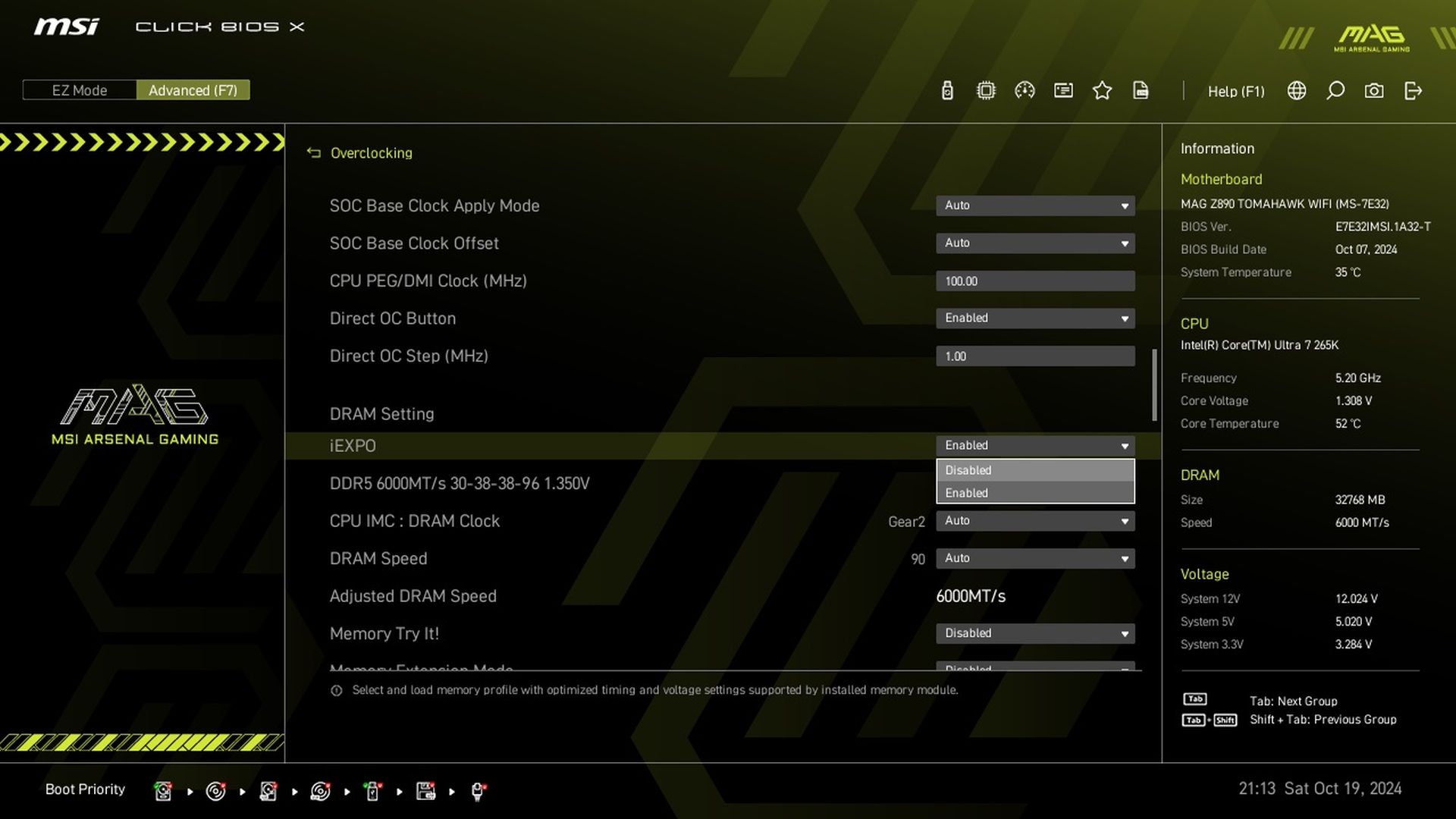
If you didn’t set the memory profile right away on the EZ Mode home screen, you can do so in the advanced settings. There you’ll also find options to set the memory controller (IMC) in the processor, which is at Gear 2, or half the bandwidth, with the faster modules (6000 MHz is also considered as such).
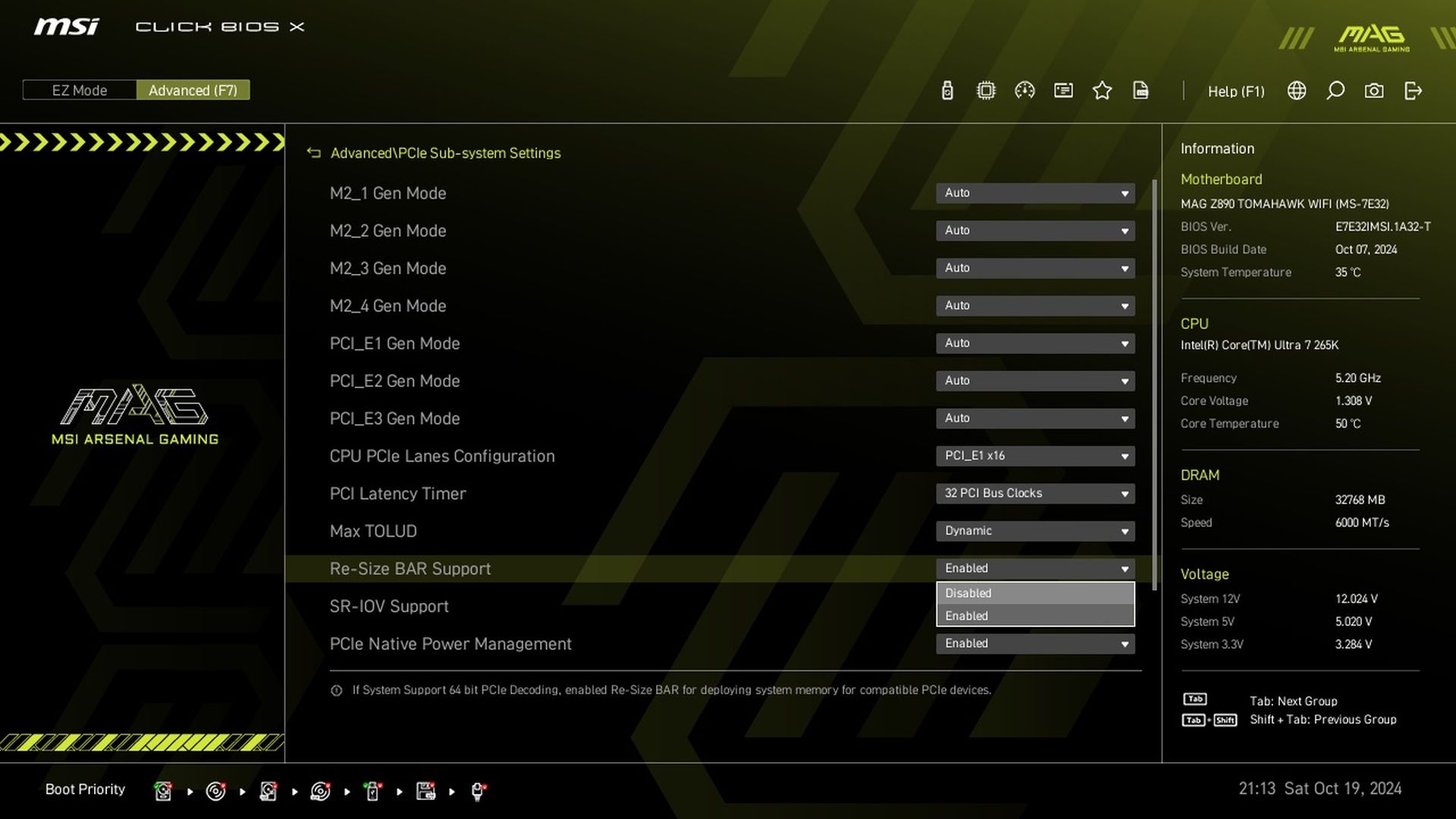
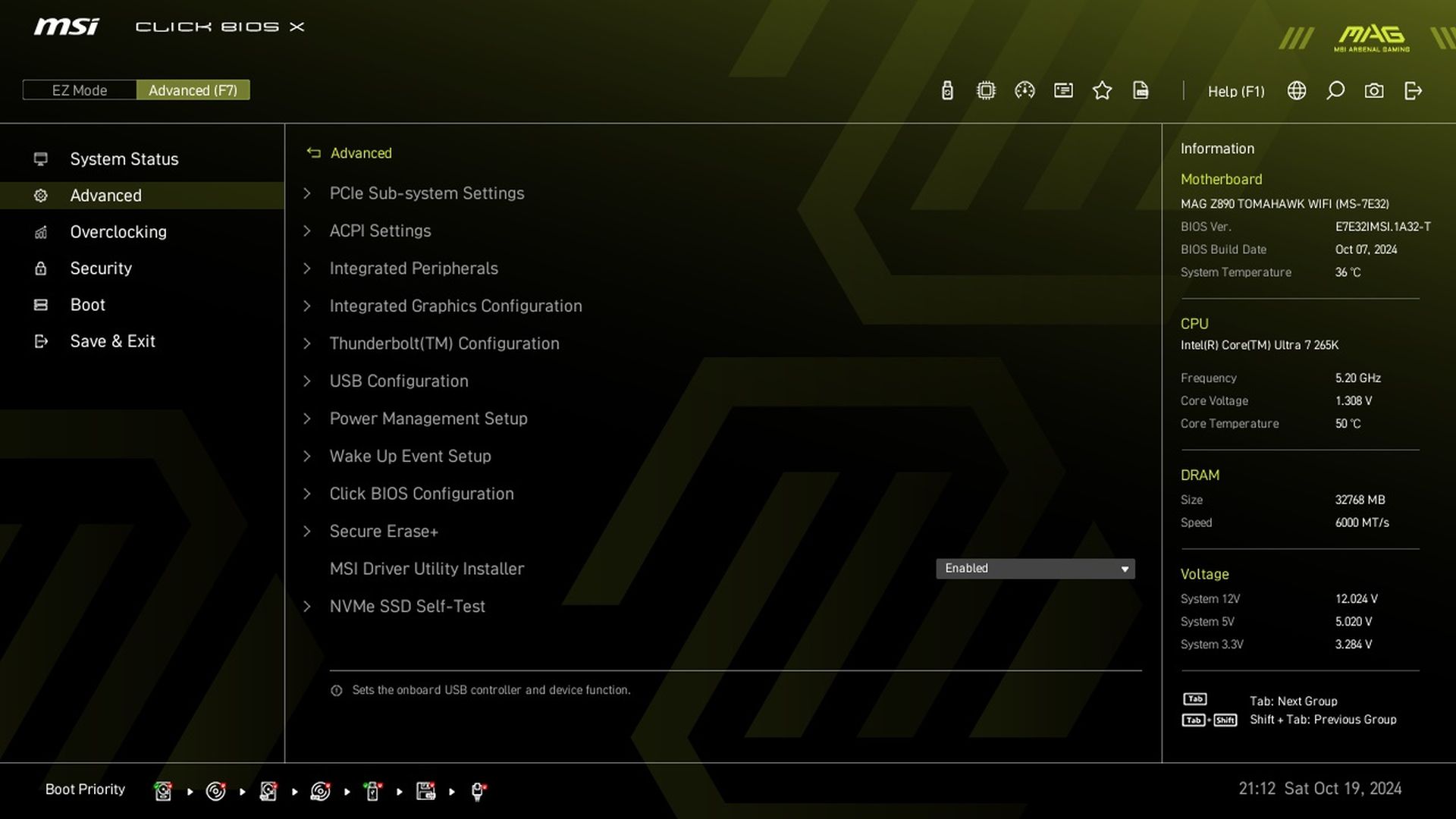
Resizable BAR? It can be eventually disabled (in factory settings this technology is enabled) in the “Advanced” tab, subsection “PCI Sub-system Settings”. We don’t know what the current state of affairs is, but in case you typically encounter lower than expected performance in compute tasks (ReBAR used to worry us in tests with the ProRadeon renderer), the disable button is available.
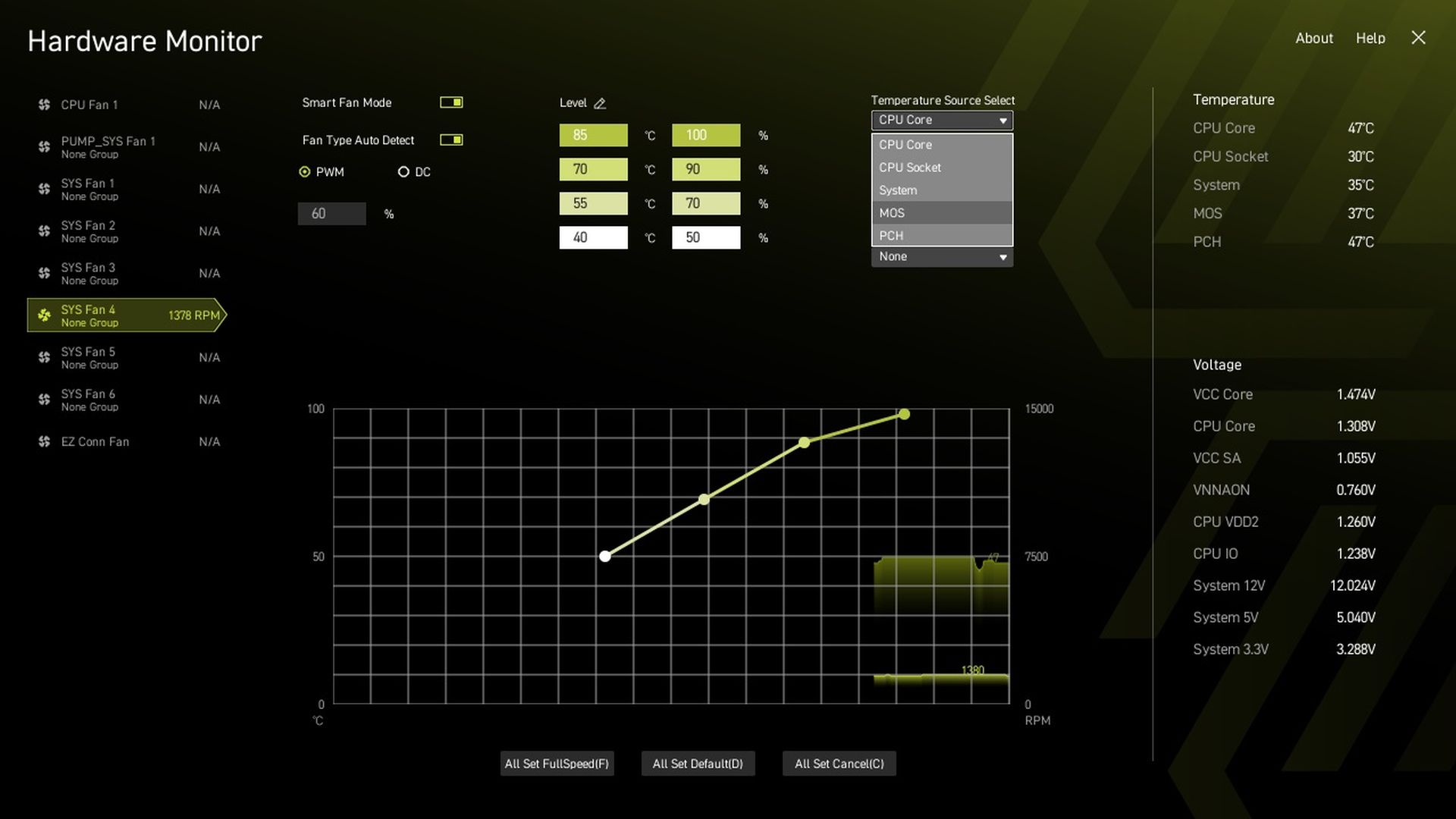
Although in different colors, functionally it’s still the same Hardware Monitor. Through the fan management interface, you can customize the fan on each header in detail. From selecting the type of control (PWM/DC), to manually setting the curve (overlap of temperatures with PWM duty cycle), to selecting the specific temperature source on which the fan (or fans) speed curve will be based. There are a total of five temperature sources – CPU, CPU socket, System, MOS/VRM, and PCH/south bridge of the Z890 chipset.





Links in the last page are broken. They’re missing intel- at the beginning.
Thanks! Fixed. 🙂