




Extremely robust power delivery, 10-gigabit ethernet, a huge number of USB ports and more – that’s what comes with one of the most feature-packed LGA 1851 platform motherboards, the MSI MEG Z890 Ace. This is mirrored, of course, by the remarkably high price tag. Such a wealth of features comes at a price, and it’s all about whether you see a potential in it that you can appreciate. Be that as it may, MSI has packed it really properly.
What it looks like in the BIOS
The EZ Mode user interface has undergone several changes between generations. Individual elements have been rearranged somewhat, with key features remaining (such as the button to activate iEXPO/XMP 3.0) and new ones added. These include CPU power preset profiles in four levels that start with “Intel Default Settings” with PL2 at 250W and a current limit of 347A.
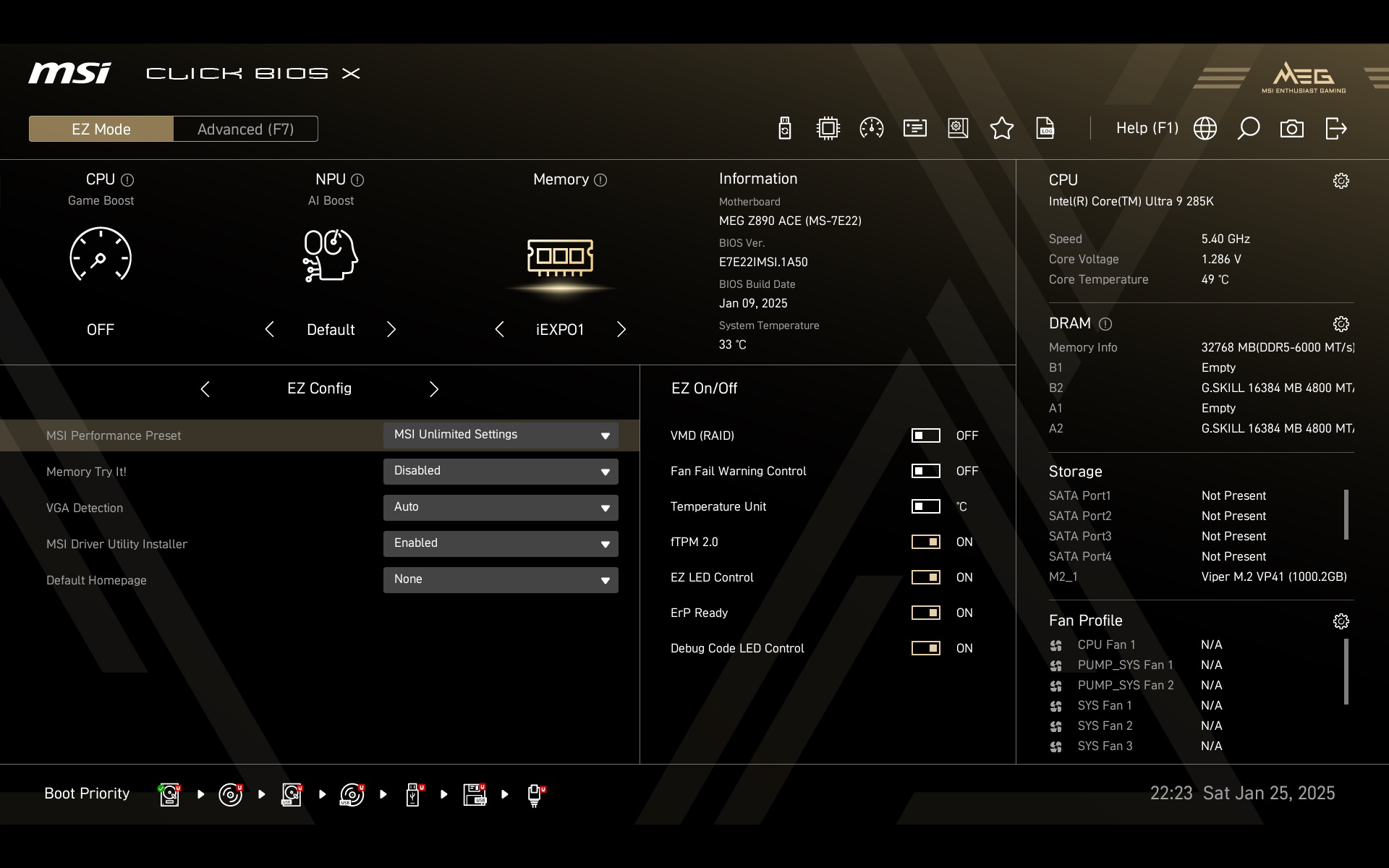
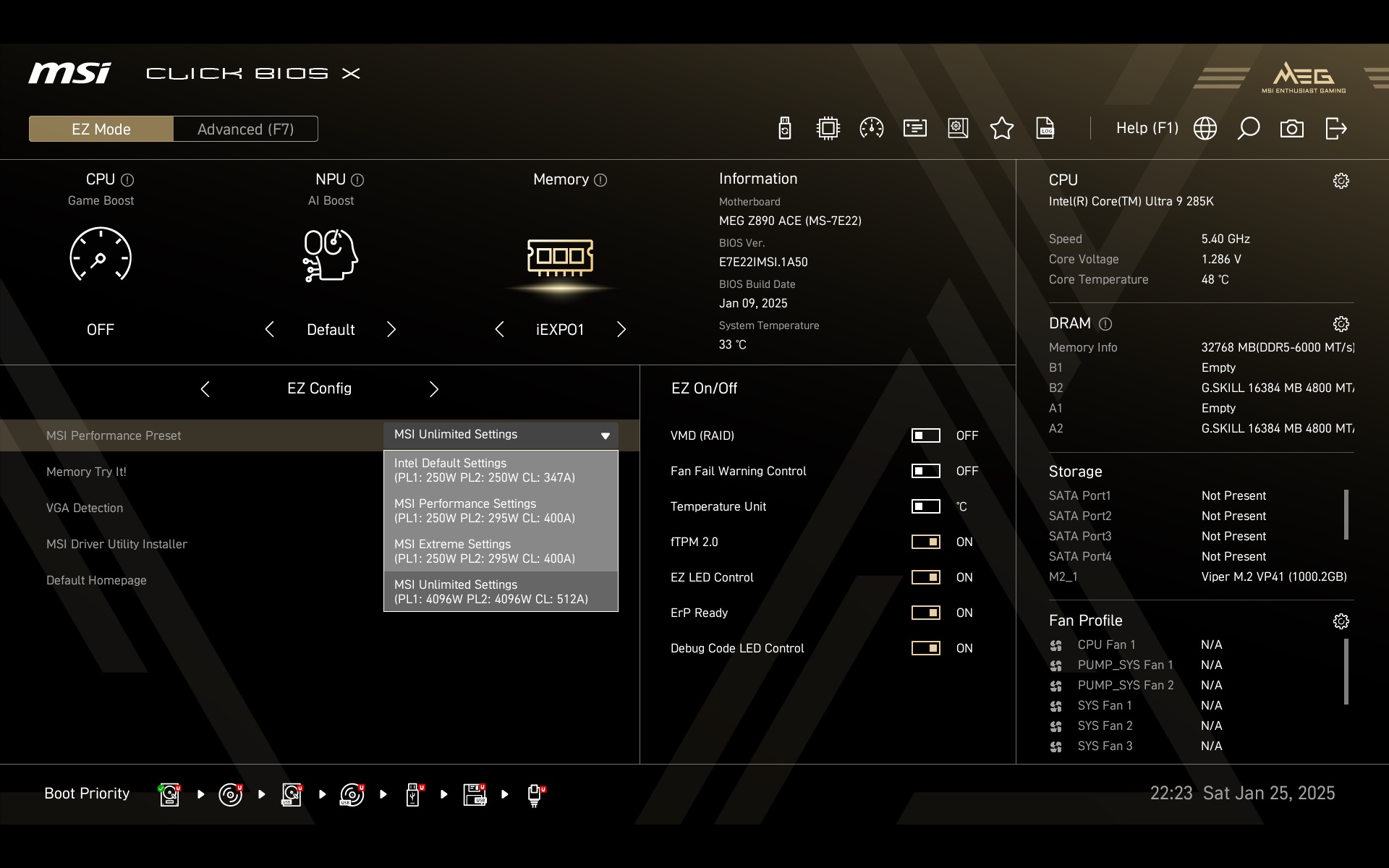
“MSI Performance Preset” can be found in various places, including the very first screen you have to go through (when you first get to the BIOS).

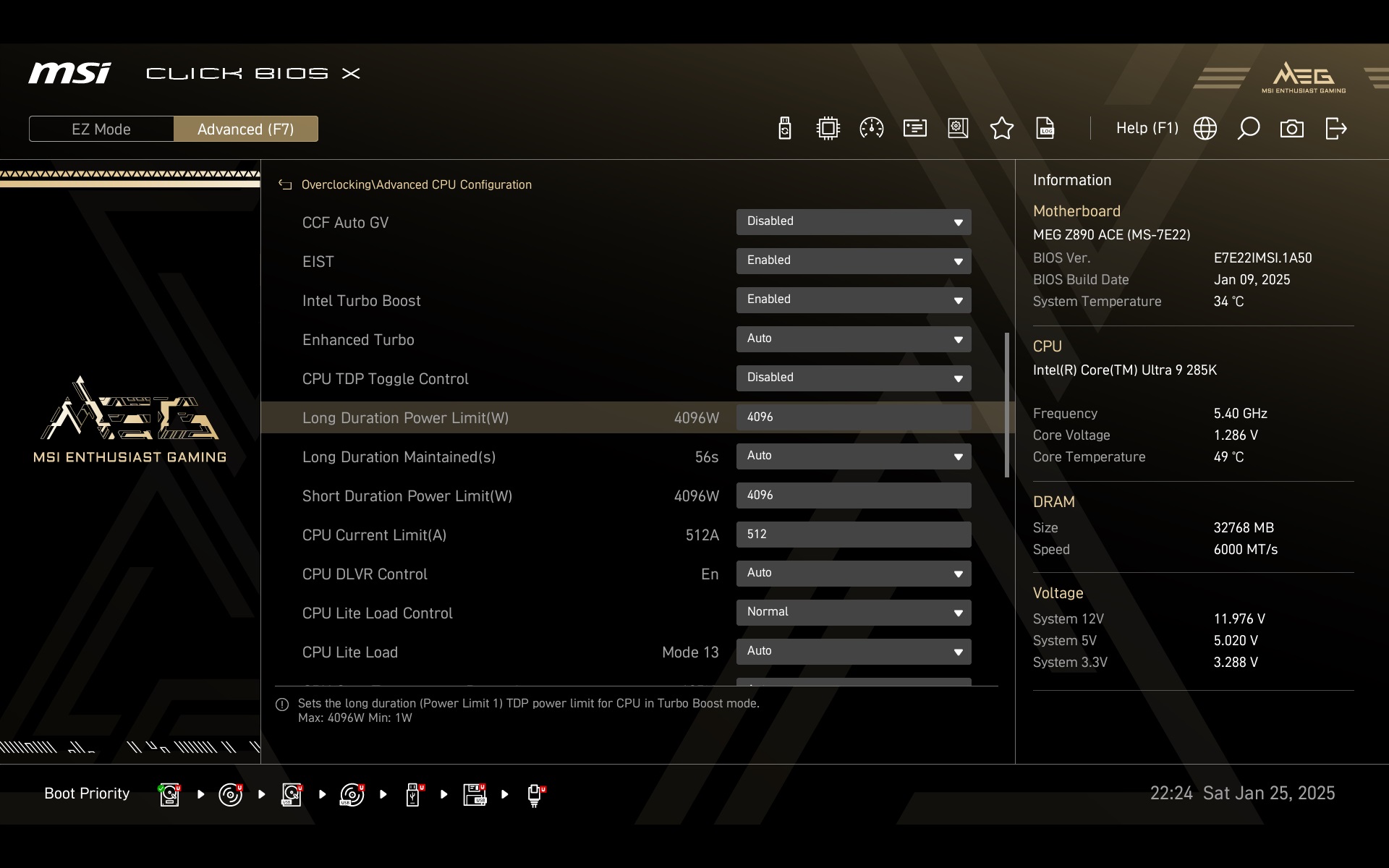
There are then a number of power management options in the advanced settings (press F7 to access those from EZ Mode). On the Overclocking tab is again the traditional slide-out bar with three preset profiles, but then you can also set the CPU power limits manually. This again on the Overclocking tab, sub-tab Advanced CPU Configuration. You enter specific values for both long and short term power limits. And then also for the current limit or for the Tau timeout.
The power is specified in units (W), where the maximum limit is “4096”. This setting represents the “no power limits” option, but you don’t need to worry. The high value of 4096 W is only theoretical and the processor is far from reaching it, even with the most powerful cooler in existence. In fact, rather than power limits, it’s the temperature limits that will virtually always knock performance down. But even if they don’t, CPU power will always be lower. There is, of course, already some performance limitation (due to the effect of the preset power limit) in the secondary settings of the PL2 at 250 W, with which we are testing.
The power supply intensity is also shaped by the CPU Lite Load settings. Remember how this used to add or detract from the power efficiency of the Pentium G7400.


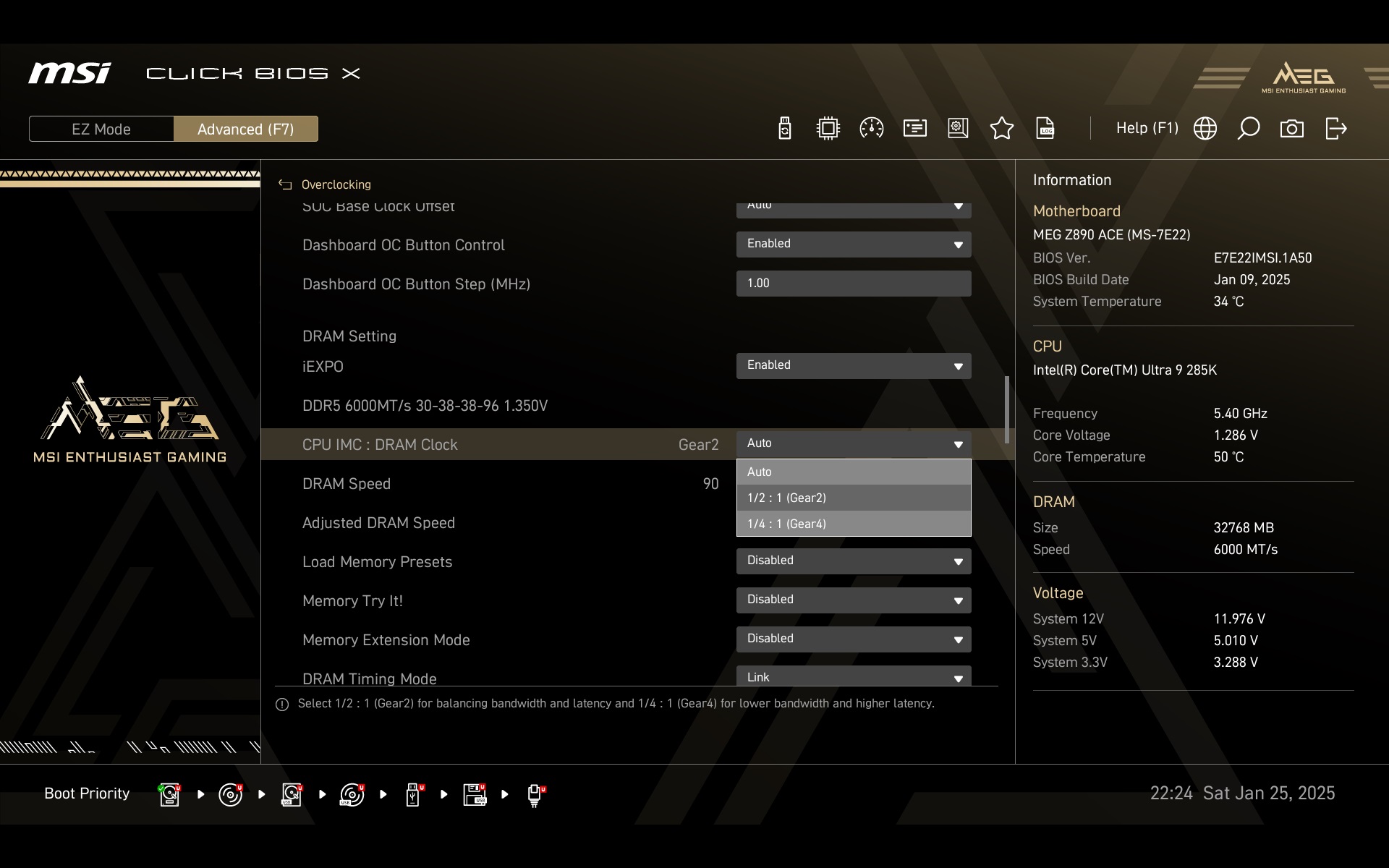
If you have not enabled a memory profile on the EZ Mode screen, this is also possible in the more advanced DRAM Settings options. There you can also adjust the memory controller (IMC) bandwidth in the processor and many other things within the advanced settings. However, only interfere with these if you know exactly what you are doing. Otherwise, you may encounter instability or the motherboard not POSTing at all.

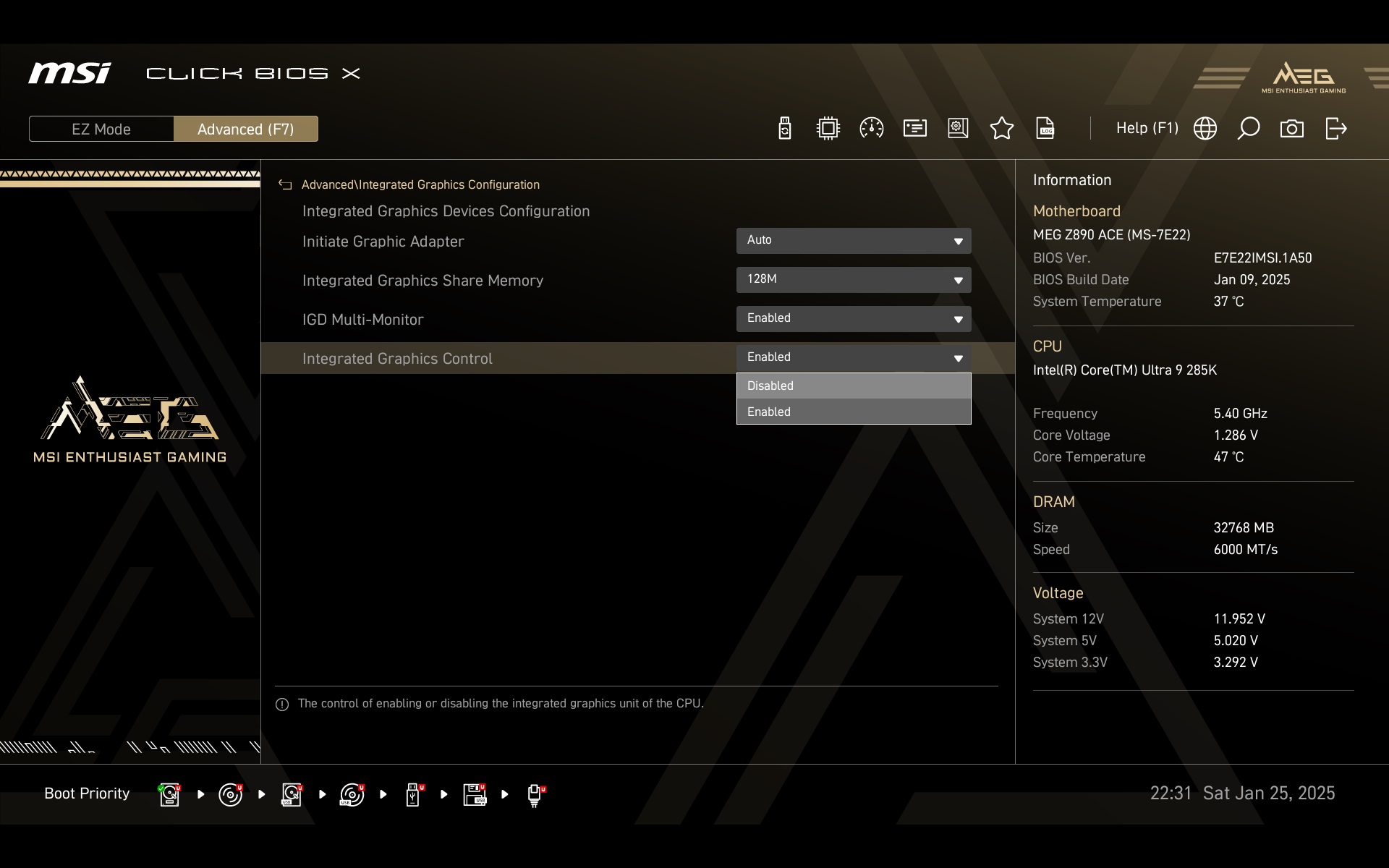
In the advanced settings, you can also access the (de)activation of an iGPU, which can be a part of supported processors.

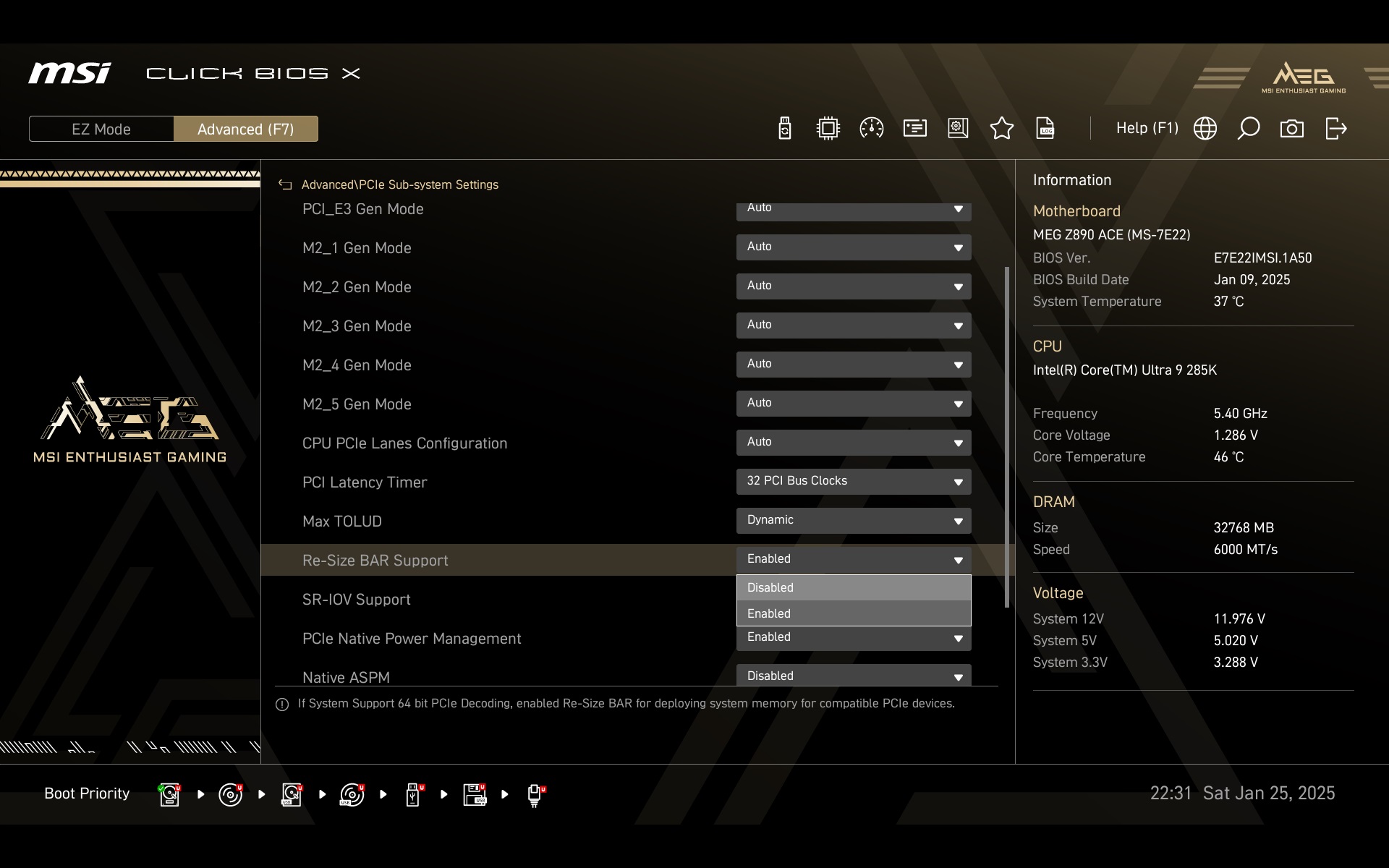
And the PCIe memory subsystem settings also hide a button to enable or disable ReSizable BAR. ReBAR is active by default, but there may still be situations for which it is appropriate to disable it. Typically because of an opposite effect to what this technology should have. That is, in applications where ReBAR activity does not increase performance, but instead decreases it.
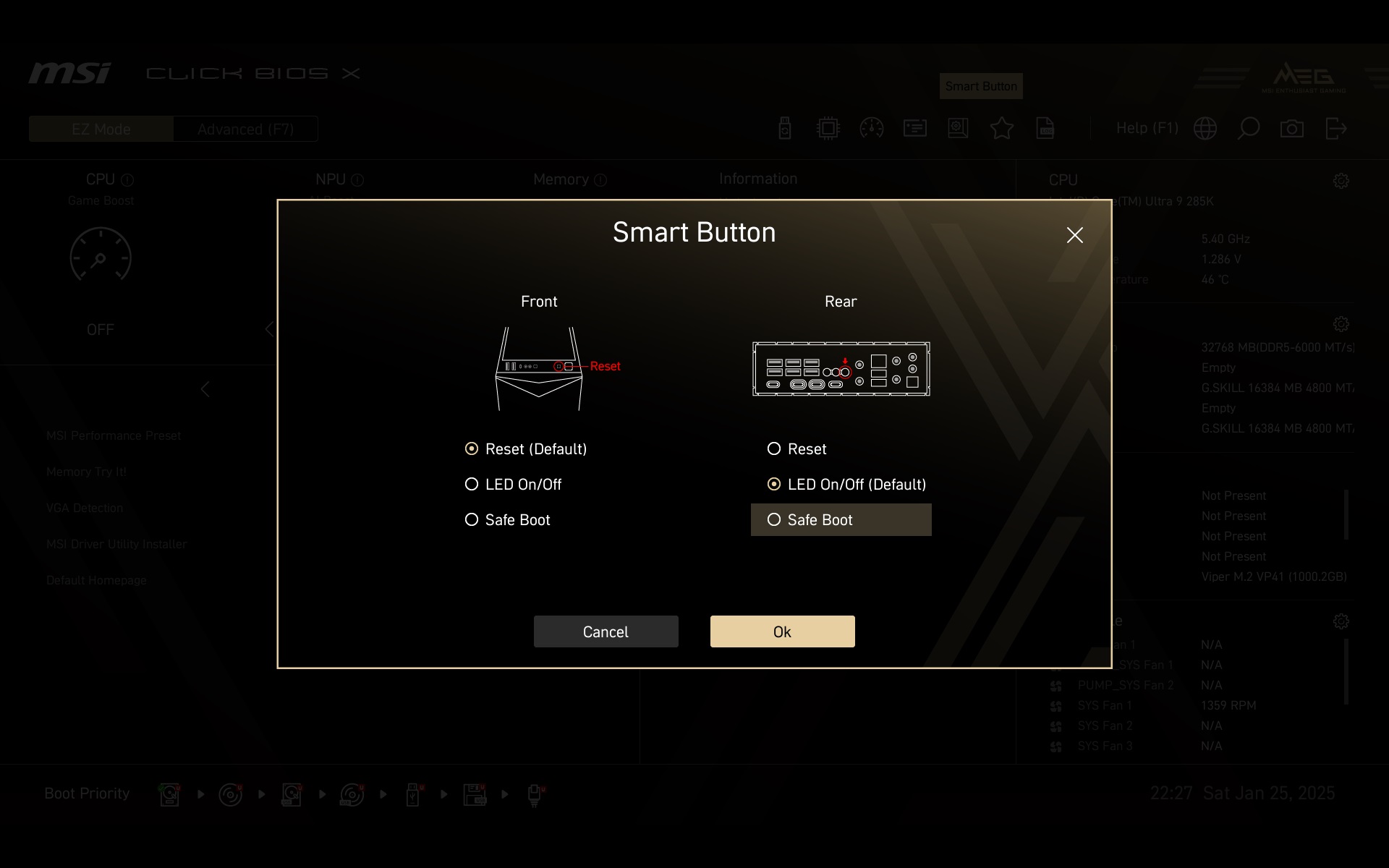
Smart Button? There are also three buttons in between the connectors on the rear panel, one of which can be optionally programmed to a desired function. By default, it serves as a “reset”, but can also be used as an LED switch or for Safe Boot.
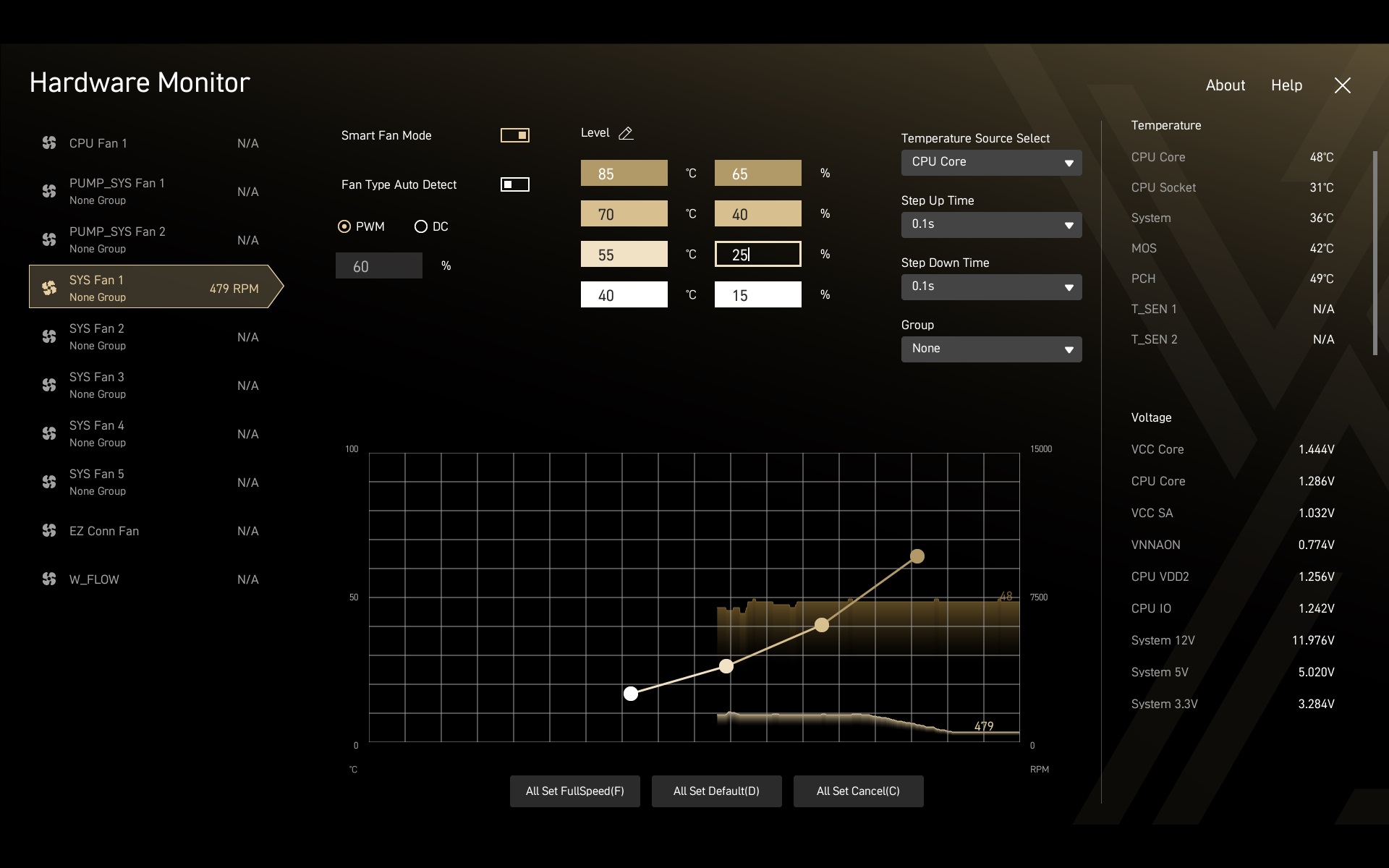
The fan management interface – Hardware Monitor – is really detailed. Compared to older revisions, there is a table for entering numerical values for PWM duty cycle or linear voltage (in case of DC control mode).
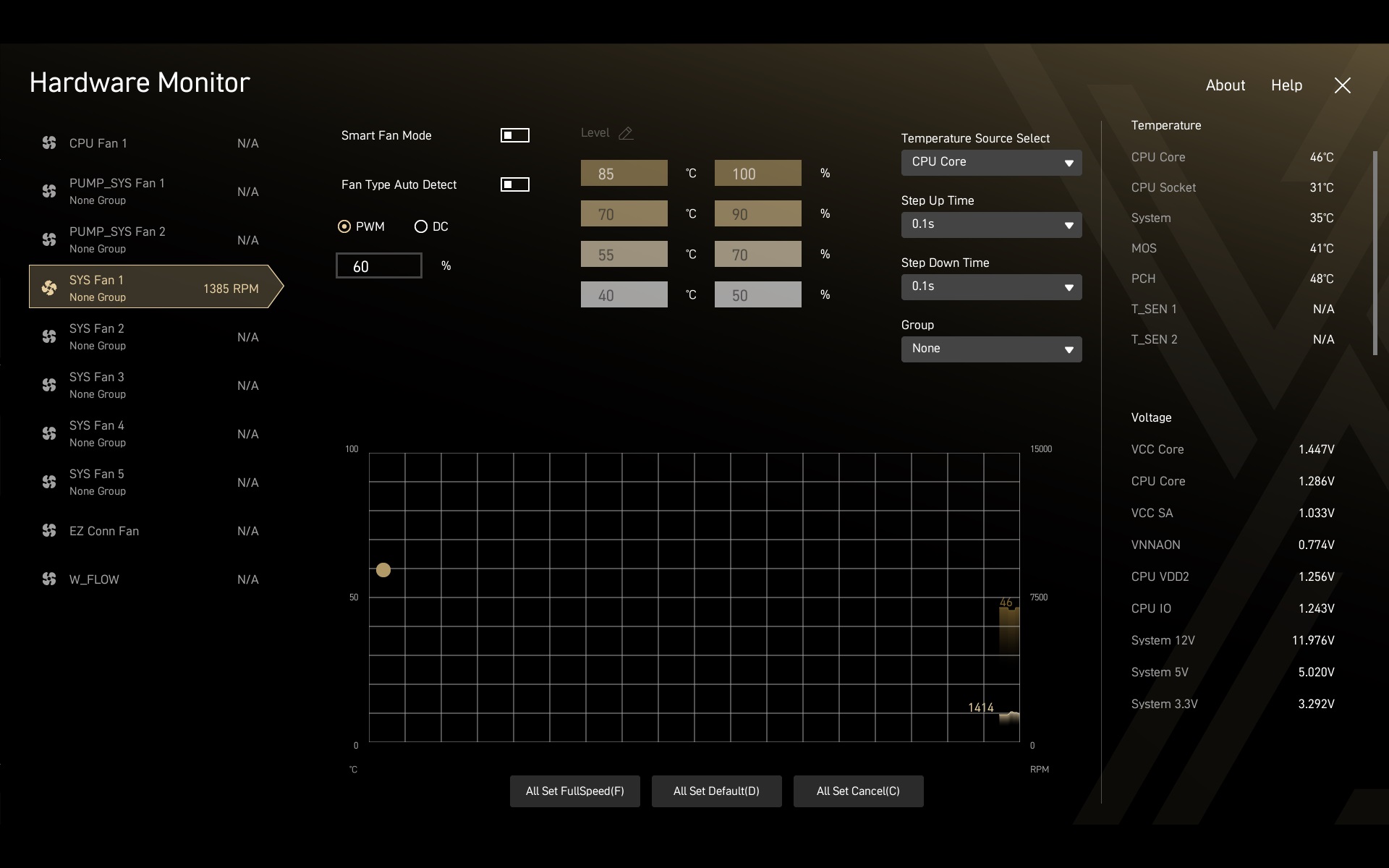
The curves can be derived from seven temperature sources. You can adjust the preset control according to CPU hotspots, while you can also select any position for two of the sensors, as these are linked to additional thermocouples (T_SEN 1 and T_SEN 2).





https://www.hwcooling.net/en/msi-meg-z890-ace-28-phases-for-arrow-lake-cpus-and-review/33/
Zahrievanie CPU
Oops! That page can’t be found.
Thank you for pointing that out! It’s fixed now. We had forgotten to upload the charts for that chapter, so they weren’t showing up. Everything should be fine and fully functional now. Great that you brought this to our attention, because there were actually a few more mistakes we noticed in the process—for example, the chapter title wasn’t localized into English. 🙂