


When Asus, Noctua, and Nvidia team up, it’s clear the result won’t be a compromise. For those who find the RTX 5090 already too expensive, the GeForce RTX 5080 Noctua OC Edition offers a unique combination of a massive heatsink and three top-tier Noctua NF-A12x25 G2 120 mm fans. An air cooler capable of keeping a powerful 360 W card at low temperatures with the fans spinning at just under 700 RPM is something you rarely encounter.
GPU clocks and temperatures under load across the full range of fan speeds
The Noctua NF-A12x25 G2 fans’ maximum speed and airflow is lower than that of the fans commonly used on graphics card coolers. That’s why the heatsink needs higher capacity and more thermal headroom.
Even in Q mode the cooler is exceptionally quiet while the GPU core and memory temperatures still leave headroom to reduce the fan speed further.
From the charts below, you can see how fan speed affects overall performance, GPU clocks, and temperatures across the entire adjustable RPM range.
Manual Fan Speed from 100 % to 30 %, in 5 % steps
Due to the time-consuming nature of this test, we’re using short loops of the Cyberpunk 2077 benchmark using the RT Medium profile at the native 3840×2160 resolution.
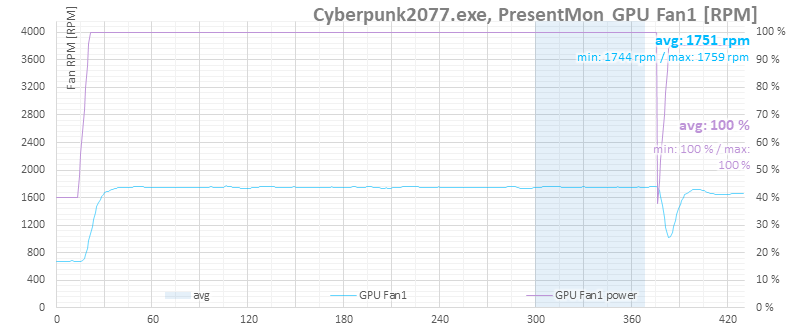
Before the measurements, I run a warm-up: four benchmark loops with the fans fixed at 40% speed. The charts start with the first loop at maximum fan power (1760 RPM) and step down gradually by 5 % to the minimum—30% and 530 RPM.
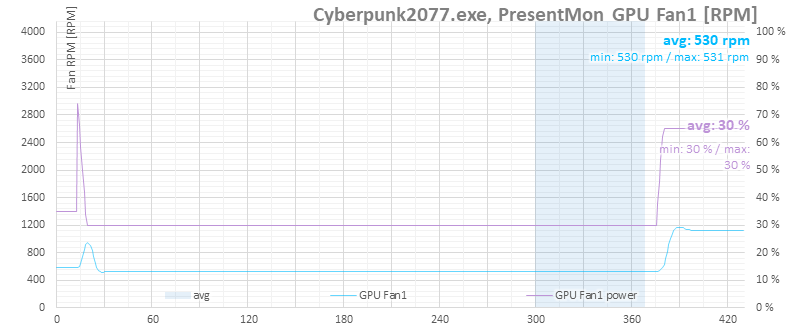
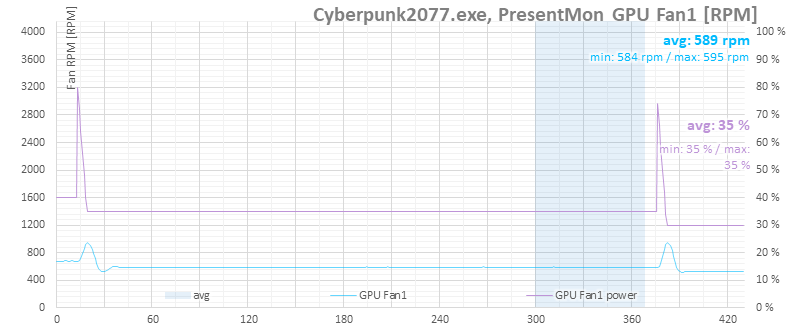
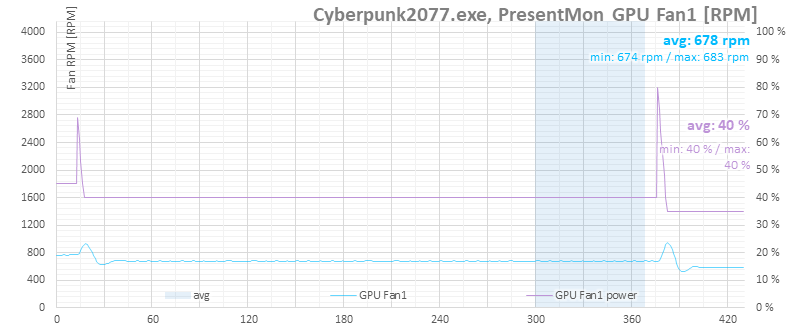
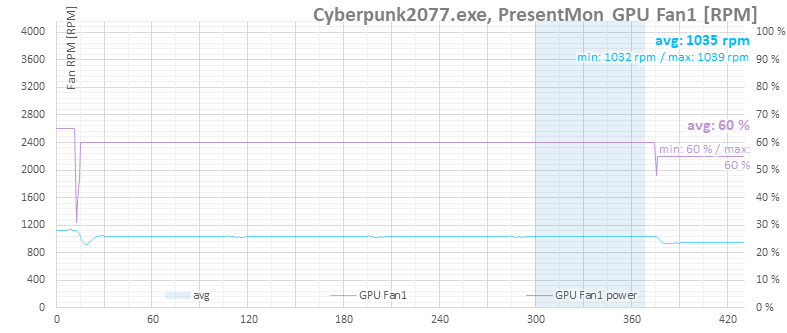
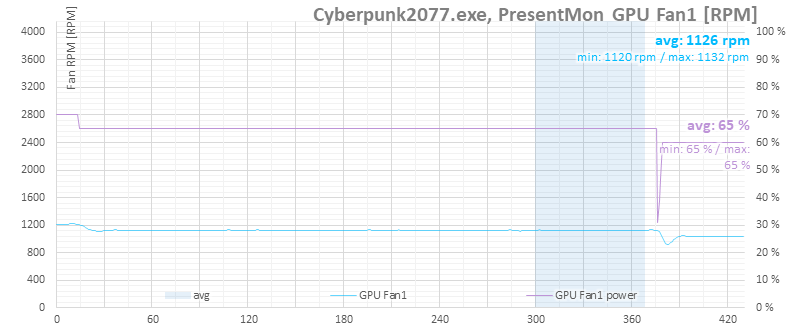
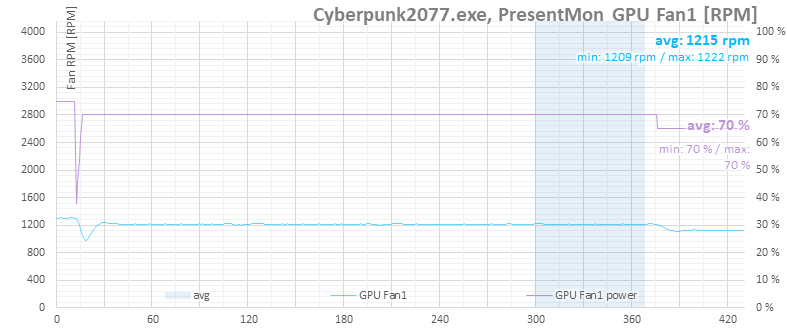
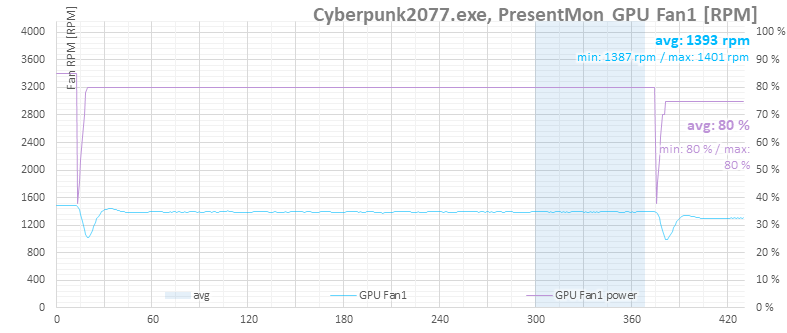
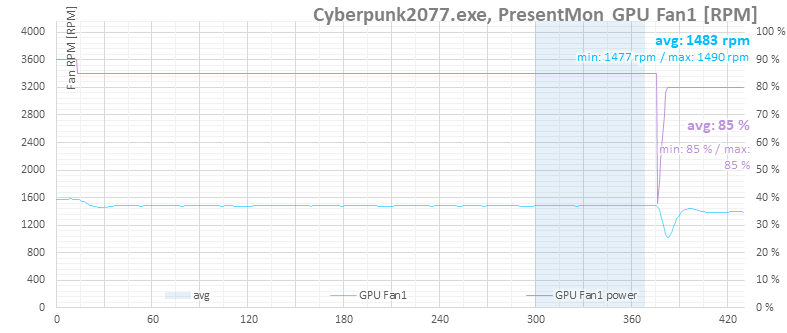
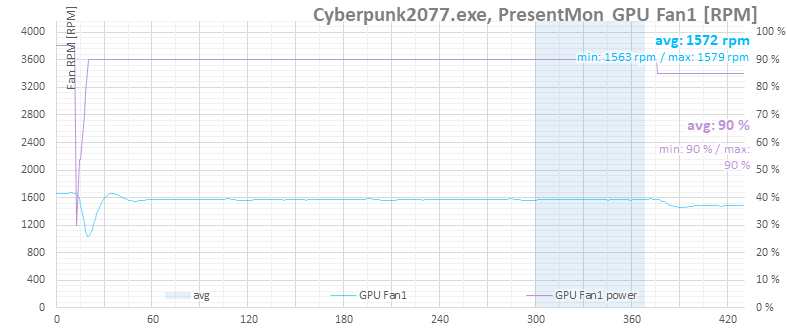
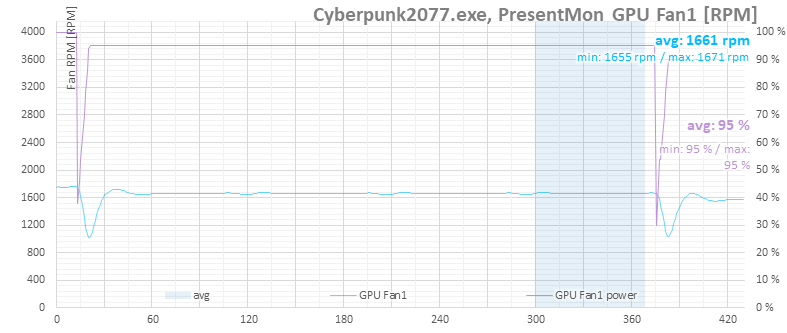
We’ll start with the fans speed. The purple series maps to the left axis and shows the set fan power. The light-blue curve shows the resulting fan speed (RPM). All three fans are set to the same power and typically differ by only a few RPM.
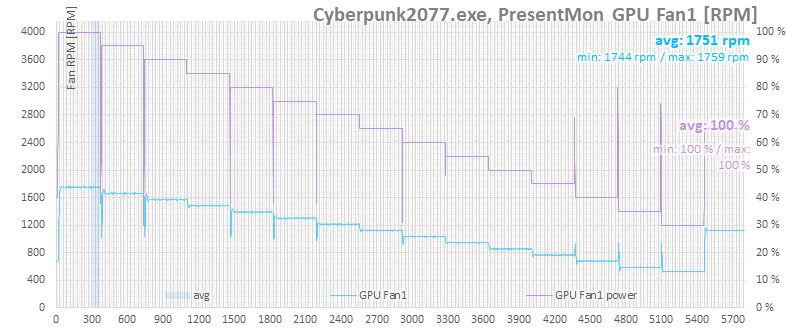
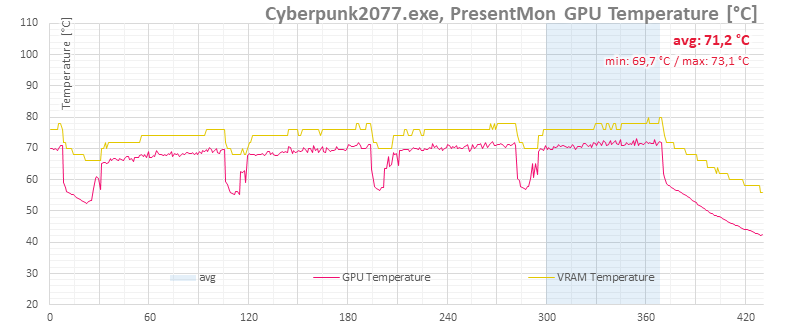
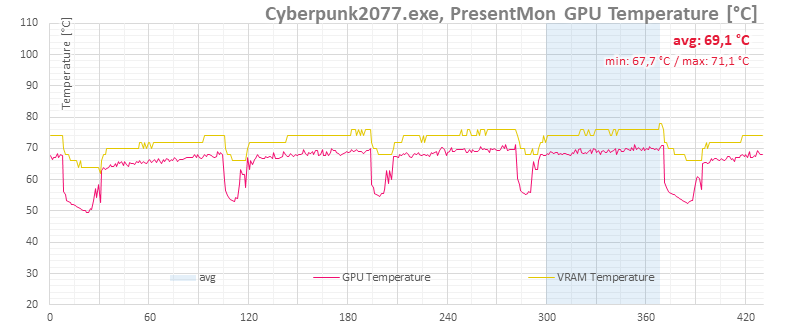
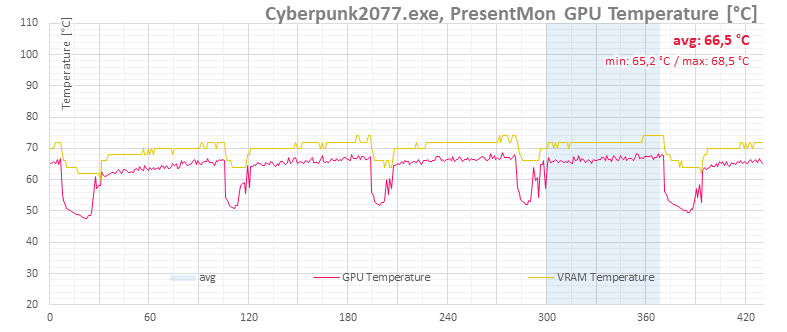
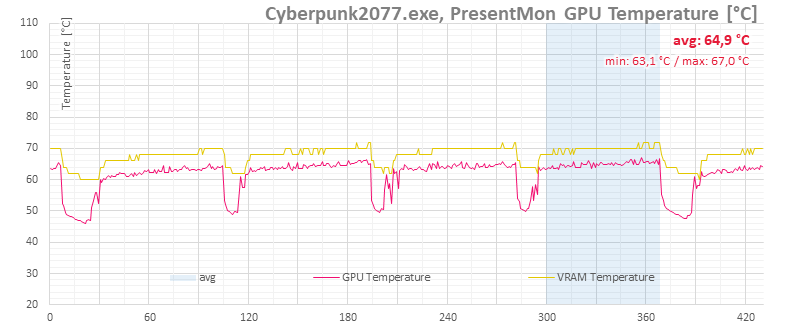
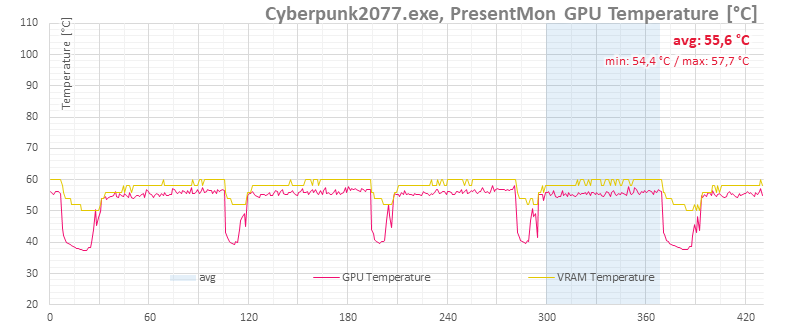
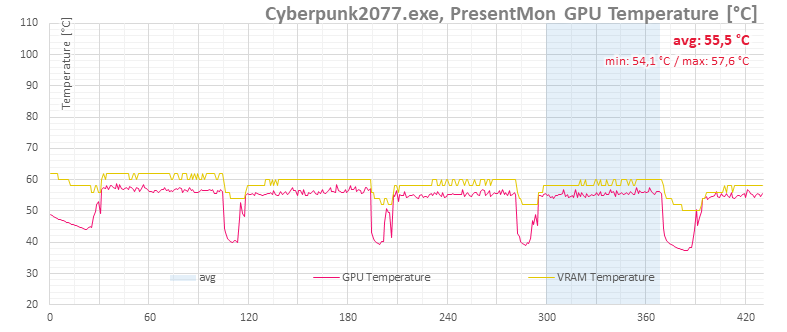
At maximum fan power, both the GPU core and memory temperatures are below 60 °C. At the minimum fan speed, memory reached about 80 °C and the GPU stayed under 74 °C. With a longer sustained load, they would likely rise by a few more degrees.
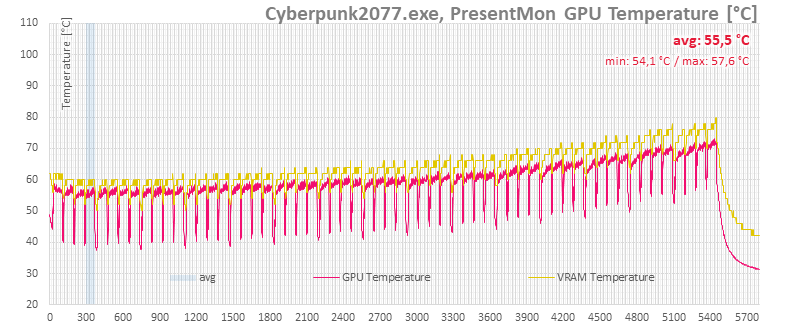
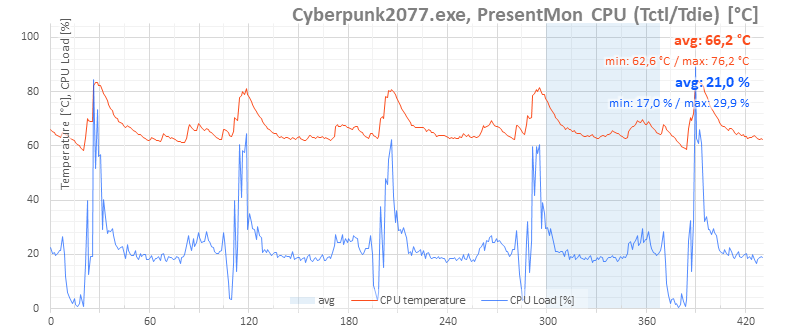
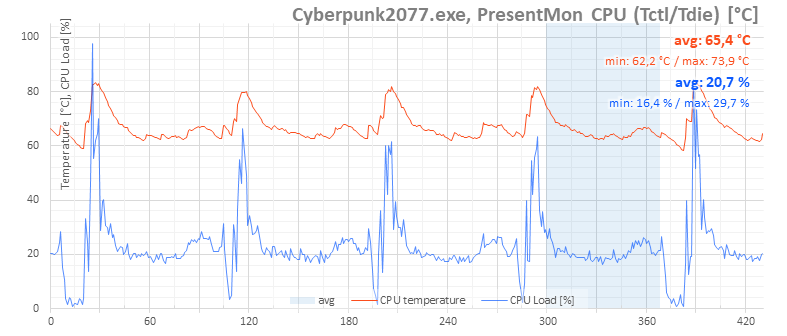
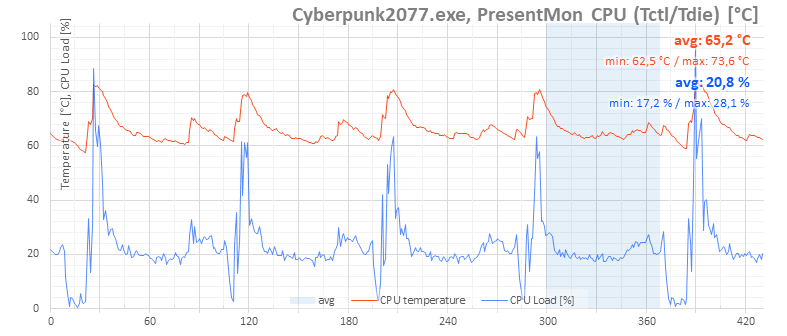
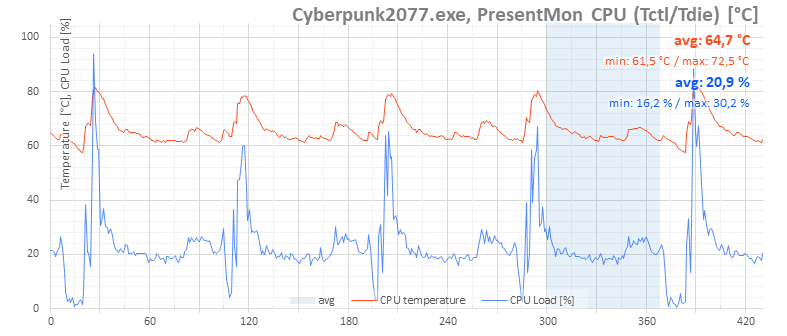
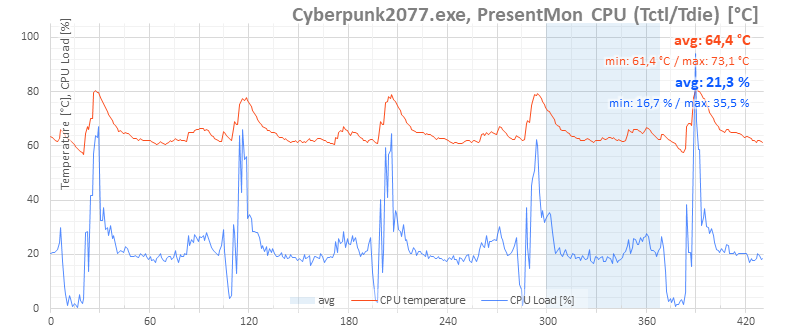
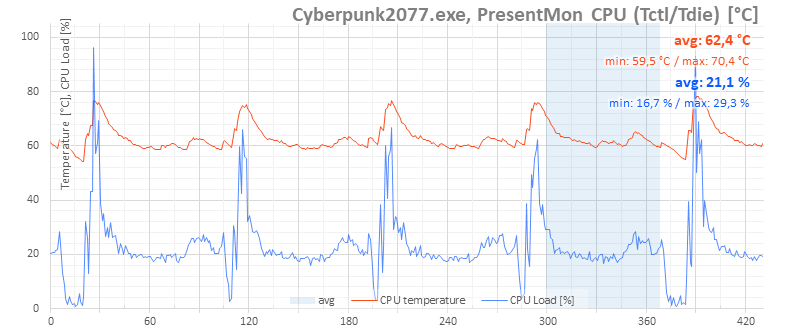
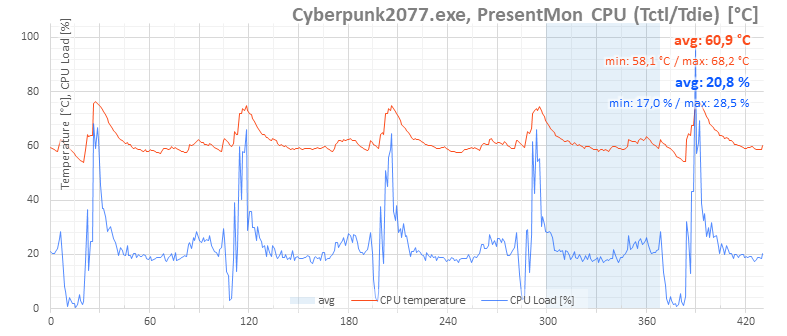
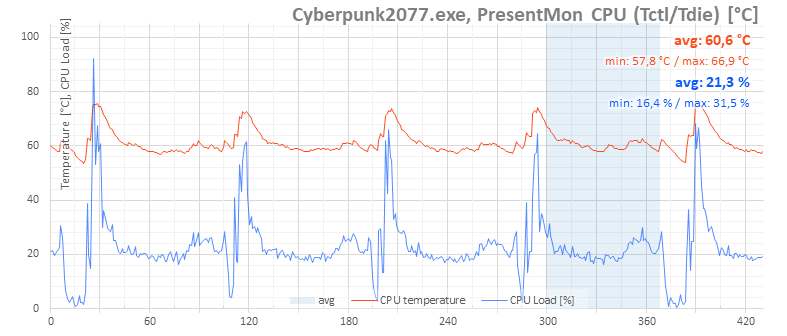
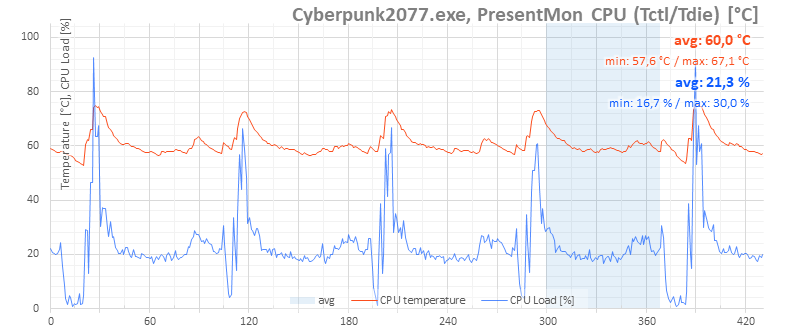
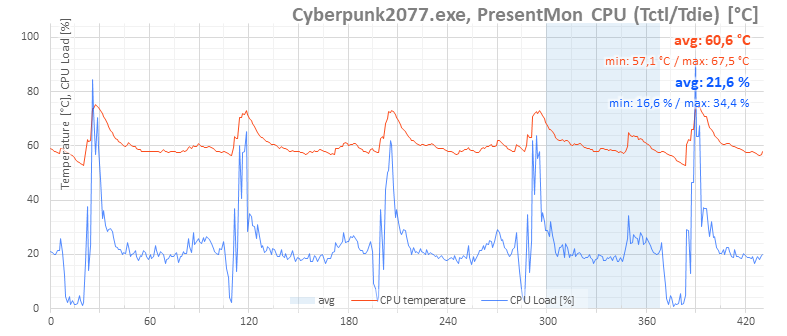
In the next chart, you’ll see CPU temperatures. Higher fan speeds on the graphics card also improve the overall airflow inside the case.
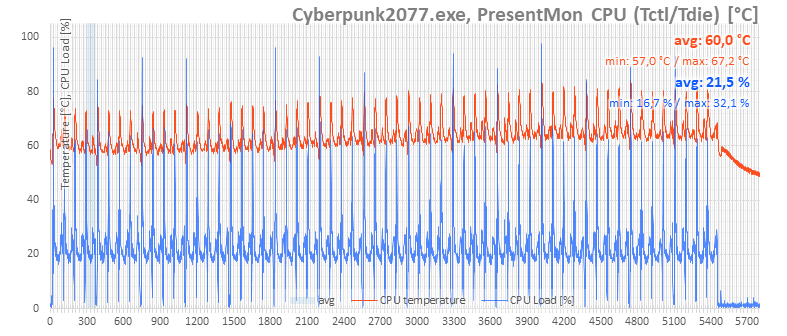
Reducing fan speed results in a small drop in GPU clocks, but it’s barely noticeable.

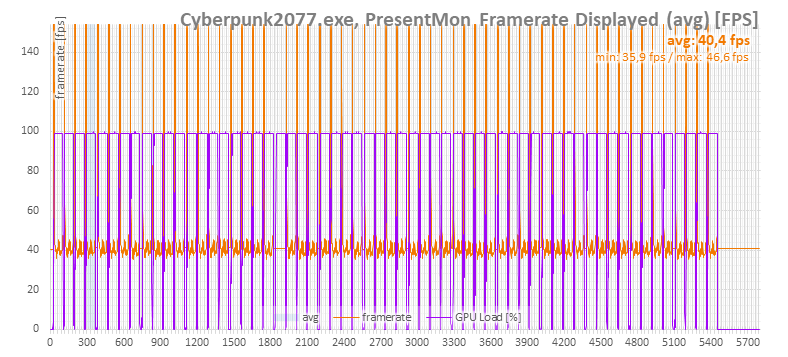
You can measure a frame-rate difference between the top and bottom fan speeds. But higher temperatures only move FPS by tenths, and the normal margin of error across tests is often bigger than the performance spread.
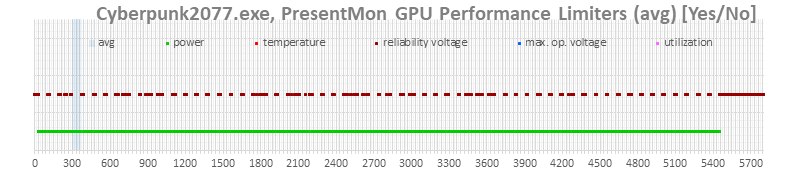
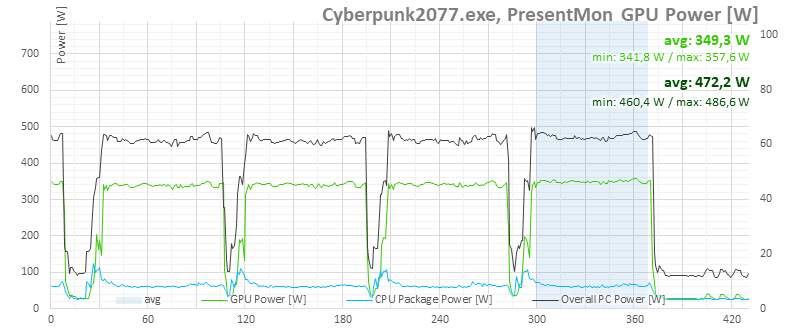
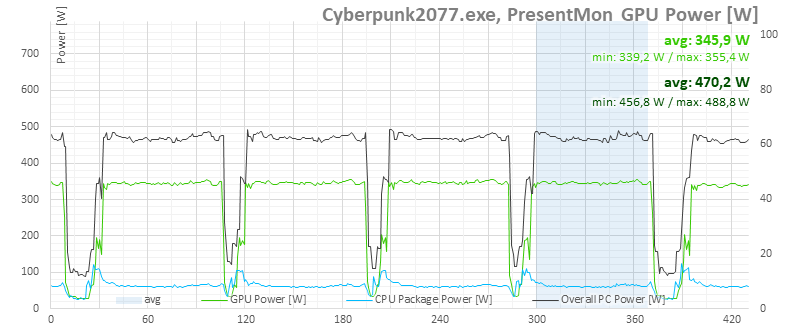
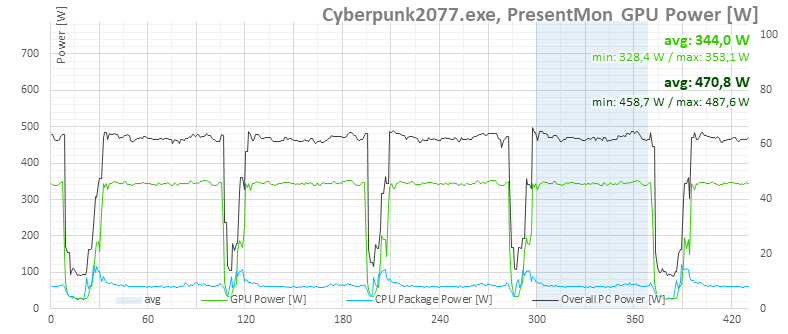
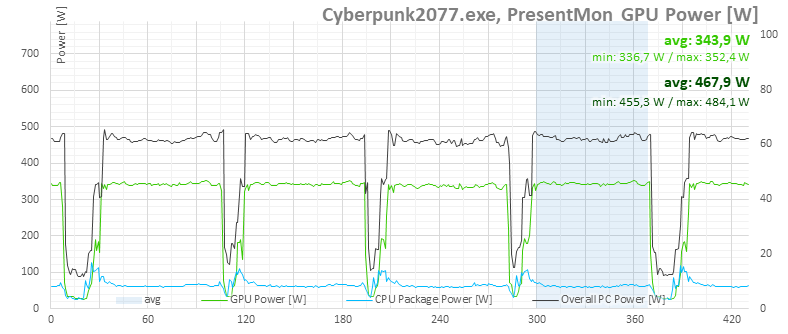
The board power isn’t perfectly consistent: in certain runs, a curve is lower by a few watts compared to its neighbors. This may tie in with the GPU hitting its voltage limit more often in some of the runs, as the GPU Boost limit flags suggest.

In the chart below, you can see which limits were active at the time. Occasionally, the card runs into the GPU voltage limit more often, and that likely brings the power draw down.
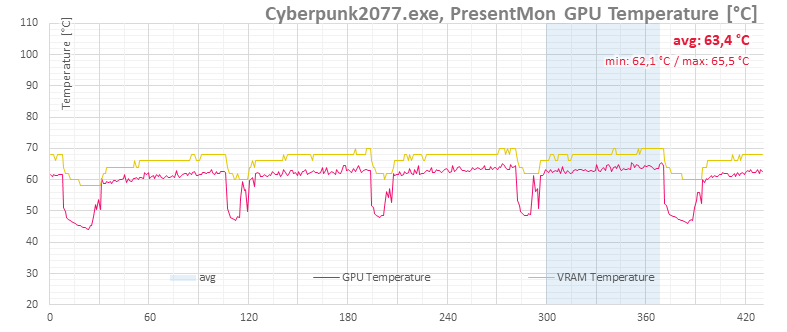
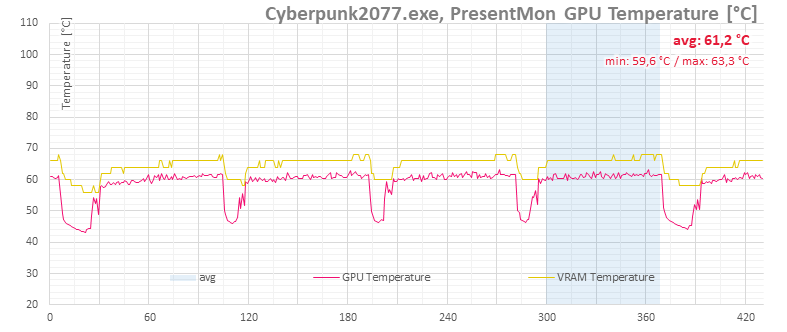
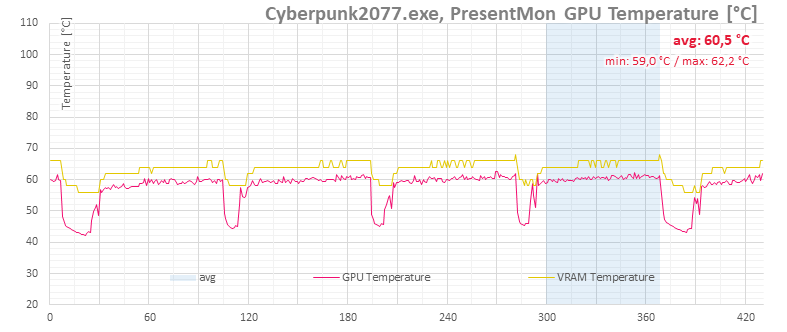
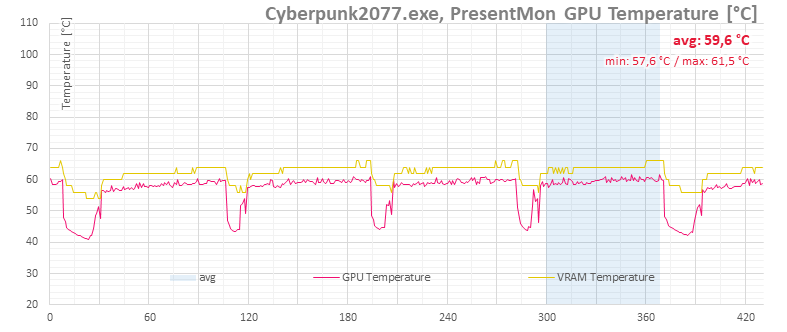
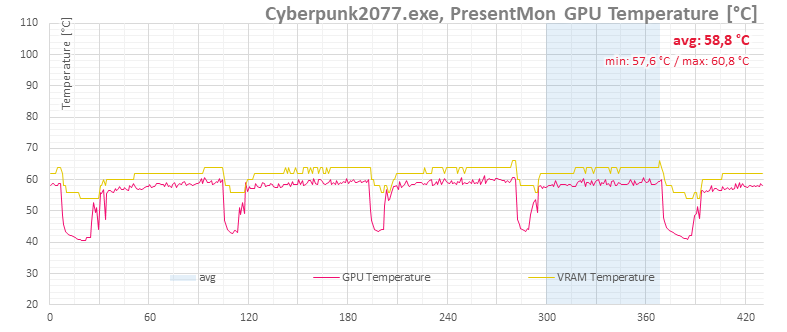
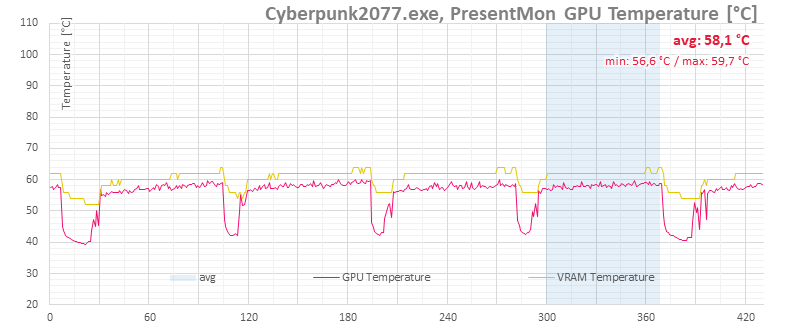
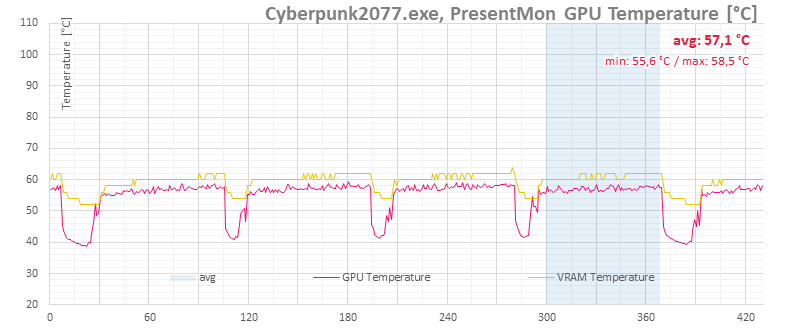
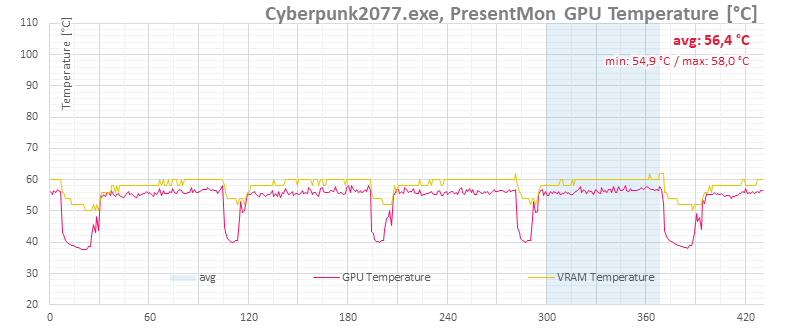
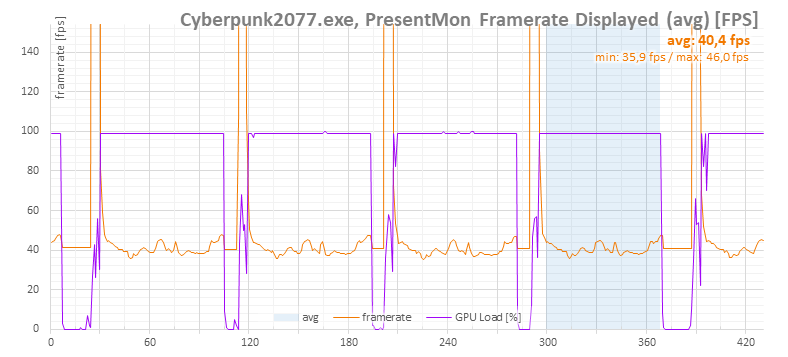
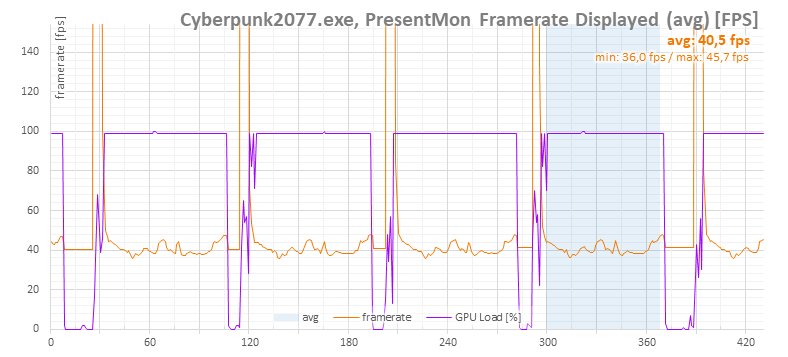
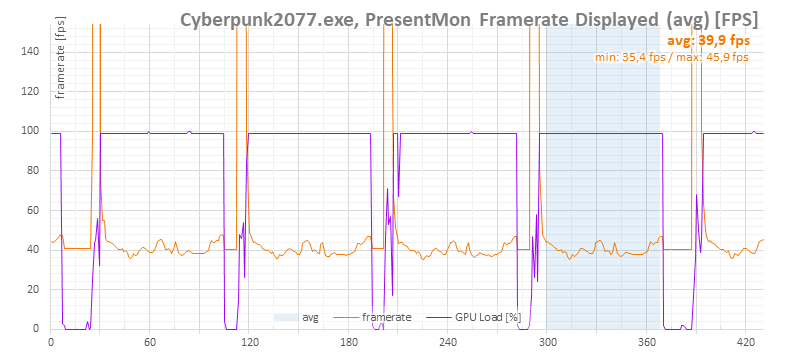
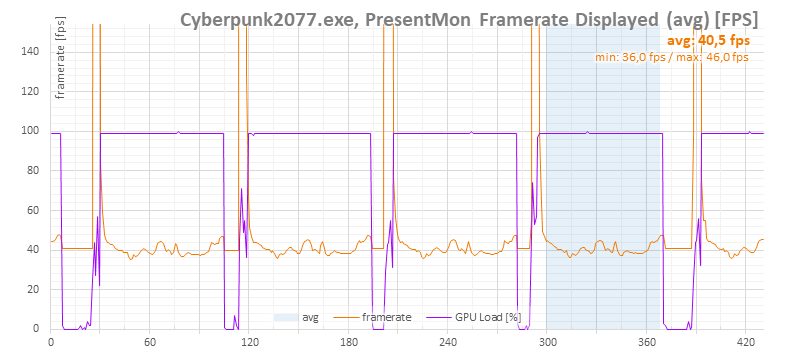
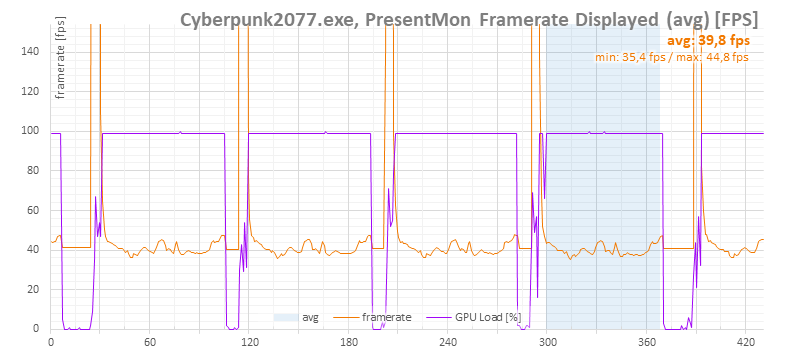
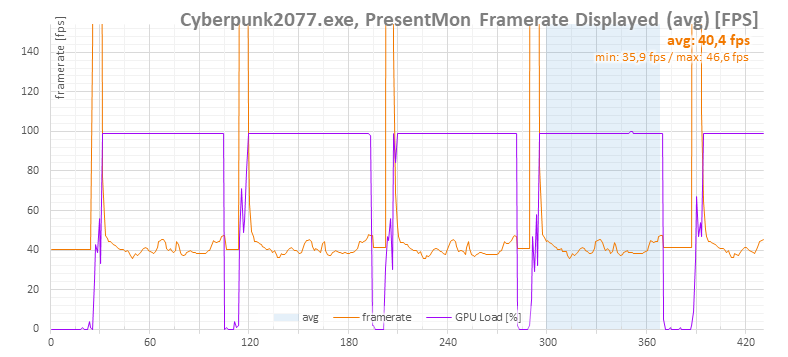
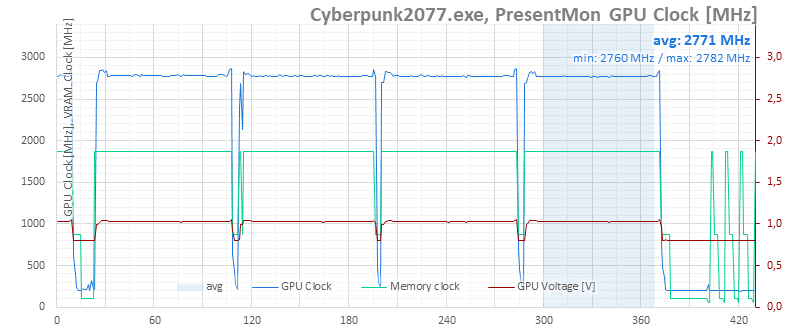
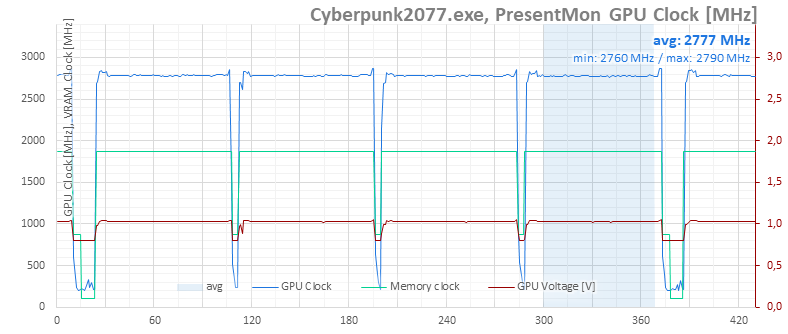
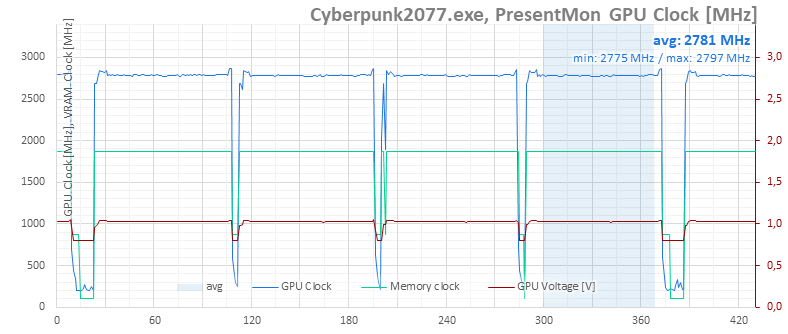
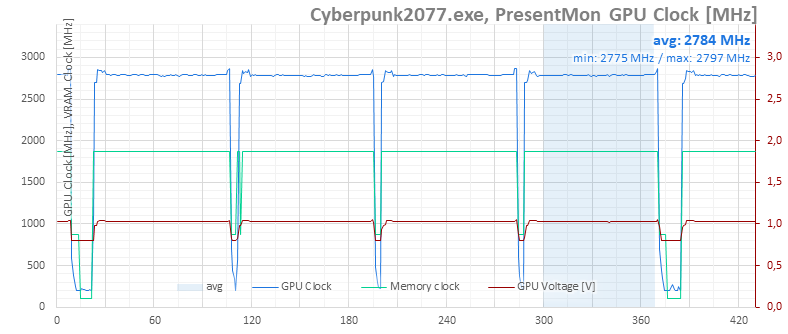
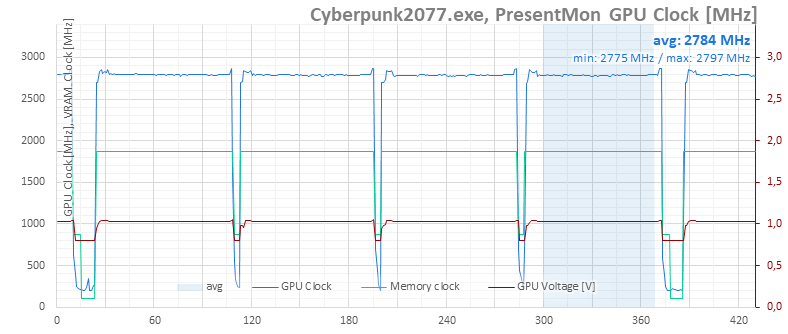
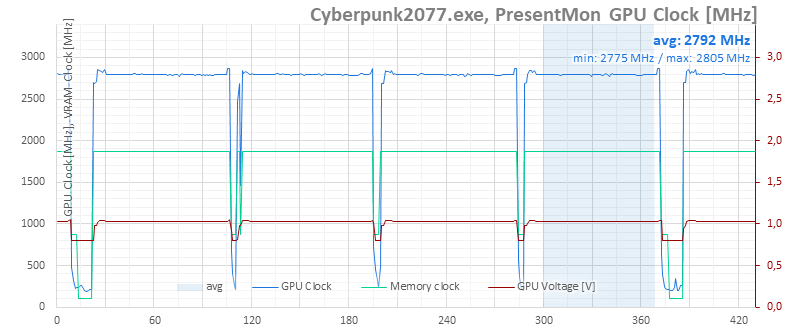
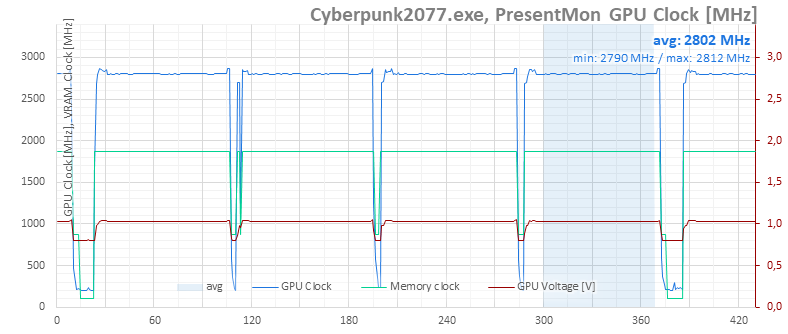
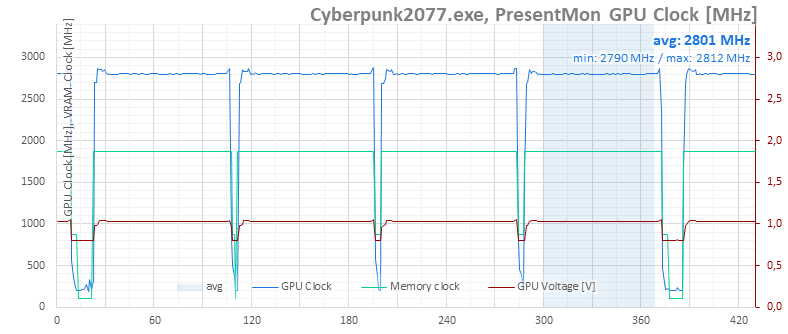
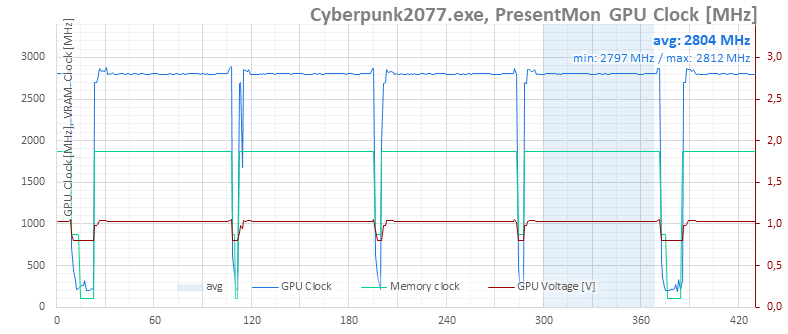
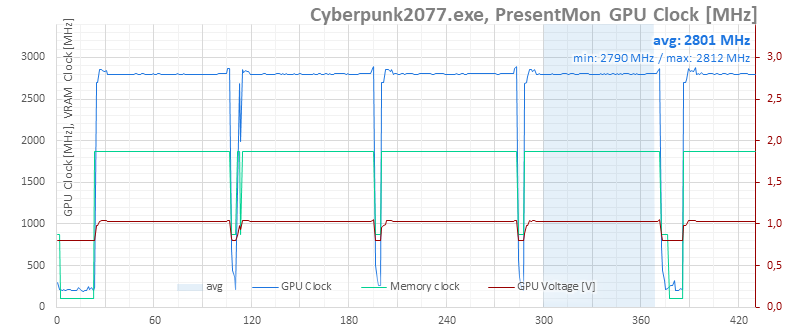
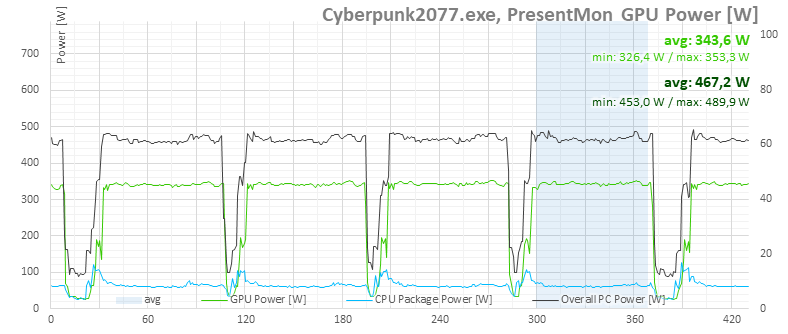
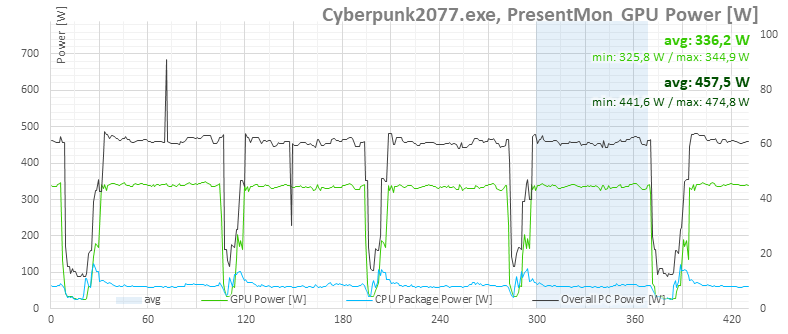
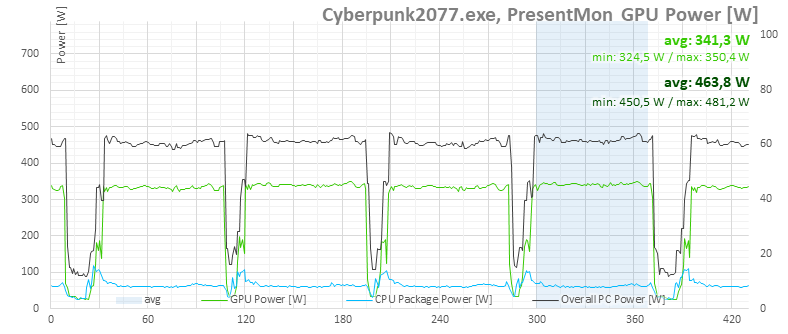
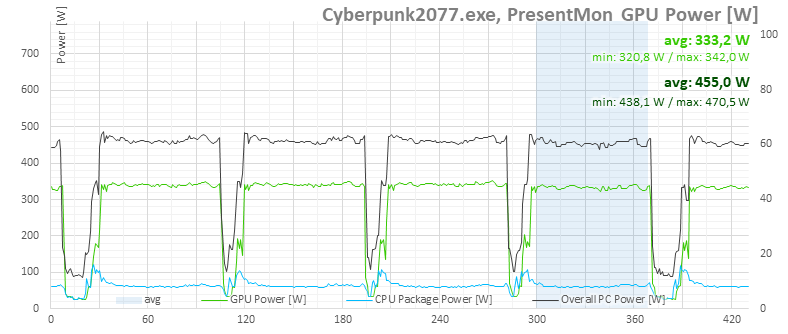
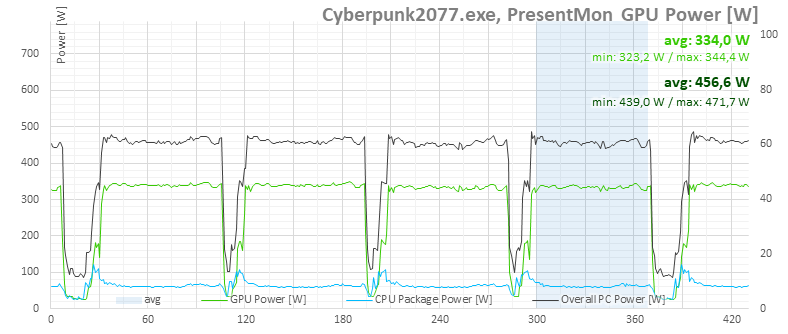
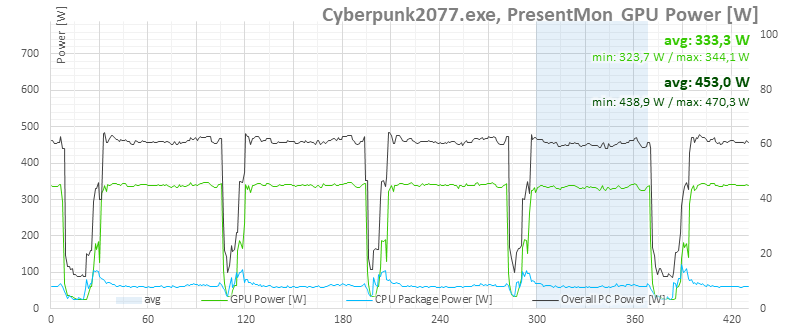
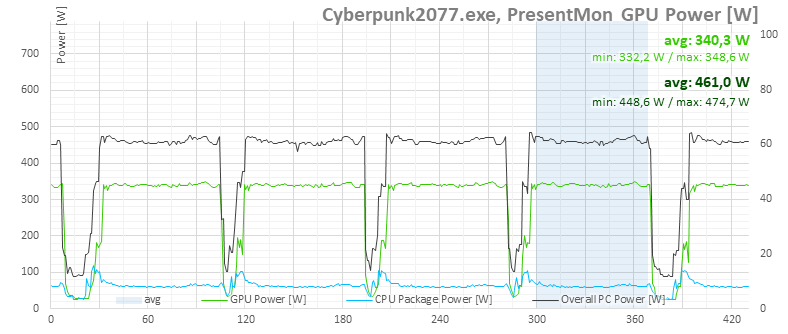
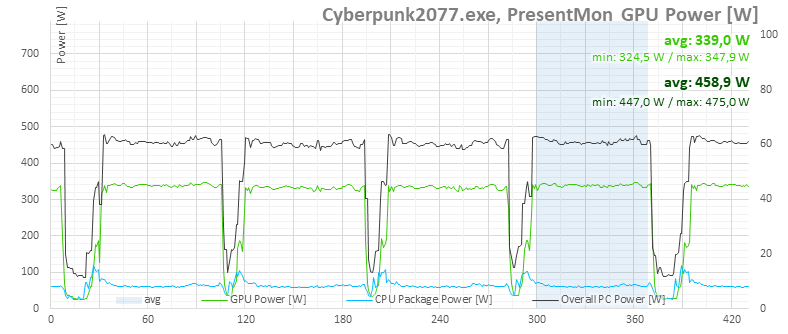
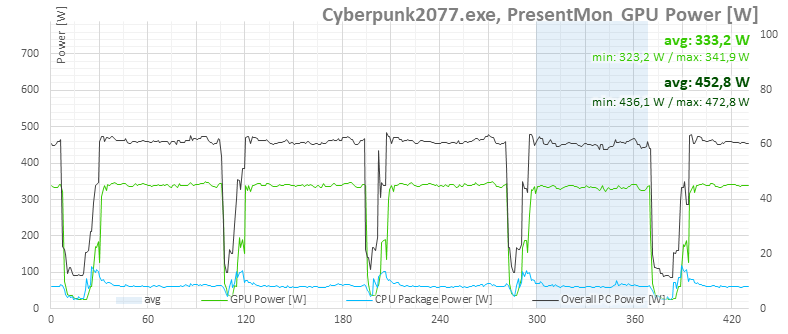
In the following charts, you’ll find detailed measurement traces. Each setting includes four runs, and the averages are calculated from the highlighted segment. When you hover over the interactive chart from left to right, it should display the values measured for the given fan-speed range.
If the interactive charts don’t work for you, we’ve included lightbox galleries with expandable thumbnails for each setting below. These cover steps from 30 % to 100 % fan speed in 5 % increments, and the selected value is shown in the image title.








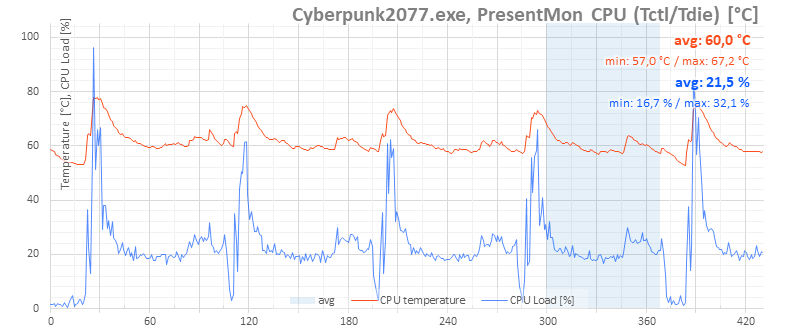
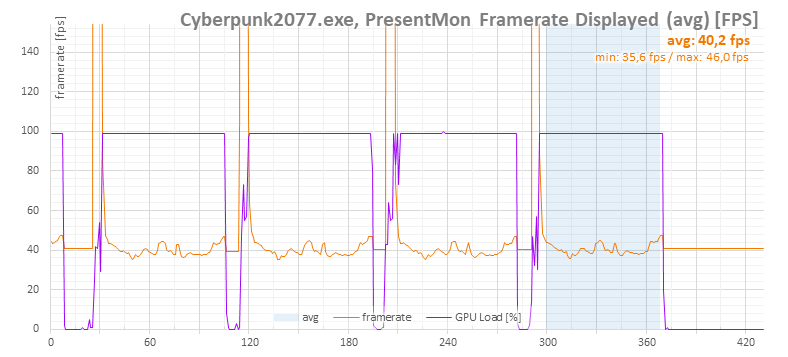
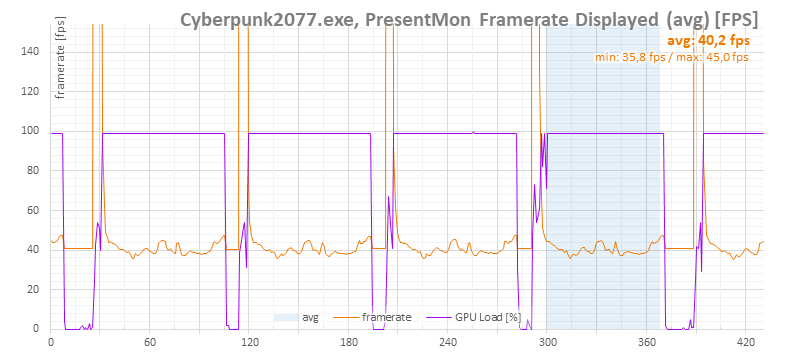
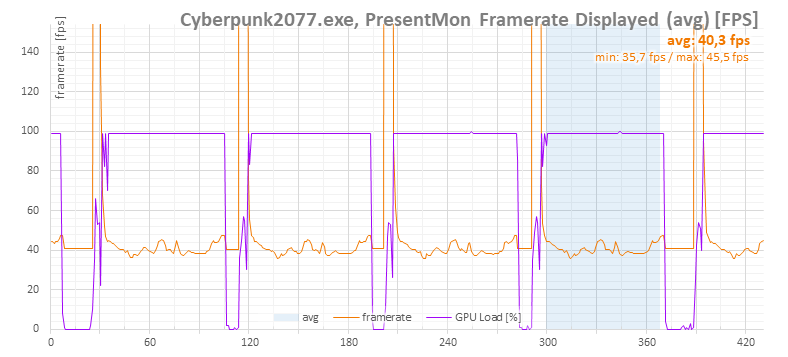
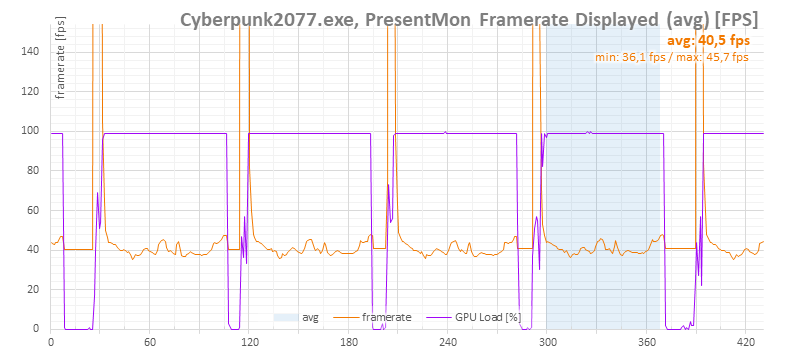
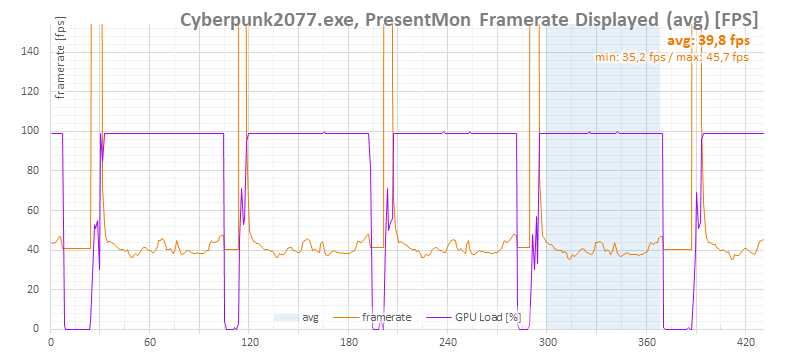


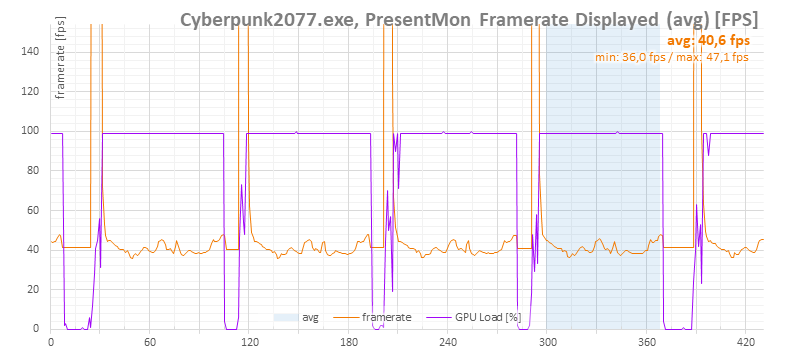
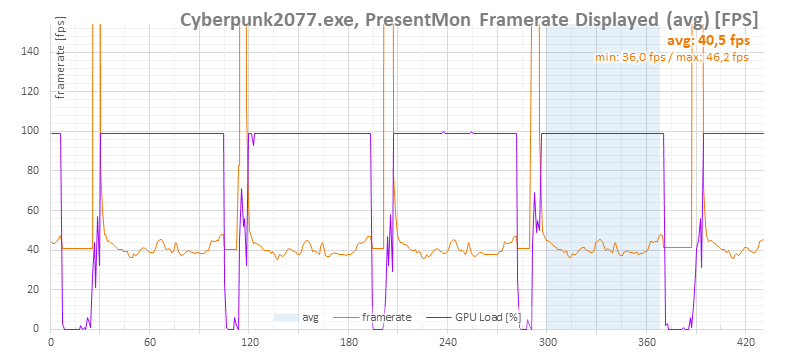
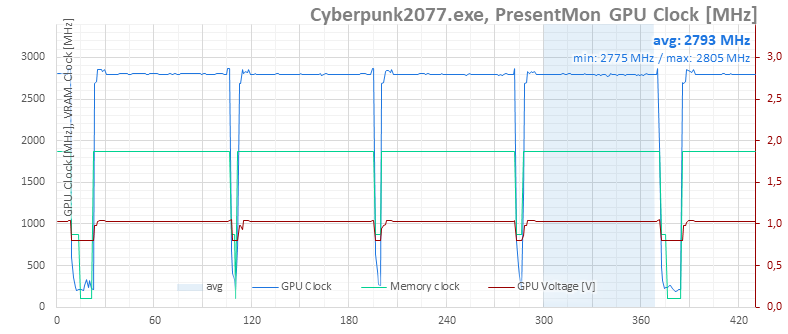
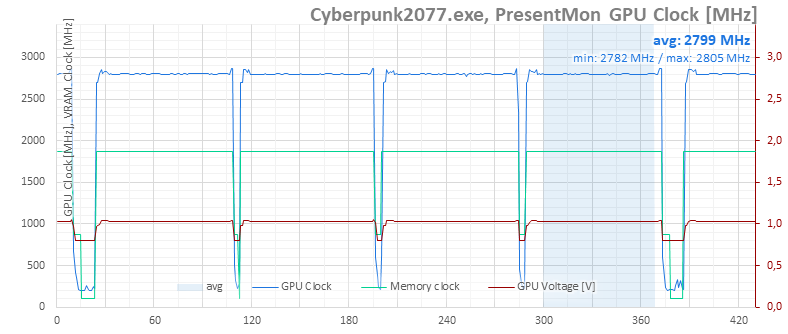
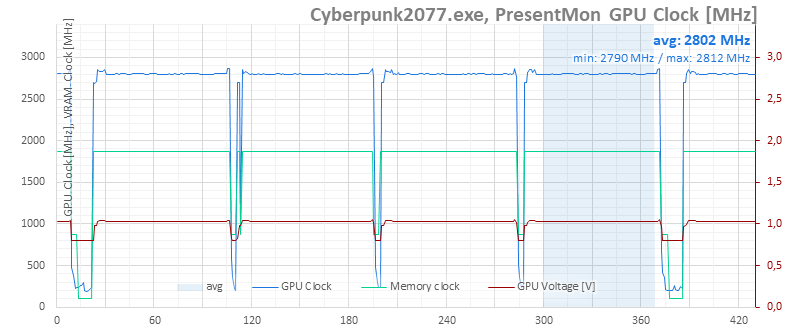

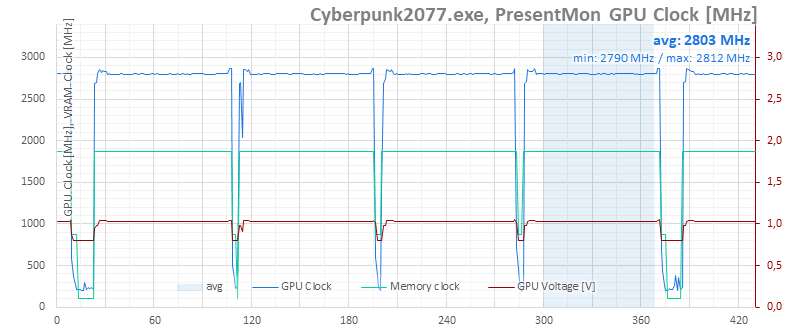


⠀



it seems even on Q mode it may get outside of the silent zone when pushed hard enough…
I know, I know, all the other cards are worse, but if even 3 of these fans struggle it means a lot about the power output of modern cards, doesn’t it?
What matters most is what a “quiet” graphics card means to each individual — it’s a pretty subjective thing.
At just under 700 RPM, it’s extremely quiet. At night, when everything is silent, you can hear it if you put your ear close to the card. From a typical distance of about a meter, even on an open test bench, I can’t hear it at all. But my hearing isn’t what it was twenty years ago.
However, considering the temperatures the card reaches, there’s still some headroom to lower the fan speed by adjusting the fan curve. Throughout the day, I’ll be running additional tests across the full fan-speed range in Cyberpunk and will add line charts of clock speeds and temperatures to the article.
Without V-Sync, the coil whine is still more noticeable under load than the fans themselves—even in Q-Mode—though it’s quieter than on other cards with the same performance. The tougher part might be keeping the CPU just as quiet and getting the heat out of the case without adding noise.
I haven’t precisely tuned G2 fans yet, but 700RPM would be somewhere in the range of upper limit, for G1 that was around 670, the Q profile seems to be willing to push above that if heated enough instead of limiting the heat to ensure fans won’t spin up, requiring manual tuning
which to be fair is expected of Noctua products as they don’t tune for absolute silence as general audience expects much less, but their high quality allows to achieve it with some extra effort
the coil whine though absolutely shouldn’t be there, that’s something most companies seem to neglect the most, I know it’s hard to control and there’s a ton of variance between specific items, but at this price point it’s unexcusable
I’d say even more: it’s unexcusable at any price point that isn’t explicitly cheapened cutting all costs for the last pennies, unfortunately… getting components and accessories that don’t suffer from that is nearly impossible, like… I’m not gonna try dozens of different units of a monitor to pick the one with least whine, right?
At least when it comes to temperatures shown in the monitoring, they’re fine—even at minimum fan speeds.
https://www.hwcooling.net/en/asus-geforce-rtx-5080-noctua-oc-ed-16gb-review-silent-monster/20/
Does GPU watercooling even make sense anymore? The graphics cards are becoming quieter and cooler with each new generation, even without deshrouding.
Yes, some cards are now quiet enough that the main source of noise is elsewhere. For example, in my test rig I often find the CPU cooler is louder, because I have the fan curve set to ramp up whenever any core goes over 80 °C.
It would be more appropriate to say that it depends on the circumstances. The key difference is that liquid cooling moves the GPU’s heat to a radiator mounted away from the card, making exhausting hot air easier when the radiator is properly positioned in the case. With an air cooler, you still need to figure out exhausting the heat from the case.
It’s a bit different from processors. With a CPU, the priority is cooling a small area—the CPU itself and the surrounding VRM (voltage regulation modules).
A good block on GPU usually reduces hotspots on the die and VRAM, but it can worsen cooling of the other components. But on a graphics card, there are many hot parts spread across the entire PCB. That’s why having fans directly over the hot zones usually works best. Full-cover blocks solve the problem of cooling components, but this is an expensive and complicated solution. If, instead, the manufacturer uses a cheaper AIO cooler on the GPU and a card-mounted fan to cool the other components, it usually isn’t dead silent. The pump can also be noisy unless the manufacturer keeps it under control.
Air cooling, in contrast, is simpler, cheaper, and generally more reliable. When paired with a large heatsink with enough surface area, it can be a very competitive option.
Personally, I prefer air cooling for its ease of use, consistent long-term performance, lower risk of failure and its reliability.
Thank you for the info.
I’m building a PC with Ryzen 9 9950X and RTX 5070 Ti. The CPU is cooled by a custom liquid loop with one 420mm and one 280mm radiator. I just can’t decide whether to include the GPU in the loop. The full cover waterblock by Bykski costs about $100.
Since a water cooled graphics card does not heat up other components, such as SSD, RAM, chipset, etc, I’ll probably go with the waterblock. My radiator space should be enough for that.
There’s actually a true specialist in our country who focuses on fully liquid-cooled builds. I’ll write to Gabo (from TichéPC) — you might get a response full of hands-on experience. 🙂