Monitors usually offer a very similar and rather unremarkable design in black or grey. Gaming models are trying to break out of this stereotype, with various red elements or RGB lighting. However, the world of professional monitors is virtually black and white, and MSI thought it would bring some colour to this environment, and not a grey one, but an “Ultramarine” one at that. That’s a colour particularly associated with Renaissance artwork.
Range of settings
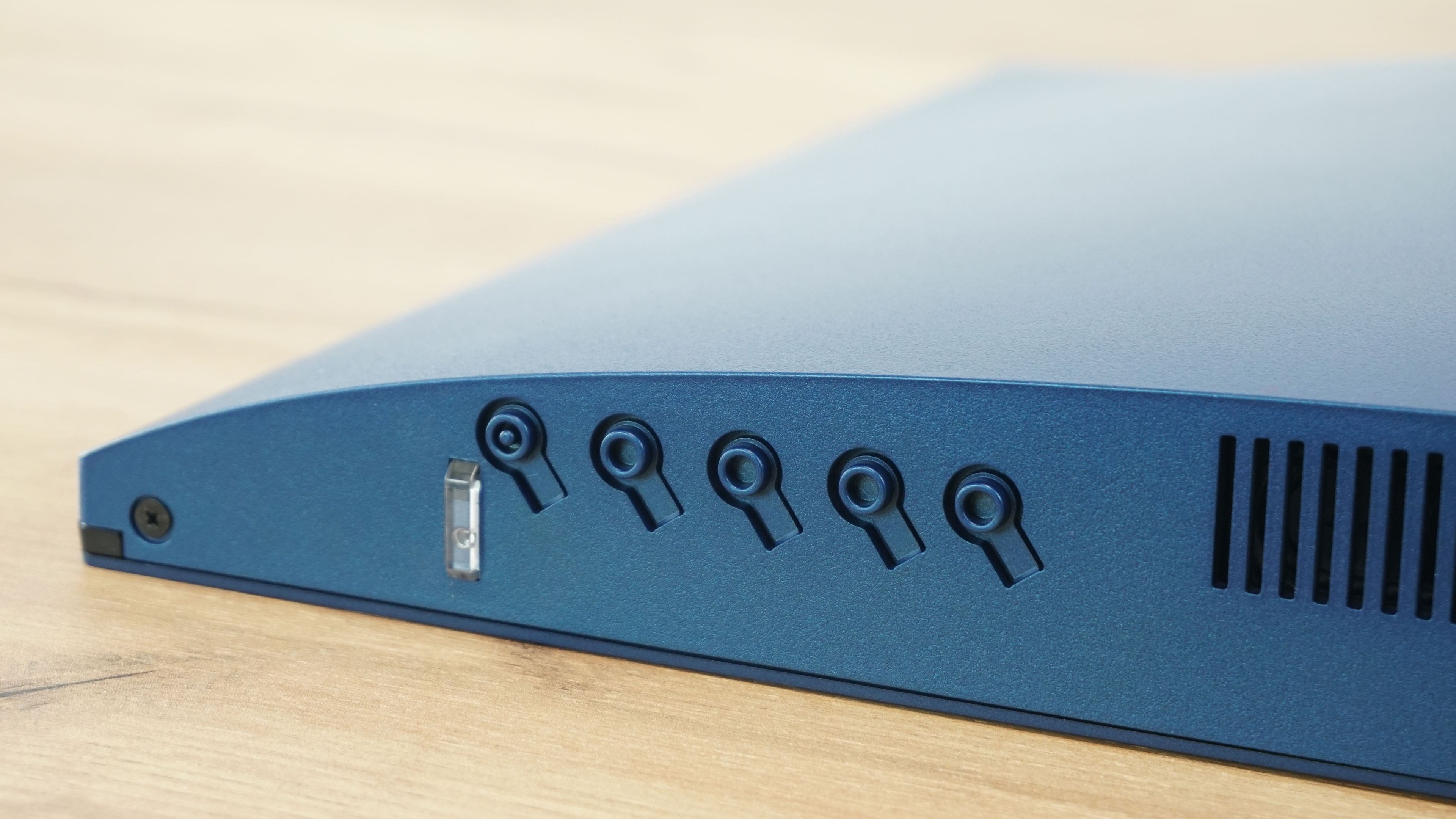
The 4 buttons on the bottom edge are used to control the OSD menu, with the 5th button serving as the power button. I would have liked more to see joystick control, especially knowing that MSI uses joysticks on monitors quite often.
The OSD menu has been given a graphically unique design in white with blue highlights. The white color, especially at night, might not be ideal, but if the goal is to stand out, it’s definitely succeeded.

The first option is to select the mode, response time, display the refresh rate or countdown, or change the aspect ratio and select KVM and FreeSync.

You can also adjust brightness, contrast, sharpness and colours, or turn on image enhancement or blue light protection mode.

What I praise is the ability to change the function of the quick buttons, so you can customize the right, left and Enter buttons to suit your needs. I reserved one of the buttons for adjusting the brightness.

You can also change the language, menu transparency and display time, power button backlight, volume control and reset all settings.

Finally, a quick look at the quick action options that you can control without having to search for them in the menu.