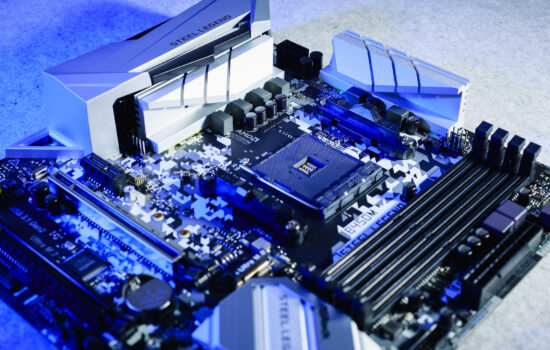
Configurations on the LGA 1851 platform have been possible for some time even on motherboards with the Intel B860 chipset. These are cheaper and primarily aimed at lower-power processors, but they also have headroom for high-performance CPUs. This is the case with the Tomahawk WiFi variant by MSI. A lower price, yet still a high standard, includes support for the future-proof PCI Express 5.0 interface, among other features.
First, something about the chipset used by the MSI MAG B860 Tomahawk WiFi motherboard. The Intel B860 is physically the same PCH chip as the Intel Z890, but some of its features are limited compared to the higher-end model. This is similar to the Intel B760 chipset on the Intel LGA 1700 platform.
The Intel B860 has 20 PCIe 5.0 lanes routed from the processor – 16 for the graphics card and 4 for SSDs. A separate PCIe 5.0 ×4 interface routed from the processor is a new feature in this class. With the Intel B760, connecting an SSD meant fewer lanes (PCIe) for the graphics card. However, on B860 motherboards, this is no longer the case, as SSDs have their own dedicated lanes without negatively affecting other components. These lanes are a new feature introduced with the LGA 1851 platform (for Intel Arrow Lake processors) and are also found on Z890 motherboards. However, Z890 boards are often more expensive, and when priced similarly, you’ll usually see cost-cutting measures outside the chipset, such as on the VRM.

What applied to B chipsets in the past still holds true – the processor cannot be overclocked. While on Z890 motherboards you can adjust the multiplier and tweak the BCLK, on B860 motherboards, only the RAM can be overclocked. However, this doesn’t mean that processors won’t reach high clock speeds. They will, provided the power limits allow it. These limits, just like on Z890 motherboards, can be unlocked, and in the end, the CPU’s clock speeds will be constrained by thermal limits or the capabilities of the CPU cooler.
Compared to Z890 motherboards, the B860 chipset has a slower connection between the PCH chip and the processor. On Z890 motherboards, the interface has 8 lanes (DMI 4.0 ×8), while on B860 motherboards, it’s only 4 lanes (DMI 4.0 ×4). In both cases, this is equivalent to PCIe 4.0 ×8, but with Intel B860, the achievable bandwidth is only 8 GB/s (instead of 16 GB/s – Intel Z890). In addition to the PCIe lanes in the processor (24), the B860 chipset provides another 14. This is the same number as with the Intel B760 from the previous generation, except that in the case of B860, all lanes are PCIe 4.0 (with B760, some were slower, PCIe 3.0).
| Parameters | MSI MAG B860 Tomahawk WiFi | |
| Socket | Intel LGA 1851 | |
| Chipset | Intel B860 | |
| Format | ATX (305 × 244 mm) | |
| CPU power delivery | 15-phase | |
| Supported memory (and max. frequency) | DDR5 (9200 MHz) | |
| Slots PCIe ×16 (+ PCIe ×1) | 2× (+ 1×) | |
| Centre of socket to first PCIe ×16 slot | 94 mm | |
| Centre of socket to first DIMM slot | 56 mm | |
| Storage connectors | 4× SATA III, 1× M.2 PCIe 5.0 ×4 (60–80 mm), 1× M.2 PCIe 4.0 ×4 (60–110 mm) + 1× M.2 PCIe 4.0 ×4 (42–80 mm) | |
| PWM connectors for fans or AIO pump | 7× | |
| Internal USB ports | 1× 3.2 gen. 2×2 type C, 2× 3.2 gen. 1 type A, 4× 2.0 type A | |
| Other internal connectors | 1× TPM, 3× ARGB LED (5 V), 1× jumper Clear CMOS | |
| POST display | no (but has debug LED) | |
| Buttons | Flash BIOS, Clear CMOS | |
| External USB ports | 1× 4 type C (Thunderbolt 4), 4× 3.2 gen. 2 type A, 1× 3.2 gen. 2 type C, 4× 2.0 type A | |
| Video outputs | 1× HDMI 2.1, 1× USB-C (DisplayPort 2.1 s UHBR20) | |
| Network | 1× RJ-45 (5 GbE) – Intel Killer E5000, Intel Killer BE1750x wireless module: WiFi 7 (802.11 a/b/g/n/ac/ax/be) + Bluetooth 5.4 | |
| Audio | Realtek ALC897 (7.1) | |
| Other external connectors | – | |
| Manufacturer's suggested retail price | 264 EUR |
MSI MAG B860 Tomahawk WiFi
One of the two models (with the B860 chipset) in the MAG family. The other is the B860M Mortar WiFi. Most MSI B860 motherboards are cheaper, from the “Pro” series, but even the B860 Tomahawk WiFi can still be considered reasonably priced, especially given its features. MSI isn’t pushing the price too high (unlike, for example, Asus – ROG Strix B850-F Gaming WiFi with its above-standard features) and is keeping it well below three hundred euros in this case. Of course, at this price, it’s not a cheap motherboard, but it’s still priced lower than many Z890 models you might consider for a “gaming” build.

The physical dimensions adhere to the ATX form factor (304 × 244 mm), and the layout of key components (connectors and slots) is traditional. The back of the motherboard also doesn’t feature anything unusual.


On the front, notable features include the EZ PCIe button for remotely releasing the latch of the first PCI Express ×16 slot. This allows for more convenient removal of expansion cards from under large tower-style CPU coolers. The latch itself is robust and metal, with a spring mechanism, making it difficult to damage.

The first M.2 slot for SSDs supports PCIe 5.0 and features a cooler above it for better SSD cooling. It’s relatively simple, with a smaller surface area (so you can’t expect miracles from it), but it has a clever (de)mounting system. No tools are needed – just press the button (on the left) to release the cooler from the teeth on the M.2 slot housing (on the right), or follow the reverse process to install it.


Between the first and second PCIe ×16 slots, there’s a “dead” space, which comes in handy when paired with very thick graphics cards. Even with them, you won’t block any of the connectors. The second (and last) PCIe ×16 slot is located almost at the bottom edge of the motherboard.

Even lower, below the second PCI Express ×16 slot, is an 8-pin connector for auxiliary power to this slot. This isn’t common, but MSI uses it on its motherboards.

The positioning of the CPU power connectors is also unusual. These (two 8-pin connectors) are located above the DIMM slots, in the opposite corner from where they are “typically” placed. The advantage of this solution could be, for example, a potentially larger VRM cooler, but it’s also worth noting that cases with cable routing to these areas often don’t account for it. Or, the situation might not be as elegant because there’s no cable routing grommet directly above the EPS connectors, as is common above the right corner of the motherboard. But it could also be there.

The power delivery for the LGA 1851 socket consists of 15 phases, 12 of which are Vcore. Cooling is provided by two aluminum heatsinks with a total weight of 455 g (160 + 295 g). Their surface is quite well-structured, with fins, which is especially visible in profile. When analyzing VRM temperatures, it’s important to consider that with these heatsinks, heating will be lower than what we present in thermal maps when the VRM heatsinks are removed.


The integrated MOSFET IC is the Monolithic Power MPS2414. The maximum current load per phase is stated to be 60 A. However, this is a significantly over-engineered value, which must be much lower in practice. This is not only to ensure the VRM can be cooled by the available heatsinks but also to achieve relatively high energy efficiency.

Four of the nine external USB connectors are USB 2.0 standard. Slower, but for peripherals like keyboards, mice, or headsets, this older interface is not a limitation. The remaining connectors are faster, exceeding 1 GB/s, including a USB4/Thunderbolt 4 connector with 40 Gb/s.

Worth noting is the 5-gigabit Ethernet, which is above standard for this price range (usually, a 2.5 Gb connection is used). However, users of wireless networks won’t pay much attention to it. WiFi 7, available here, is significantly faster. Some might raise an eyebrow at the older Realtek ALC897 chip. Only two 3.5 mm jacks are connected to the audio adapter, and for optical devices, there’s also an S/PDIF connector.
Please note: The article continues in the following chapters.