


Many ASUS graphics cards let you remove the fan shroud without breaking the warranty seal. We did that last time with the ASUS Prime RTX 5070 and swapped its fans—noisier than usual at low speeds—for Arctic P12 Slim fans. However, standard 25 mm fans usually provide higher static pressure and can cool more quietly. Let’s see how the card performs with the top-of-the-line Noctua NF-A12x25 and its successor, the NF-A12x25 G2.
Before looking at results with the pair Noctua fans, we’ll start with noise measurements. In the first chart you can see how the card performed with the stock fans. Fan control lets you adjust their speed between 30–100 %, corresponding to 700–3200 rpm. Because one of the fans had a faint ticking sound, even at just 700 rpm the cooler registered 32.1 dBA. This pushed the overall noise of the card higher across the entire range.

In the next chart are the noise levels with two Noctua NF-A12x15 first-generation fans. When connected to the control panel, they start at 10 % PWM and top out at 98–100 % PWM. The chart shows the faster of the two fans; the other ran a few dozen rpm lower.
At lower speeds the noise curve is flat. That’s because the fans are quieter than the sound meter’s threshold (30 dBA). They’re effectively near-inaudible, and the meter’s own background noise is higher than the fans themselves.

We’ll check how the card’s behavior changes across the full fan speed range. For time reasons I used short Cyberpunk benchmark loops with the RT Medium profile at 2560 × 1440 resolution with DLAA.
Before the main batch, one warm-up loop with four runs at 45 % fan speed was executed. That part isn’t shown in the charts below, which begin with the first measurement at 25 % fan speed. Going lower isn’t useful, as with low rpm and GPU temperatures over 85 °C, the card’s regulation starts cutting GPU power sharply, lowering clocks and performance.
Fan speed was then raised in 5 % steps from 25 to 100 %. Each step included four benchmark loops. Gaps between runs were only a few seconds, so the system stayed heated during testing.
I’ll take values from the fourth loop, occasionally from the third if the last one had anomalies.
This chapter shows how the card behaved across the entire fan range. Here you’ll see simple figures; detailed values and per-step graphs will appear in interactive charts in the next chapter.
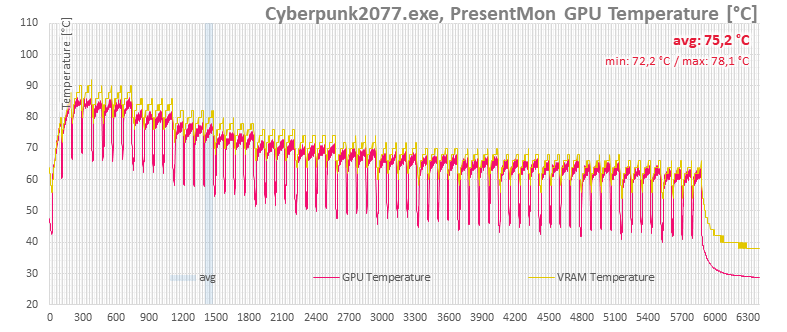
At the bottom of the tested range, 25 % fan speed, the GPU peaked at 86.3 °C with an average of 84.3 °C. At maximum speed, the average temperature dropped to 61.2 °C.
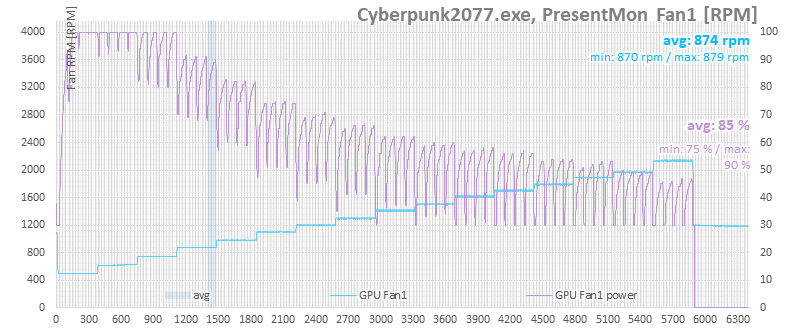
The next chart shows fan rpm in light blue. The fans were connected via a splitter to an external Corsair Commander Pro controller and managed through Fan Control. Each step was set manually to a fixed output.
At 25 % they spun at about 500 rpm, while at 100 % they hit 2135 rpm.
The purple curve is mainly for reference. It shows what fan speed the card’s BIOS would have set automatically. Since the fans weren’t connected to the card but controlled externally, it doesn’t match the real rpm, but it illustrates how aggressively the automatic control would ramp up at certain temperatures.
At minimum rpm, when the GPU exceeded 85 °C, the regulation (needlessly) pushed for maximum speed. As temperatures dropped, it scaled back and demanded lower fan output.
The following chart shows GPU temperatures (red) and overall CPU load (blue). As GPU fan speed increased, airflow through the case improved, which slightly lowered CPU temperature.
Apart from the first run, where the CPU load was unexpectedly higher, the average CPU temperature declined gradually from 60.2 °C to 56.3 °C.

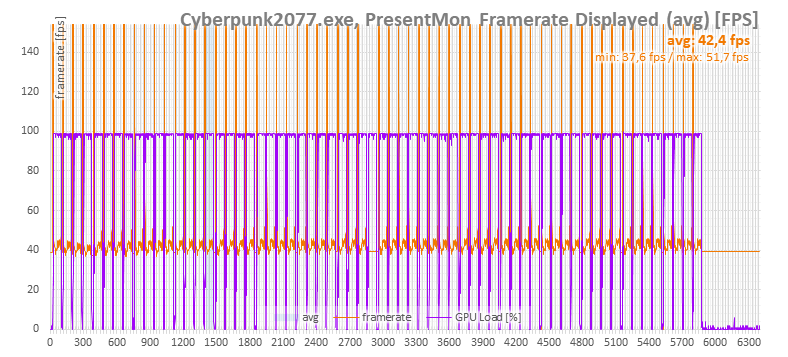
Performance differences are not dramatic. With a cooler chip, clocks rise slightly and so does performance, but only by a few tenths of a frame per second.
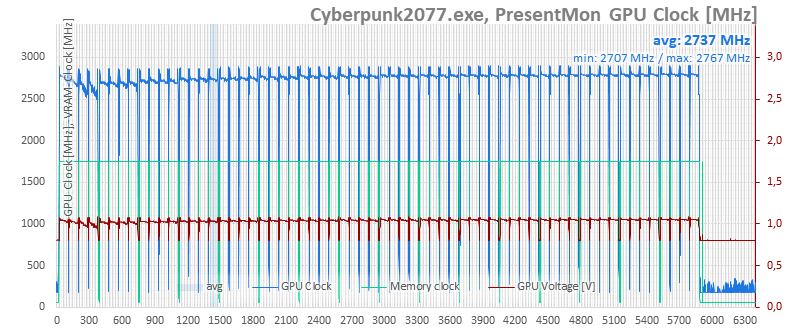
This is clearer on GPU clock speeds than on fps. Early on, as the card began to overheat, clocks dropped more noticeably. Once cooling was sufficient, clock speeds rose more steadily. Between 30 % and 100 % fan speed the difference was about 100 MHz.
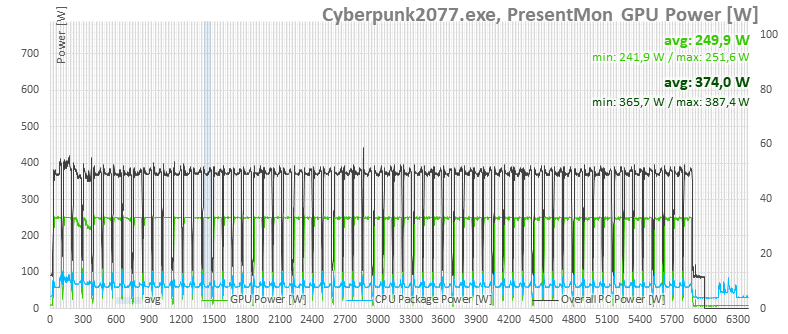
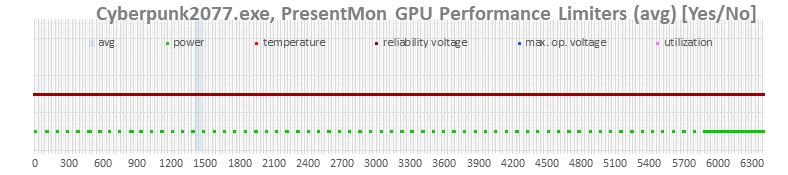
For verification we also have charts of power draw for the whole system and for the card itself, as reported by monitoring. In the first run, when GPU temperatures were already too high, you can see that GPU boost throttled the card’s performance. In later runs, the card clearly operated right at its power limits.
⠀



I’m surprised that cheap Arctic slims are better at low noise levels than the regular Noctuas. Save the money, I guess.
Wouldn’t it be better to have the fans spinning in the opposite direction to avoid turbulence?
It wouldn’t be correct to say the P12 Slim is better than Noctua’s NF-A12x15. It’s more accurate to say that at low fan speeds, the differences in noise are so small you won’t hear a difference.
Note (as I pointed out in chapter three): at minimum RPM, all the fans are so quiet that their generated noise drops below the self-noise of my Class 2 sound level meter (CEM DT-8852). These sound level meters have a lower measurement limit of 30 dBA, and the fans’ noise drops below that even at a short microphone distance. That’s why the orange noise curve is flat at approx. 29 dBA the start, even though it should, strictly speaking, keep falling with lower RPM.
https://www.hwcooling.net/wp-content/uploads/2025/09/asus-prime-rtx-5070-deshroud-dual-noctua-nf-a12x25-g1-noise.png
Additionally, sound level meters typically have about ±1 dB(A) of measurement uncertainty (this one is ±1.4 dB(A)), so differences of roughly that size shouldn’t be given much weight.
In practice, it’s the same: at 500–600 RPM, the fans aren’t audible unless you put your ear very close to them. Above 30 dBA, the differences in noise levels start to grow and at higher speeds, Noctua pulls ahead. But if you’re replacing the fans on the graphics card with 120 mm ones, it’s probably to make the card quieter—not to run them at 1,700 RPM.
Generally speaking, at low fan speeds, the real-world gains from Noctua fans are negligible.
On the topic of counter-rotating fans and turbulences: with case fans that have a high-sided frame around the fan impeller and are spaced apart, it’s much less of an issue than with typical GPU fans, which sit in shroud very close together and have only a little or no rim around the impeller.
I think the overall design matters a lot. How else can we explain that while 2x P12 Slim on Asus Prime 5070 proved to be successful, 3x P12 Slim performed worse than the stock Asus TUF 5070 Ti? Maybe it’s good to have the fans vertically oversized, or the 3x P12 Slim were too close to each other.
https://www.hwcooling.net/asus-tuf-geforce-rtx-5070-ti-a-deshroud-s-3x-arctic-p12-slim/6/
I wonder what the performance would be like with an NF -14 for more of a coverage in the finstacks
Yes, it would definitely be interesting to know what the results would look like with 140 mm Noctua fans. Unfortunately, we can’t cover all possible combinations. 🙂
Hi Adam, can you share the 3d print files? 🙂
Hi Simon,
do you need it soon, or can it wait a bit? It’s still just a prototype and needs some tweaking. I’m planning to publish a test of the Prime RTX 5070 with Arctic P12 Pro by the end of the month, so I’ll try prep the STL and include it there.
BTW, it’s designed for mounting with M2 screws into plastic — are you okay with that? (Though gluing it might work too.)
…or he can make a certain protruding shape on the leg models and then use the boolean tool in Blender on the main piece 😛