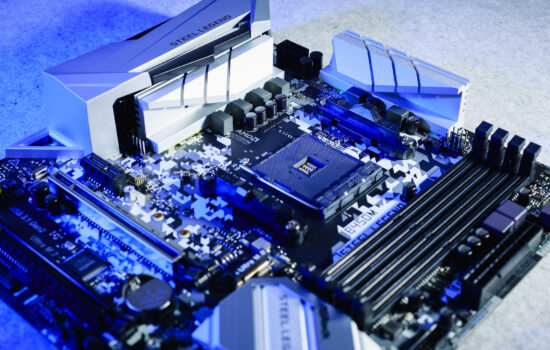
MSI’s Carbon series motherboards are among the most feature-packed not only within the company’s lineup, but overall. Similar to the variant (MPG X870E Carbon WiFi) for AMD, the model for Intel LGA 1851 platform – MPG Z890 Carbon WiFi – is also packed with headers and ports. From this detailed analysis, you’ll also learn how this motherboard performs across hundreds of different tests.
This article is about an MSI motherboard built on the Intel LGA 1851 platform. Of MSI boards, we have already tested the MAG Z890 Tomahawk WiFi, from Gigabyte then the Z890 Aorus Elite WiFi7 and now it is time for the MPG Z890 Carbon WiFi.
| Parameters | MSI MPG Z890 Carbon WiFi | |
| Socket | Intel LGA 1851 | |
| Chipset | Intel Z890 | |
| Format | ATX (305 × 244 mm) | |
| CPU power delivery | 23-phase | |
| Supported memory (and max. frequency) | DDR5 (9200 MHz) | |
| Slots PCIe ×16 (+ PCIe ×1) | 3× (+ 0×) | |
| Centre of socket to first PCIe ×16 slot | 94 mm | |
| Centre of socket to first DIMM slot | 56 mm | |
| Storage connectors | 4× SATA III, 1× PCIe 5.0 ×4 (60–80 mm) + 1× M.2 PCIe 4.0 ×4 (60–80 mm) + 1× PCIe 4.0 ×4 (60–80 mm) + 1× PCIe 4.0 ×4 (60–110 mm) + 1× PCIe 4.0 ×4/SATA (60–80 mm) | |
| PWM connectors for fans or AIO pump | 7× | |
| Internal USB ports | 1× 3.2 gen. 2×2 typ C, 4× 3.2 gen. 1 typ A, 4× 2.0 typ A | |
| Other internal connectors | 1× TPM, 3× ARGB LED (5 V), 1× RGB LED (12 V), 1× jumper Clear CMOS | |
| POST display | yes | |
| Buttons | Flash BIOS, Clear CMOS, Smart | |
| External USB ports | 2× 4 type C (Thunderbolt), 10× 3.2 gen. 2 type A, 1× 3.2 gen. 2 type C | |
| Video outputs | 1× HDMI 2.1, 1× DisplayPort 2.1 | |
| Network | 2× RJ-45: 2,5 GbE – Intel I226-V + 5 GbE Intel Killer E5000B, bezdrôtový modul Intel Killer BE1750x: WiFi 7 (802.11 a/b/g/n/ac/ax/be) + Bluetooth 5.4 | |
| Audio | Realtek ALC1220P (7.1) | |
| Other external connectors | – | |
| Manufacturer's suggested retail price | 543 EUR |
MSI MPG Z890 Carbon WiFi
The second best-equipped motherboard designed for Intel Arrow Lake, or Core 200S, processors. And which is the best? MEG Z890 Ace – our tests are coming soon. But now on to the MPG Z890 Carbon WiFi, the more affordable hardware after all, although several users/potential buyers will have reservations about the price. It’s important to see (and be able to leverage) the value in features that are missing, or in simpler form, on cheaper motherboards.

In terms of dimensions, MSI managed to fit this board into the ATX format (305 × 244 mm), which means that it can fit into relatively smaller computer cases. From the front it’s all heatsink, from the back it’s a “bare” PCB, no backplate. Its absence is perhaps a bit of a pity, because it protects more expensive motherboards from possible damage during installation, and in this price range, it wouldn’t be an anomaly if it was present. However, MSI decided to put the available resources into other things.


The fastest M.2 slot and the only one with PCI Express 5.0 support is located above the first PCIe ×16 slot. This is a good position with respect to larger tower CPU coolers, as it gives more distance between the CPU socket and the PCIe slot. The distance between the centers of the sockets (for the CPU and PCIe ×16) is approximately 94 mm, which is enough to allow even coolers (for CPUs) with wider fins to avoid an expansion card in the nearest PCI Express slot. Often this is a graphics card that tends (because of its own backplate) to extend beyond its PCB, and every millimeter by which the PCIe ×16 slot is moved away from the CPU socket (Intel LGA 1851) is good here.

There is a button on the right side of the motherboard for more convenient removal of expansion cards from under the CPU cooler. This remotely unlocks the PCIe ×16 slot latch so that the expansion card, typically a graphics card, can be conveniently removed even in a computer case without having to disassemble the motherboard together with the removal of the cooler. We welcome this move in the editorial office and encourage the trend as such. Of course, other manufacturers, such as Asus and Gigabyte, have similar mechanisms.
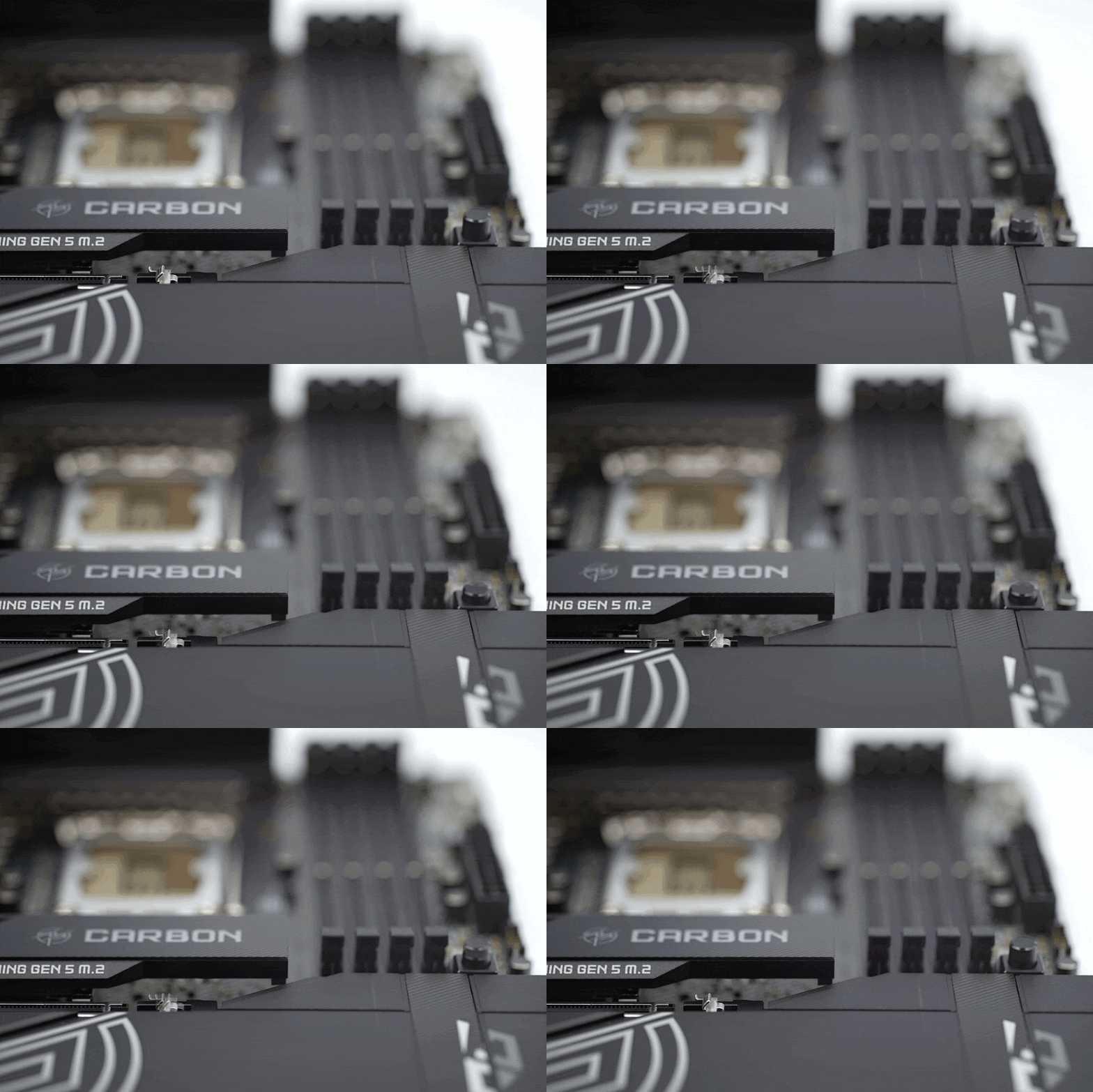
The latch itself is metal, i.e. very robust, with a spring. The functioning here is extremely reliable and if you have managed to break the plastic lever on a motherboard in the past, there will be no similar damage in this case.

The first PCIe ×16 slot is in generation 5 (with PCIe 5.0 support), like the second PCIe ×16 slot, 80 mm away (from the first one). For compatibility and the possibility of using the second slot and under a thicker graphics card (say a GeForce RTX 4090), this spacing can be considered a good idea. The space between the two PCI Express slots is used for four M.2 slots (with the first M.2 slot, there are up to five in total), which have a large shared SSD cooler.
Although there are only four SATA connectors for connecting internal storage, which can be considered a minus, we are happy to at least see two 19-pins for connecting a total of four USB 3.2 gen. 1 ports. On cheaper boards, there tends to be only one of these USB connectors, which in certain situations doesn’t allow for complete front-panel connectivity on cases with above-standard features.

The CPU power supply (two 8-pins) has been moved from the usual left side to the right, above the DIMM slots. This layout theoretically allows the use of VRM coolers with a larger heatsink, but beware of the pitfalls that may be associated with this new connector placement. For example, in regards to cable management options. Cabinets usually do not take into account the fact that the connectors powering the CPU are in the right corner of the motherboard, and so may not have grommets suitably optimized for such a situation.

The VRM cooler is large and (at 461g) heavy. A heatpipe connects the two aluminium blocks and some effort is seen to articulate the surface for more efficient cooling. The heatsinks are finned both longitudinally and transversally. Integrated circuits with MOSFETs are Renesas R2209004. The maximum theoretical load per one of the 23 phases (20 of them for Vcore) is listed in the specifications as 110 A.


One of the strengths of the MPG Z890 Carbon WiFi motherboard is the large number of USB ports. A part of the external ones (on the rear panel) is connected to the main PCB via a small PCB, actually we can talk about an additional card, with the Realtek RTS5420 controller.


In total, there are up to thirteen USB ports on the rear panel, eleven of which are 10-gigabit standard 3.2 gen. 2. Ten of these ports are Type A. There are one, or three, Type-C ports – if you count the fastest 40-gigabit ports with Thunderbolt 4 support as well.
What is noteworthy in terms of external connectivity are the two RJ-45 ports. One is connected to the Intel Intel I226-V chip (2.5 GbE) and the other to the Intel Killer E5000B (5 GbE). Network connectivity is then rounded out by the Intel Kille BE1750x wireless module with WiFi 7 and Bluetooth 5.4.

There are also three buttons between the rear panel connectors. Clear CMOS to reset the BIOS settings, “Flash” then to update it via a USB memory stick, and the third (Smart) has an optional feature and can be programmed to Safe Boot, for example. Or leave it for controlling RGB LED lighting, which is its default function.

Only the cover between the VRM and the rear panel is lighted for aesthetic beautification. The light guide is in the shape of a dragon characteristic of MSI. Traditionally, you can customize the colors, effects or intensity of the light via the MSI app to suit your requirements.

Please note: The article continues in the following chapters.