

A few days ago, I tested how repasting affects the thermals and noise of Asus’s TUF GeForce RTX 5070 Ti. Today, we’ll take it a step further. We’ll take advantage of the fact that the card’s design allows easy removal of the shroud and and mount different fans directly onto the heatsink—in this case, a pair of Noctua’s classic NF-A12x25. We’ll measure how the noise profile changes while keeping temperatures under load the same.
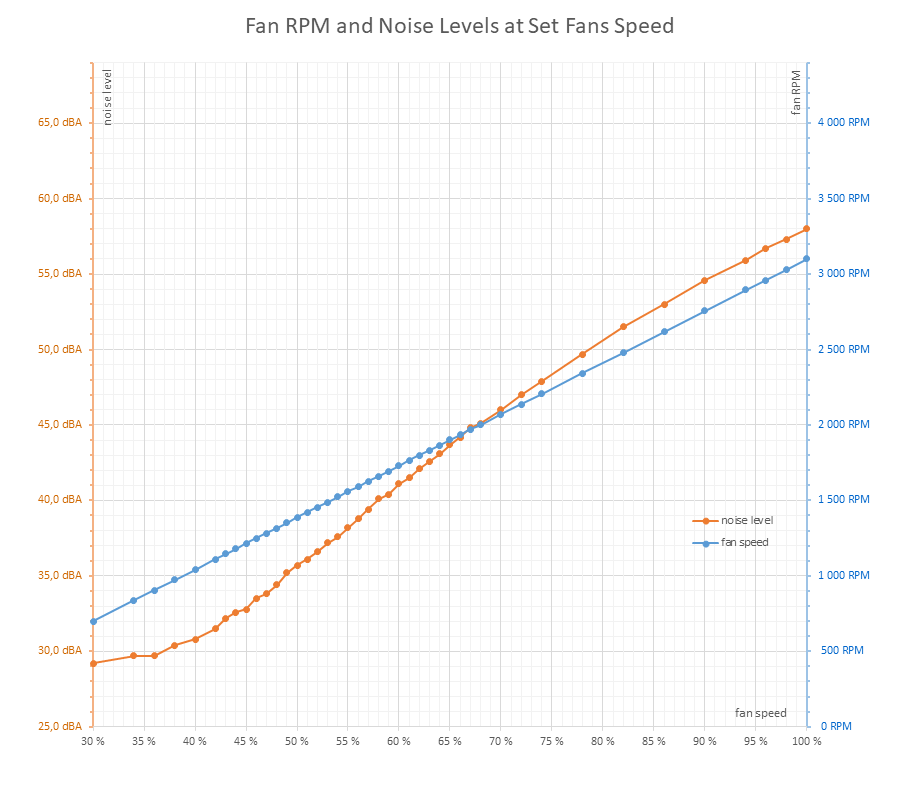
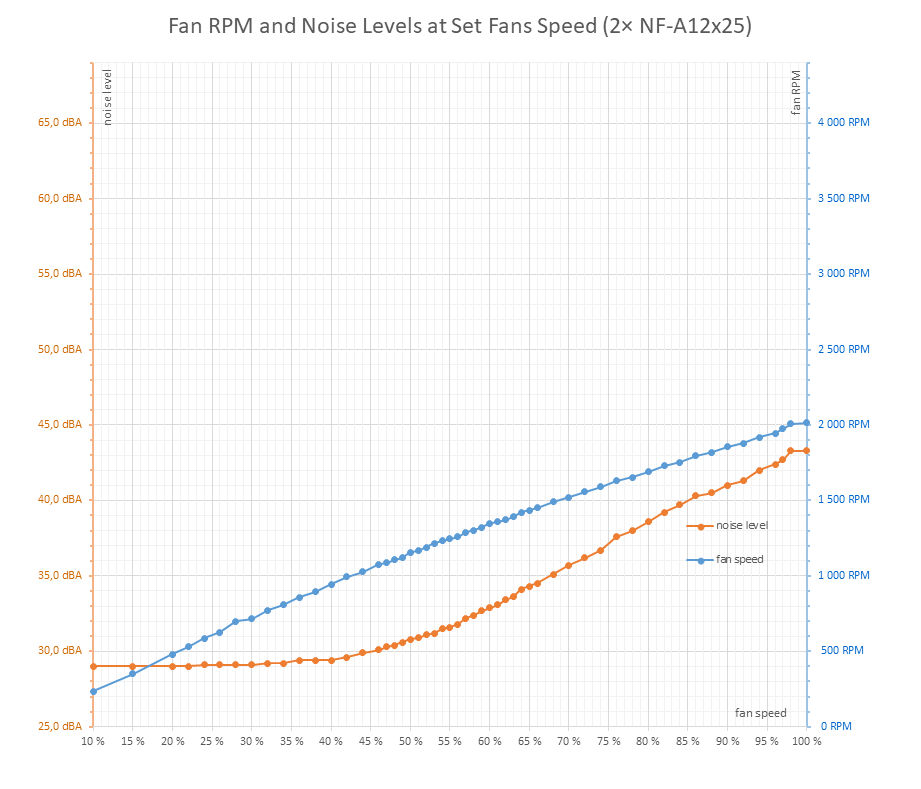
First, let’s see how the card’s noise profile changes across the full RPM range. The stock fans are controlled directly by the card and can be adjusted via tools like GPU Tweak III or Afterburner. The Noctua fans, as mentioned, were connected to the Commander Pro and controlled through FanControl.
The stock fans peak at about 3300 RPM at 100% speed. The Noctuas max out at roughly 2000 RPM. Both the RPM and noise curves are shifted downward.
It’s a bit like taking the Asus fan graph, chopping it just past the halfway point, and stretching it across the full width—both curves end up lower. The maximum noise level is reduced, though this also means that with the stock fans at higher speeds, you can push the card to lower temperatures than with the Noctuas.
The stock shroud with three Asus Axial-tech fans | Deshroud with two Noctua NF-A12x25 fans
Same temps, lower noise levels
My initial plan was to set the replacement fans to match the stock card’s noise level and then see how performance changed. The differences were surprisingly small—temperature shifts were in the range of tenths of a degree Celsius, and other values were within the margin of error.
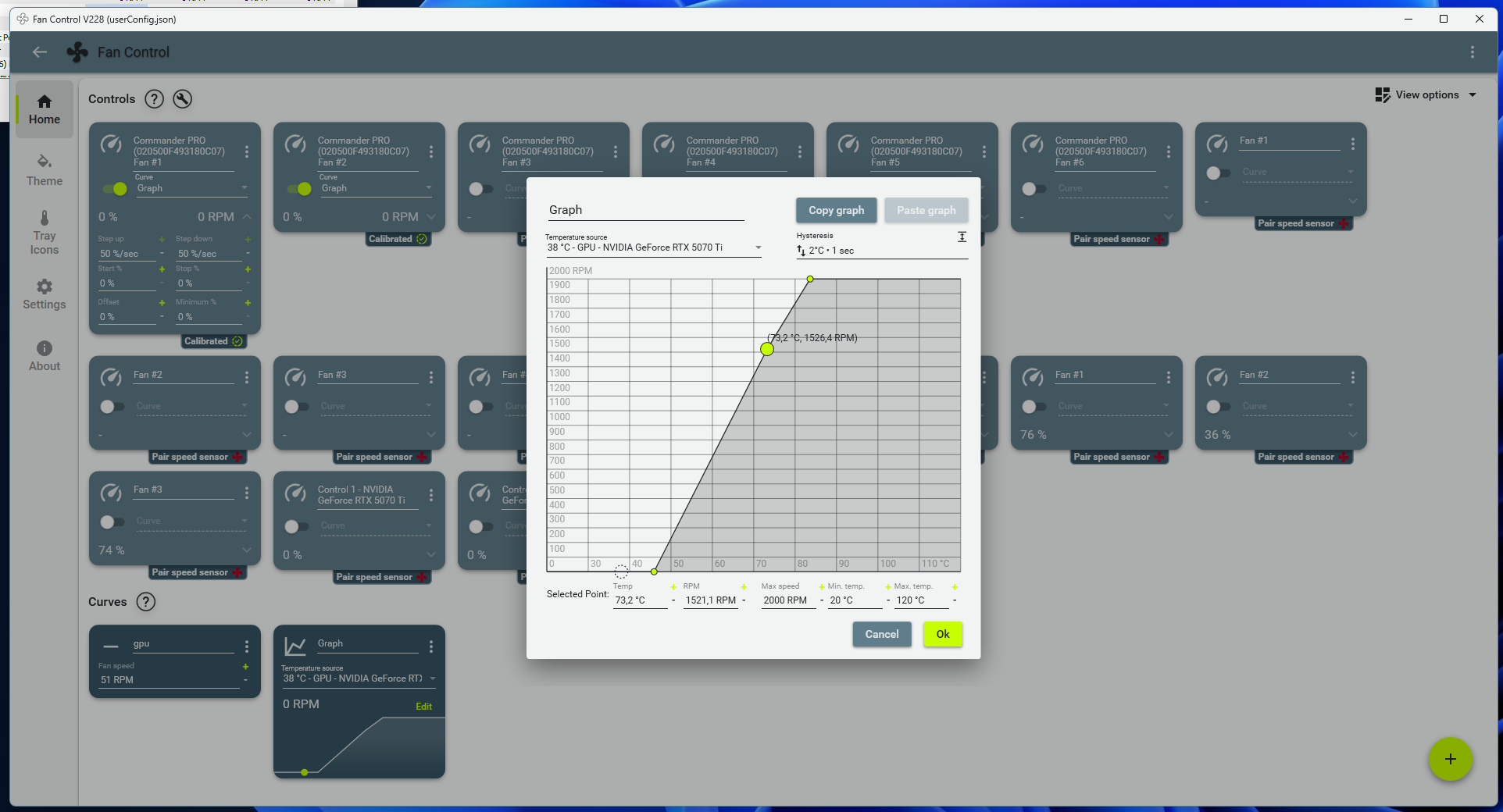
But realistically, if you’re replacing fans, it’s probably to lower noise rather than temperatures. So I reduced the fan speeds slightly at the target temperature, aiming to match the stock cooling performance but with lower noise.
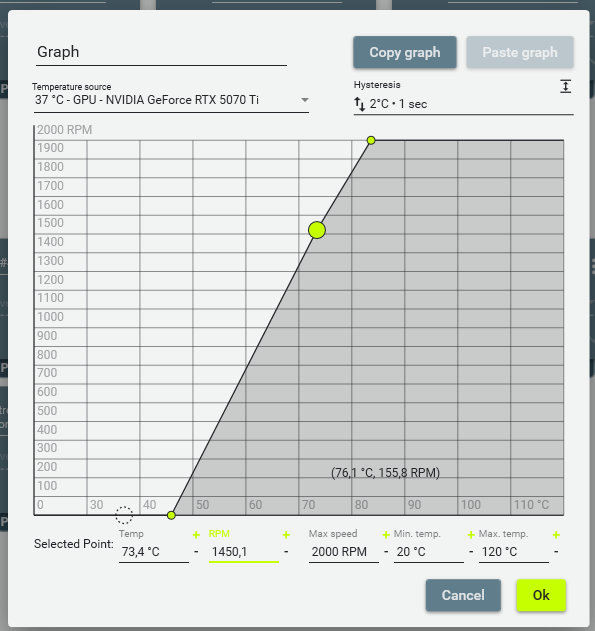
With identical GPU temperatures, the Noctuas spun at almost the same RPMs as the stock fans, with differences ranging from –50 to +10 RPM. At the same speeds, however, they were quieter. The end result was a 2–3 dBA noise reduction, along with a slightly deeper and more pleasant noise profile of the fans.
The next set of graphs compares all operating characteristics between the stock shroud with its triple Axial-tech fans and the deshroud with two NF-A12x25s. In each graph, the baseline is with the Noctuas; In each graph, the baseline shows the Noctua results; hovering over it with the mouse will reveal the stock fan measurements. Both datasets are also shown below as clickable lightbox images.
Cyberpunk 2077 Benchmark, 4K


2× Noctua NF-A12x25 fan | 3× Asus Axial-tech fan


2× Noctua NF-A12x25 fan | 3× Asus Axial-tech fan
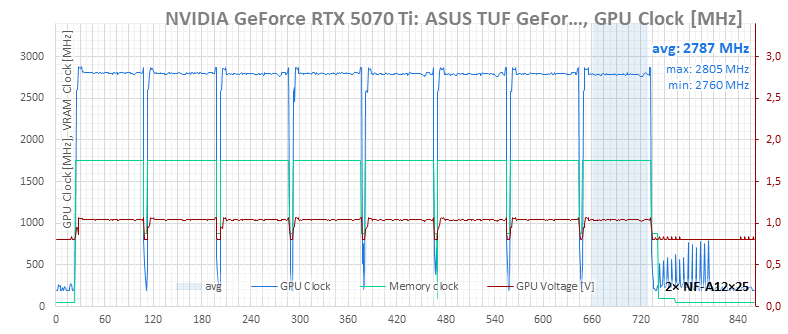

2× Noctua NF-A12x25 fan | 3× Asus Axial-tech fan
One small note about the charts—the operating logs come from HWiNFO, and the Corsair Commander Pro controller does not report the set fan performance, only the actual RPMs.
The purple curve for fan performance, therefore, does not correspond to the actual settings of the Noctua fans connected to the controller, but rather represents the performance levels that, based on temperature, the card’s built-in regulation would set for fans connected directly to the card.
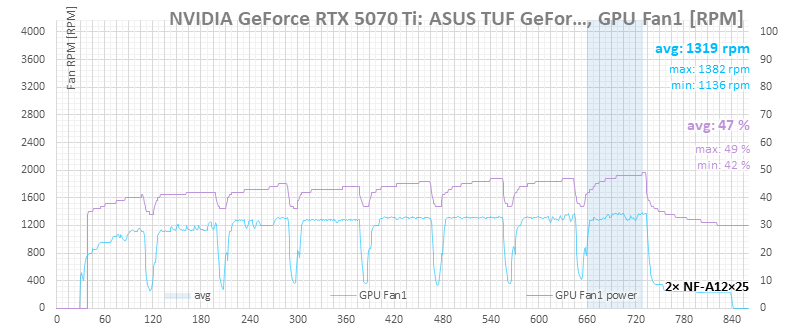
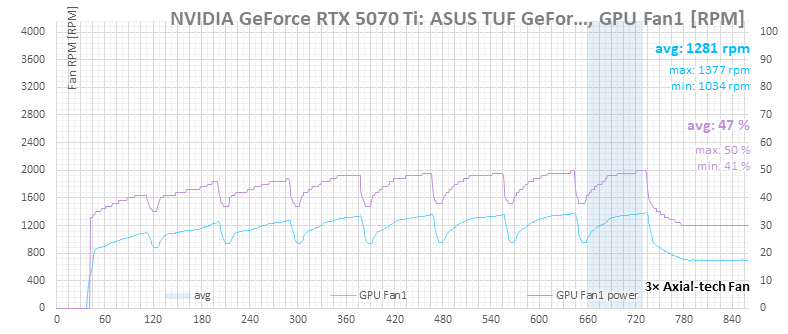
2× Noctua NF-A12x25 fan | 3× Asus Axial-tech fan
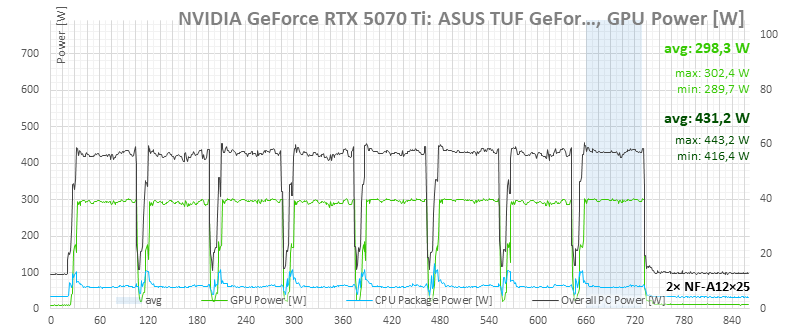

2× Noctua NF-A12x25 fan | 3× Asus Axial-tech fan
F1 24, 4K


2× Noctua NF-A12x25 fan | 3× Asus Axial-tech fan
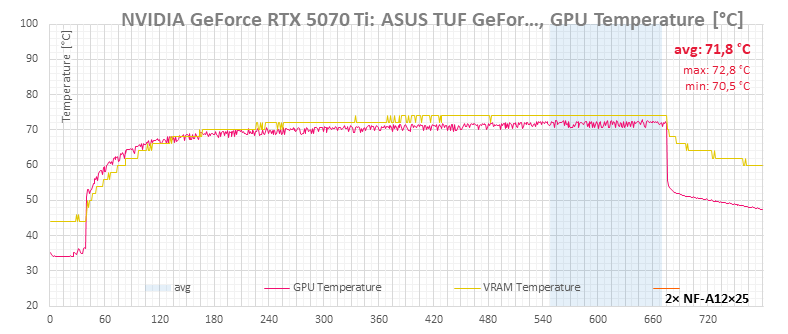

2× Noctua NF-A12x25 fan | 3× Asus Axial-tech fan
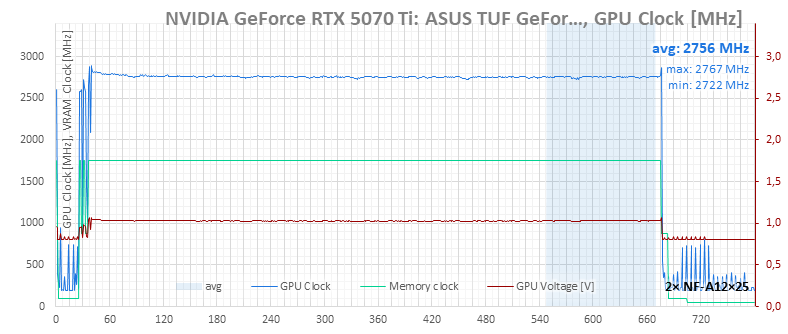

2× Noctua NF-A12x25 fan | 3× Asus Axial-tech fan
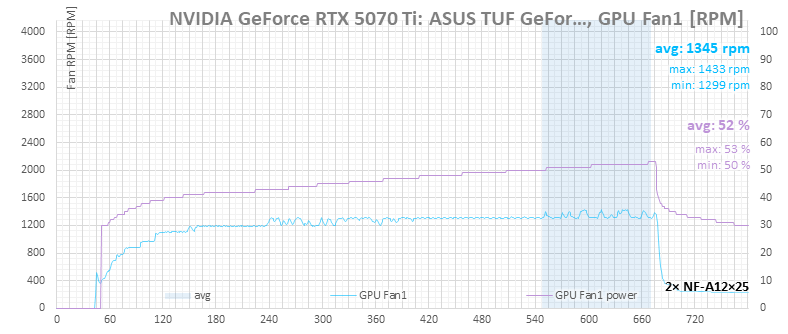

2× Noctua NF-A12x25 fan | 3× Asus Axial-tech fan


2× Noctua NF-A12x25 fan | 3× Asus Axial-tech fan
Metro Exodus Benchmark, 4K
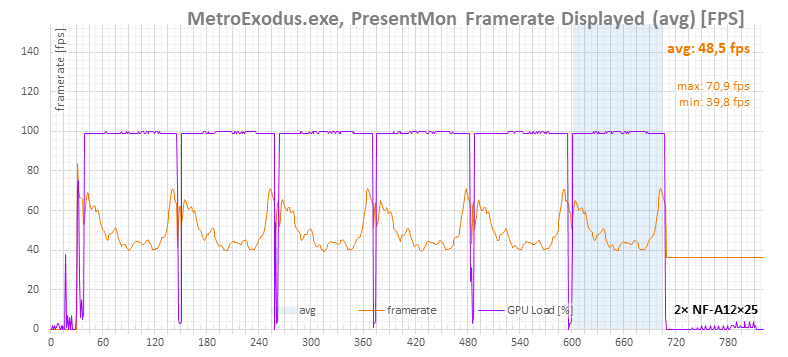
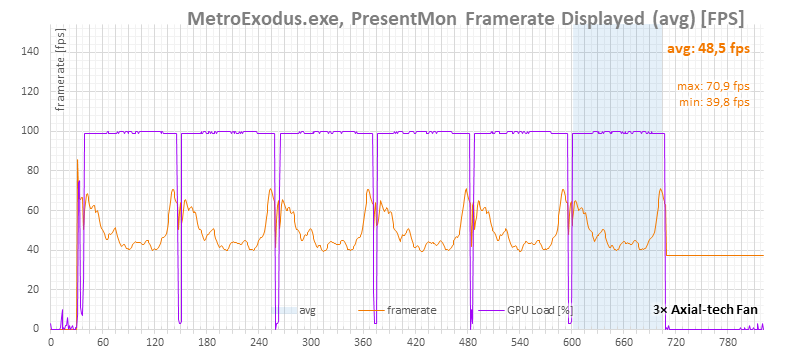
2× Noctua NF-A12x25 fan | 3× Asus Axial-tech fan
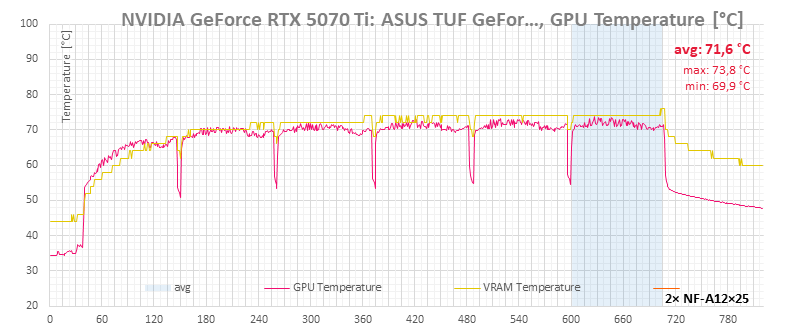

2× Noctua NF-A12x25 fan | 3× Asus Axial-tech fan
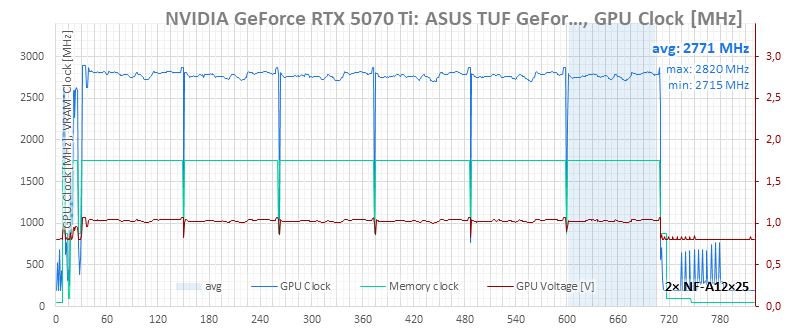

2× Noctua NF-A12x25 fan | 3× Asus Axial-tech fan
Once again, the purple curve for fan performance does not reflect the Noctua fans’ settings via the controller, but corresponds to the fan-speed control from the “quiet” BIOS profile—that is, what performance levels the card would apply to fans connected directly to it, depending on temperature.


2× Noctua NF-A12x25 fan | 3× Asus Axial-tech fan
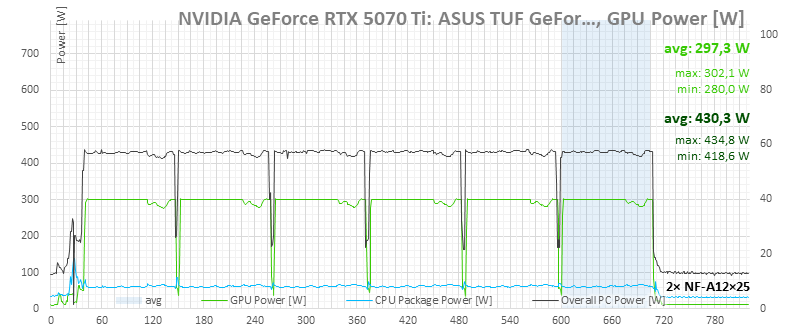

2× Noctua NF-A12x25 fan | 3× Asus Axial-tech fan
⠀