


Manufacturers typically use low-profile fans on graphics cards. If, for some reason, you need to replace them, there’s a wide selection of 25 mm-thick fans available. However, in most cases this means your card will now take up four slots. The alternative is to use low-profile fans. We’ll see what happens when, instead of Asus’s factory-installed 10 cm Axial-tech fans, we fit three slimmer NF-A12x15 units from Noctua—and also what happens if they don’t spin at all.
Test build
Reviewers usually test the performance, thermals, and noise of graphics cards on open-air test benches. In such a setup, the system has virtually unlimited access to cool ambient air from the surroundings, and the warm air from the graphics card is quickly expelled into the open air. Inside a case, however, the air volume is much smaller. Once components are installed, it becomes necessary to find a balance, tuning the cooling system so that system fans aren’t too noisy, while still ensuring sufficient airflow through the case. Powerful CPUs and GPUs produce a lot of heat, raising the temperature inside the case, and component temperatures are usually higher than under ideal open-bench conditions. This is why results for clocks, temperatures, and noise in such test setups tend to look better than what you’ll see with the same components inside a PC case.
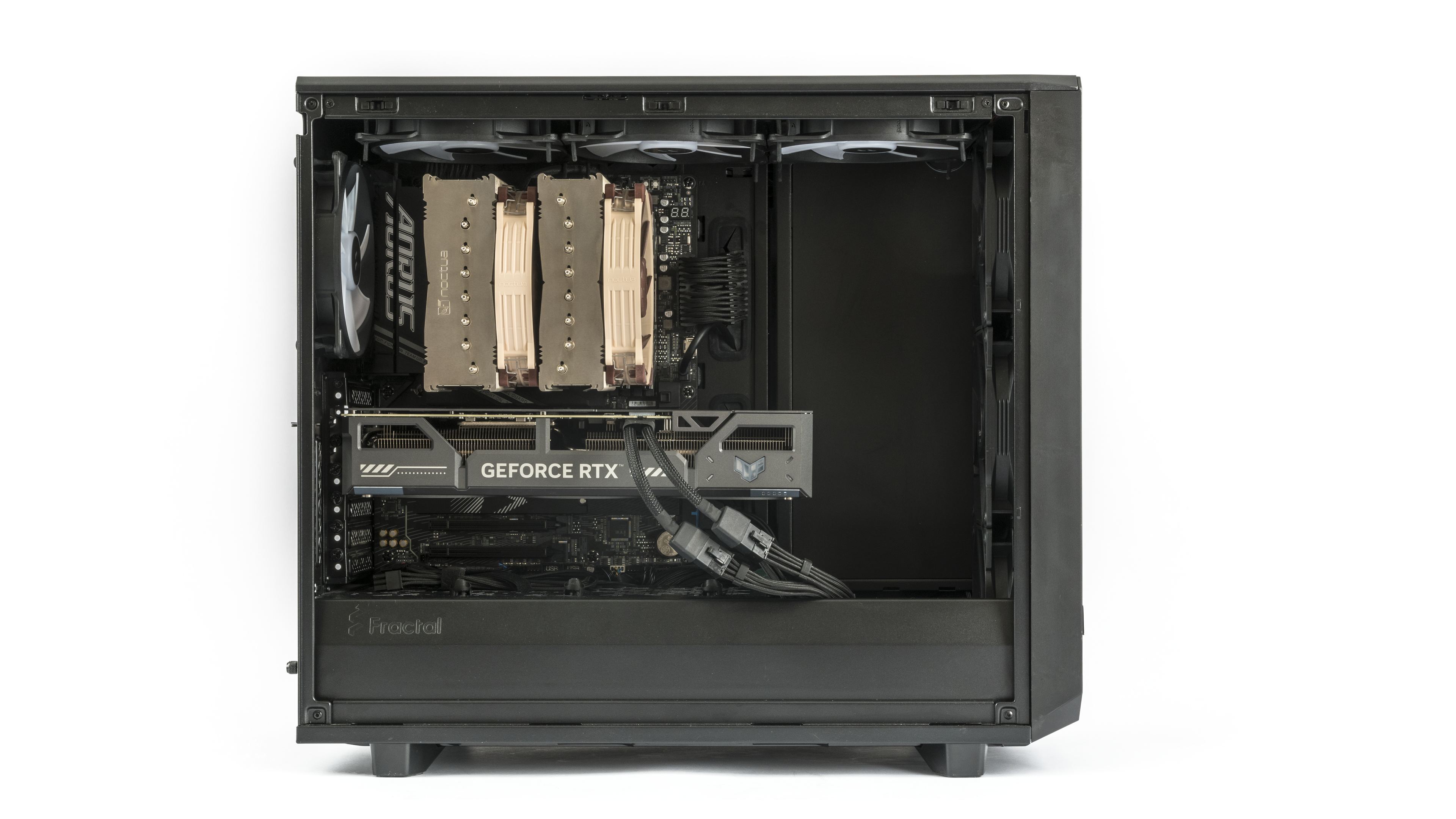
That’s why graphics cards are tested inside a PC case. For this purpose I chose the Fractal Design Meshify 2, featuring one of the most common case layouts and cooling designs. Unlike expensive, oversized cases, its size and price make it suitable for lower- and mid-range GPUs, while still being able to fit and cool even large power-hungry high-end graphics cards. In this setup, using a case with all fan mounts populated lets us compare cards under identical conditions.
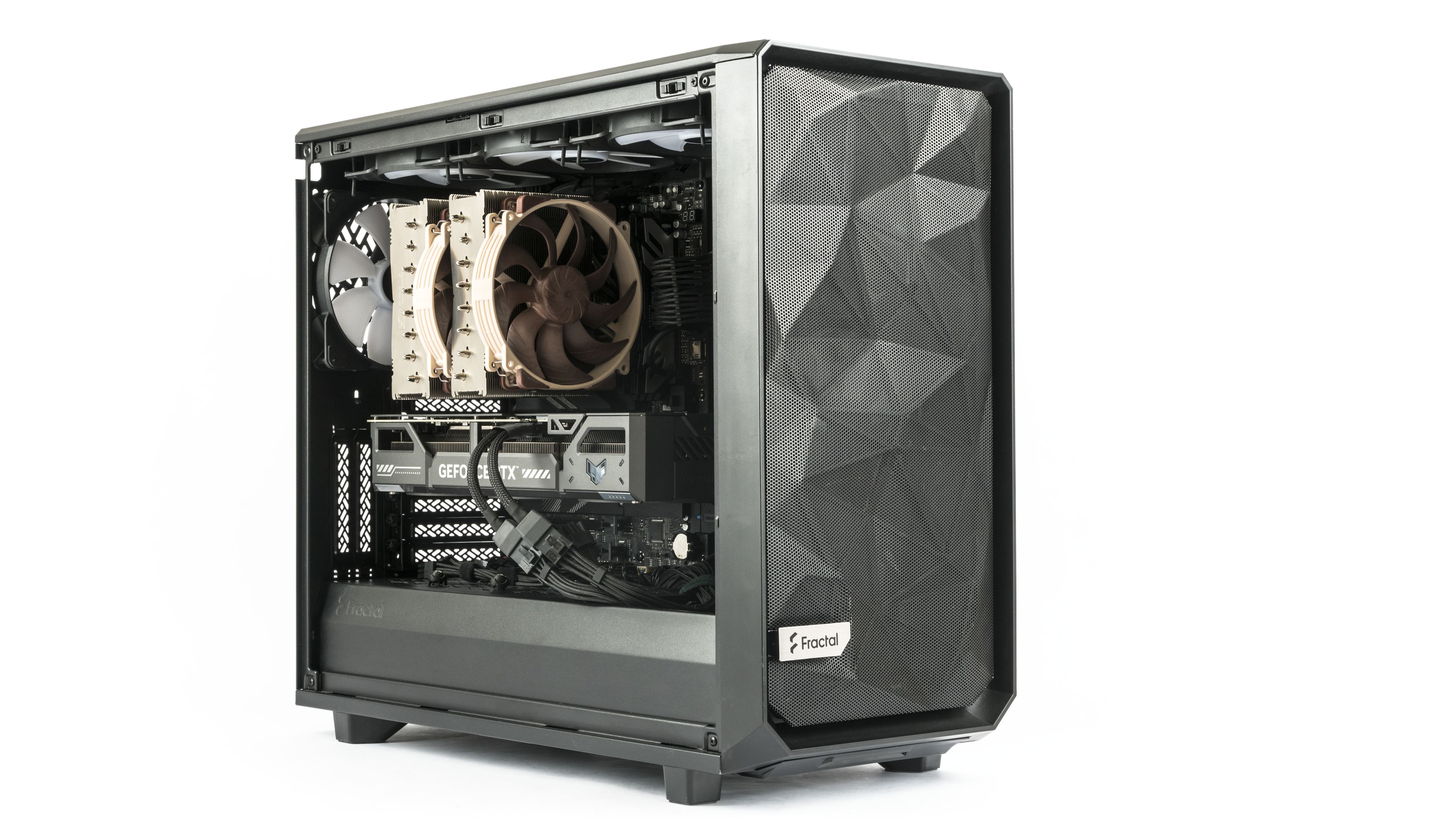
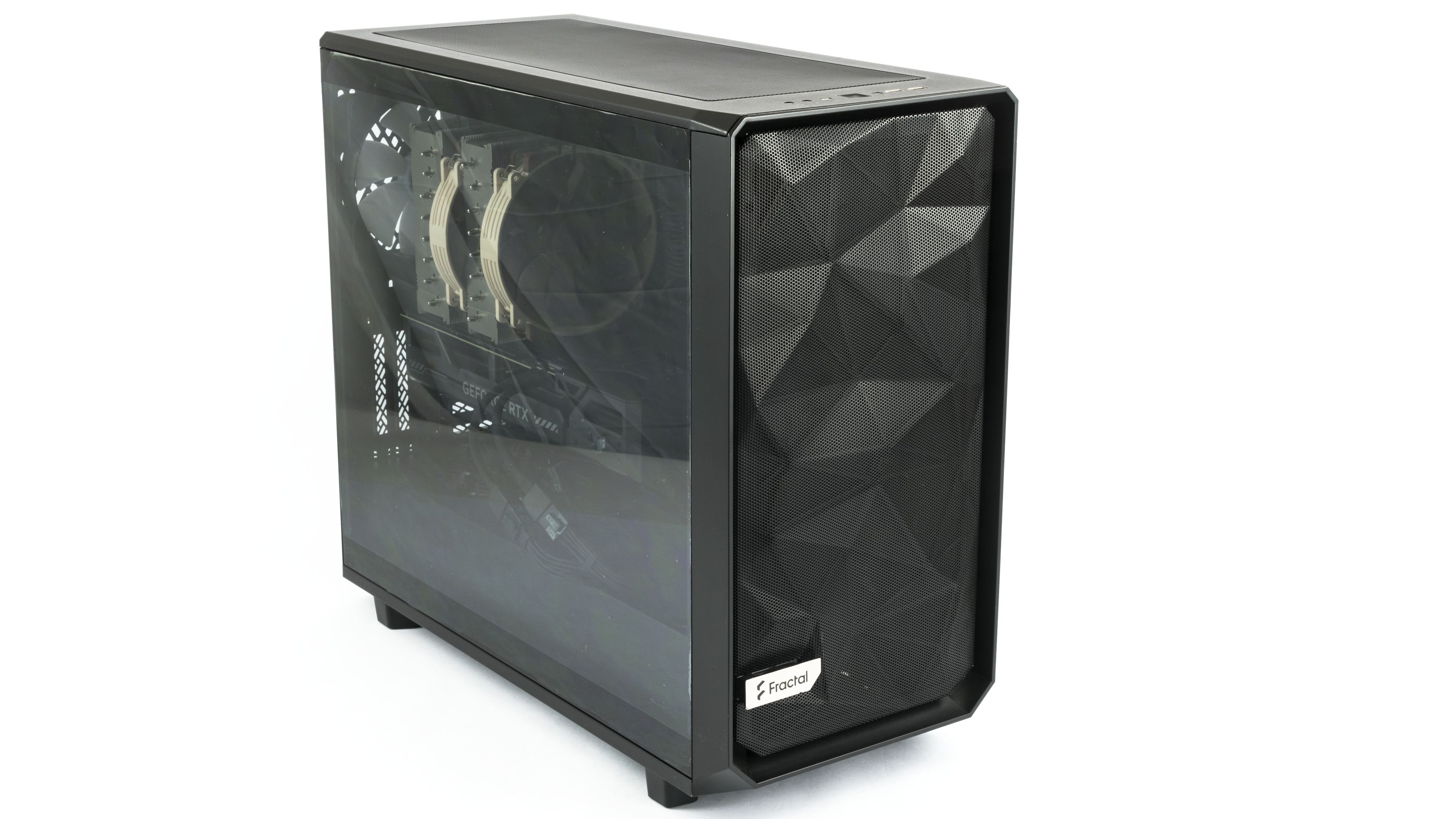
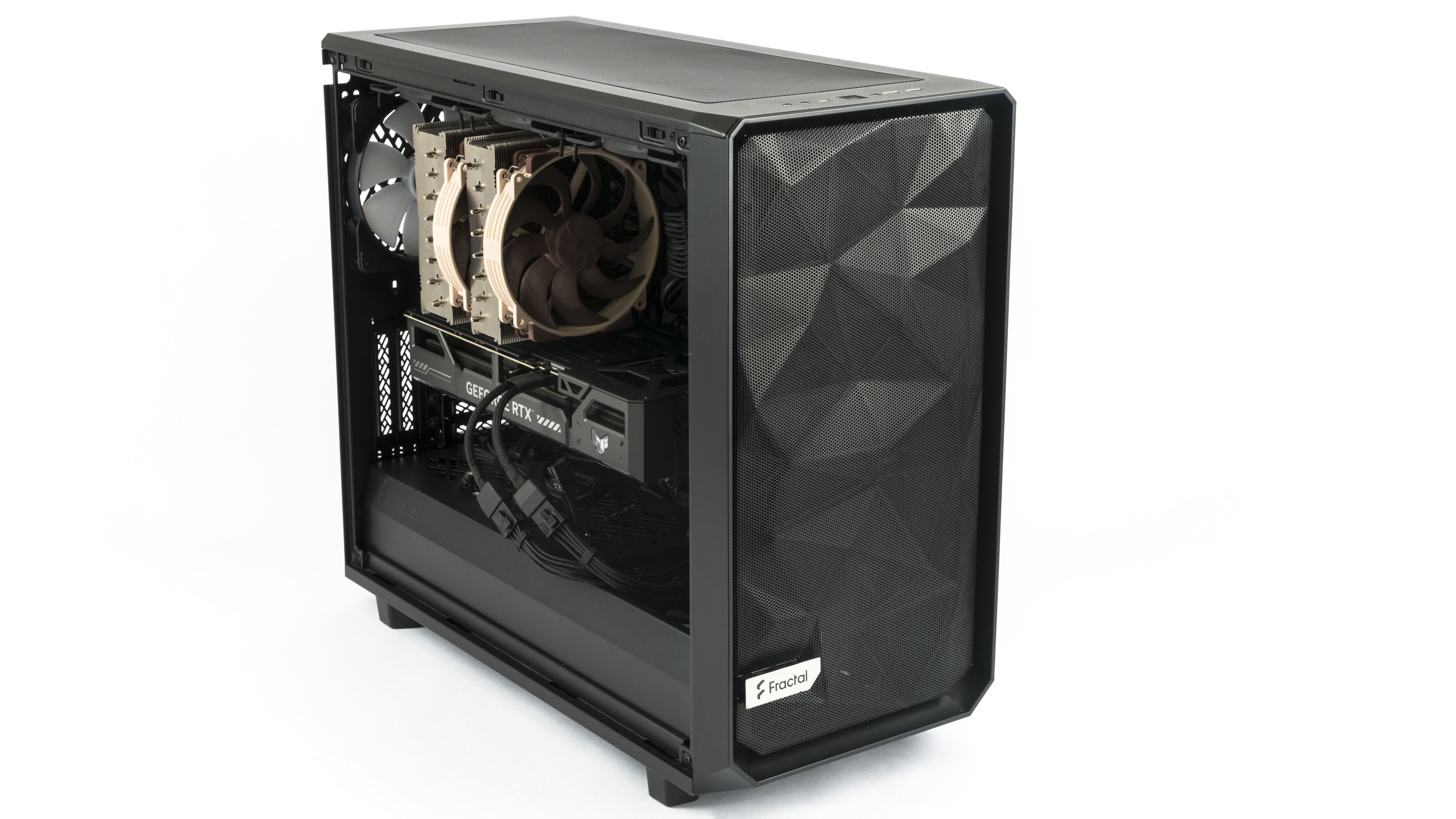
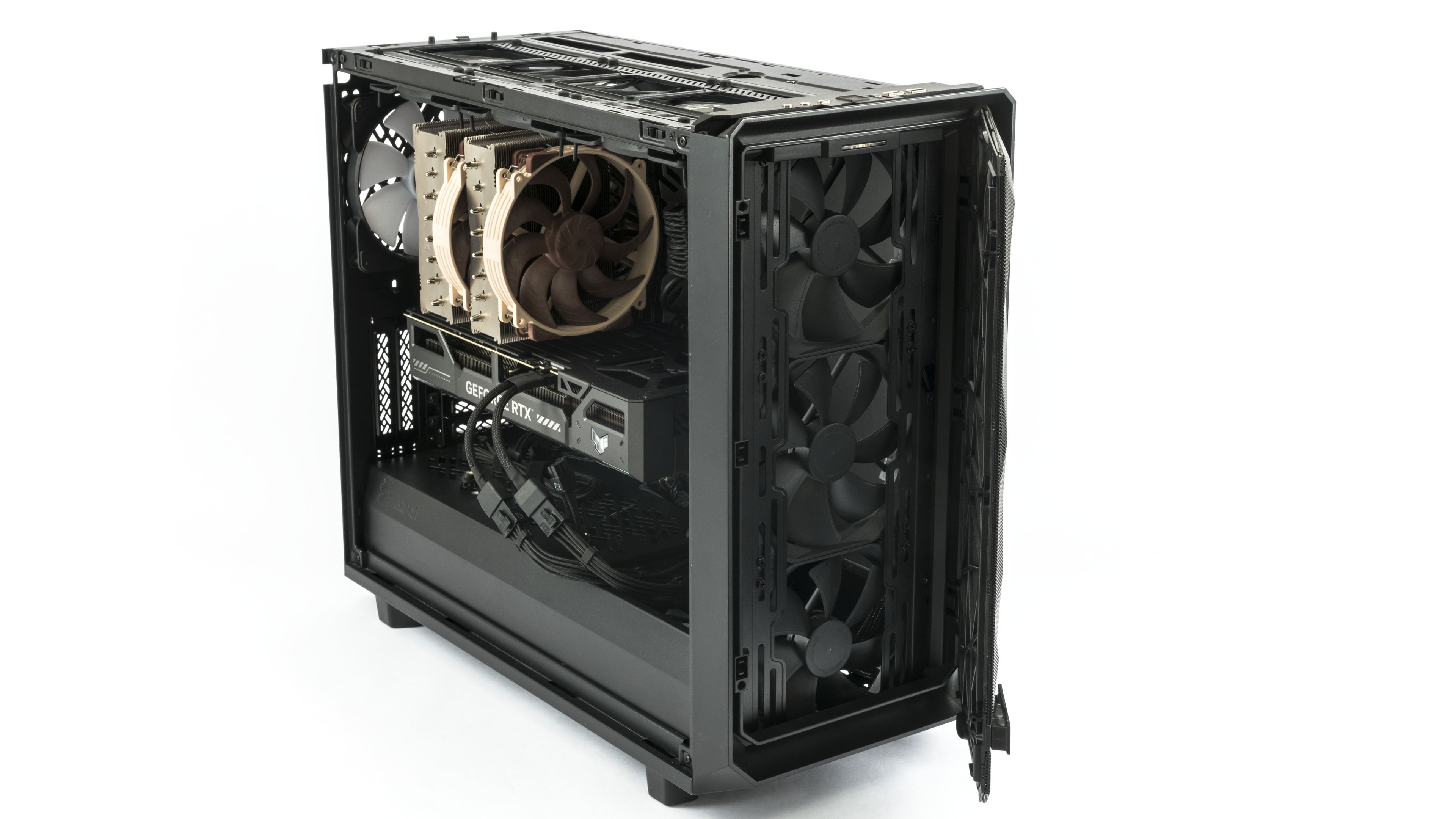
All system fans are set to around 780 RPM. Although this setup is not whisper-quiet, it can keep even high-power GPUs sufficiently cool. The front panel houses three 140 mm intake fans, and an additional fan at the bottom draws air into the case and directs it to the rear section of the graphics card.

Hot air is exhausted by three Fractal Design Aspect 14 RGB PWM fans in the top panel, plus a matching rear fan.

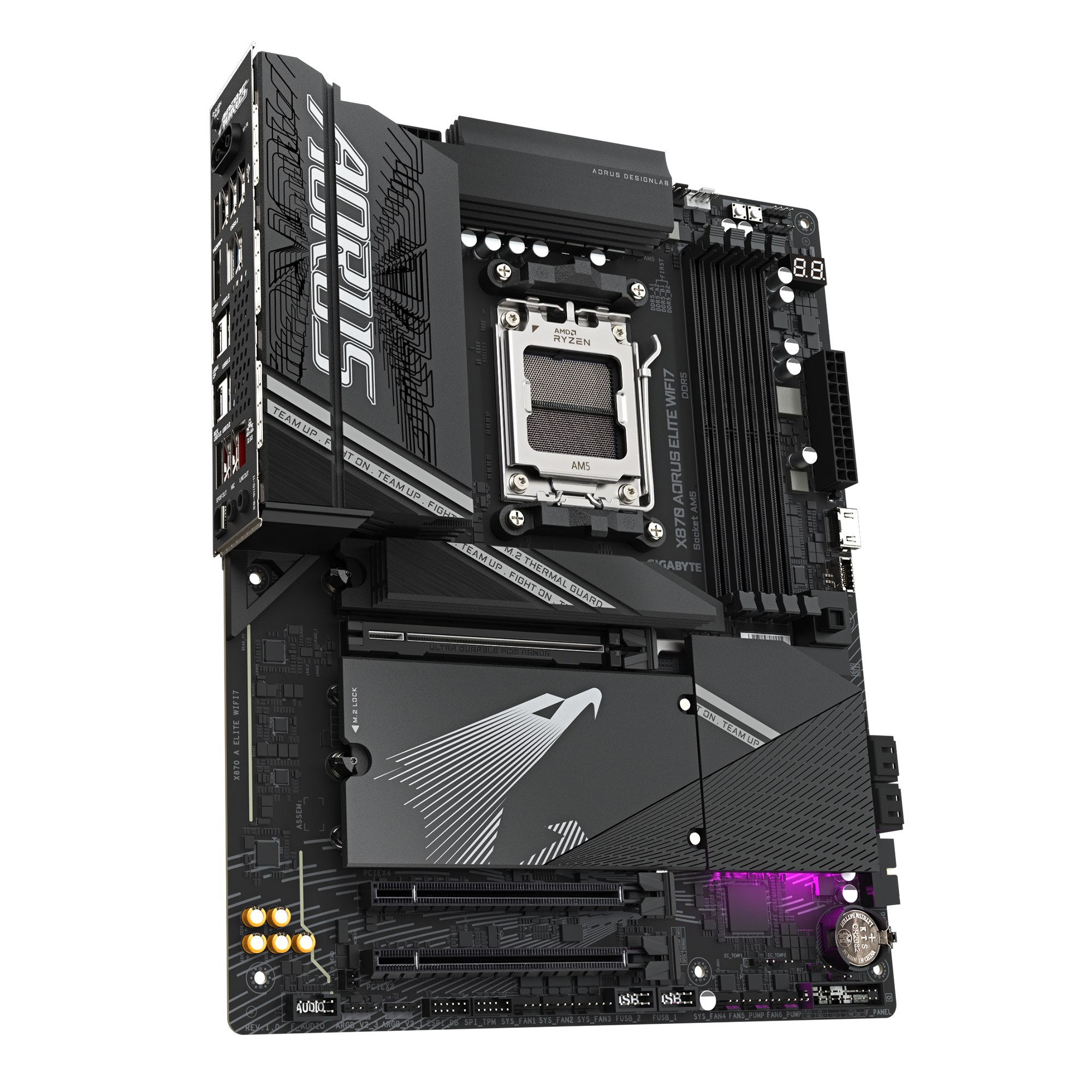
Motherboard: Aorus X870 Elite WiFi7
The motherboard used for testing is the Aorus X870 Elite WiFi7. Engineered for the latest AMD Ryzen processors, the Gigabyte X870 AORUS ELITE WIFI7 provides a robust 16+2+2 power design. It offers four M.2 slots, including three PCIe 5.0, and features next-generation connectivity with Wi-Fi 7 and 2.5GbE LAN. Its builder-friendly design, with features like EZ-Latch, simplifies the installation process.
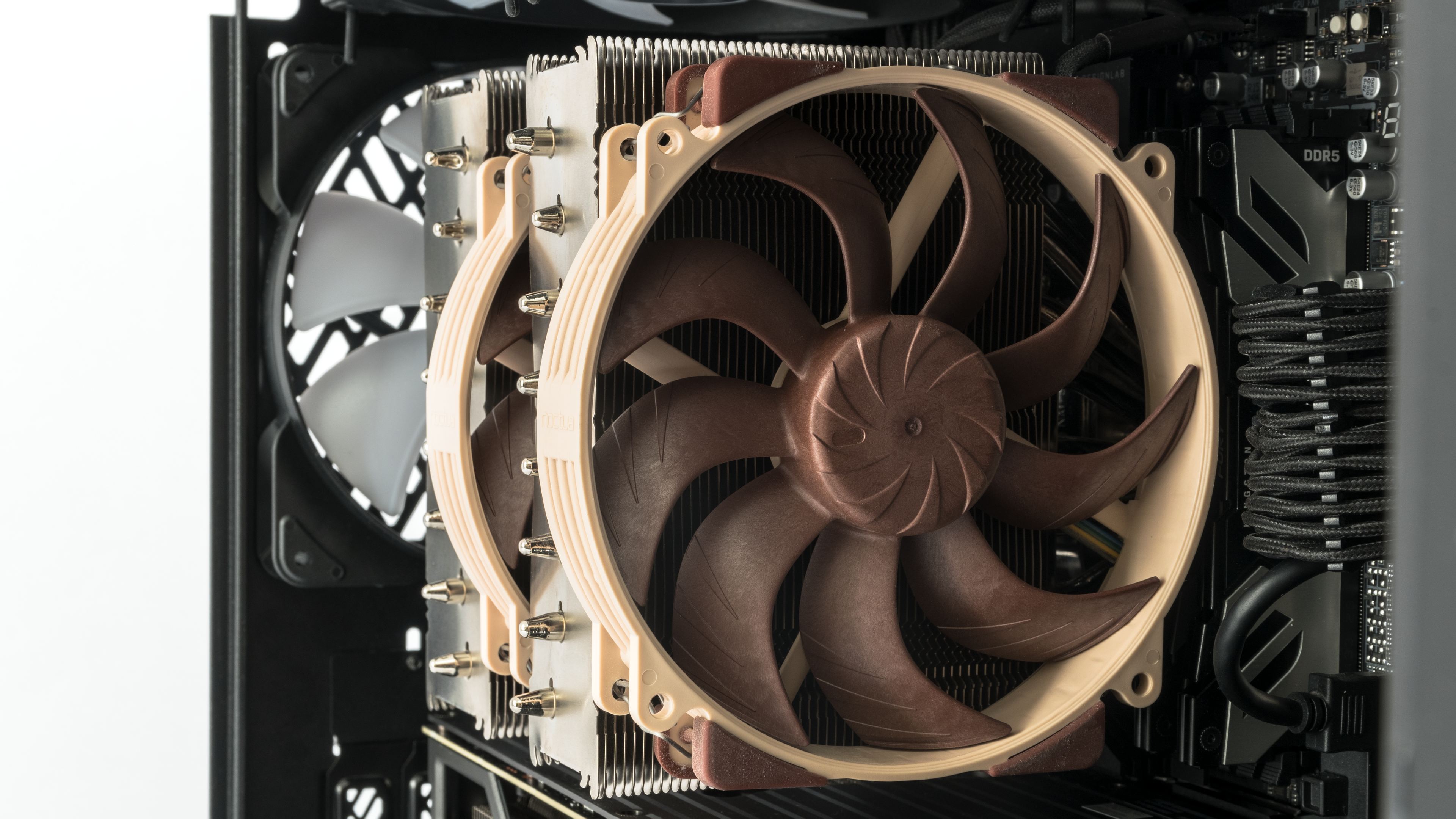
CPU Cooler: Noctua NH-D15 G2 LBC
These days, powerful gaming rigs often rely on all-in-one liquid coolers. I opted instead for a top-of-the-line air cooler, the Noctua NH-D15 G2 LBC in an offset mounting configuration, for two main reasons. First, it offers greater reliability and more predictable long-term cooling performance compared to liquid coolers. Second, it keeps airflow more stable.
When CPU load increases, speeding up the radiator fans on an AIO cooler can significantly change the airflow inside the case. With an air cooler, higher CPU fan speeds have much less impact on case airflow. The system fans are set to a fixed speed to maintain constant airflow, making it more suitable for comparing graphics cards under similar conditions.

Processor: AMD Ryzen 7 9800X3D
Our graphics card tests run on an AMD Ryzen 7 9800X3D processor. It provides sufficient cores for virtually all current titles, maintains high clock speeds, and delivers strong single-core performance. While it may not lead the charts in every benchmark, it consistently ranks among the best overall. It has a single CCD fitted with 3D V-Cache, which all cores can access directly. Unlike higher-end models, it does not suffer from latency when switching between chiplets. In games, it can make more efficient use of its thermal envelope (TDP). Thanks to this combination of factors, it can deliver the highest performance in most games.

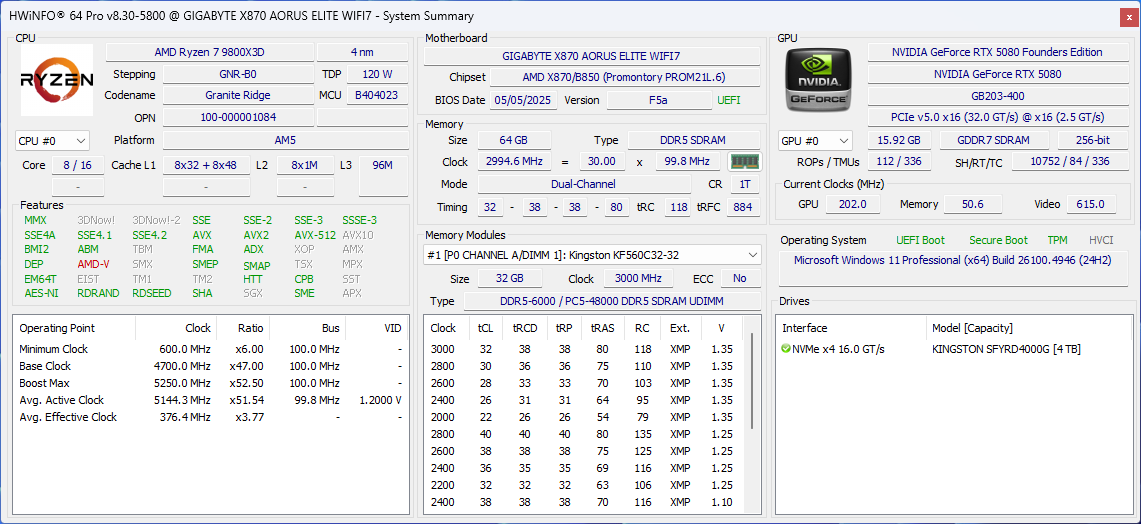
The AMD Ryzen 7 9800X3D processor runs at the motherboard’s default settings. Below is a snapshot of the hardware configuration and current setup. The current system setup may vary slightly due to BIOS, driver, and software updates.
The SVM Enable option in the advanced processor settings is disabled to improve gaming performance, which also turns off the “Core Isolation” feature in Windows Security.
The processor’s integrated Radeon graphics adapter and the onboard SATA controller are also manually disabled.
Memory: Kingston Fury DDR5-6000
The processor is paired with 64 GB of DDR5-6000 memory via two 32GB modules from Kingston. The memory is Kingston Fury DDR5-6000, product number KF560C32RSK2-64.
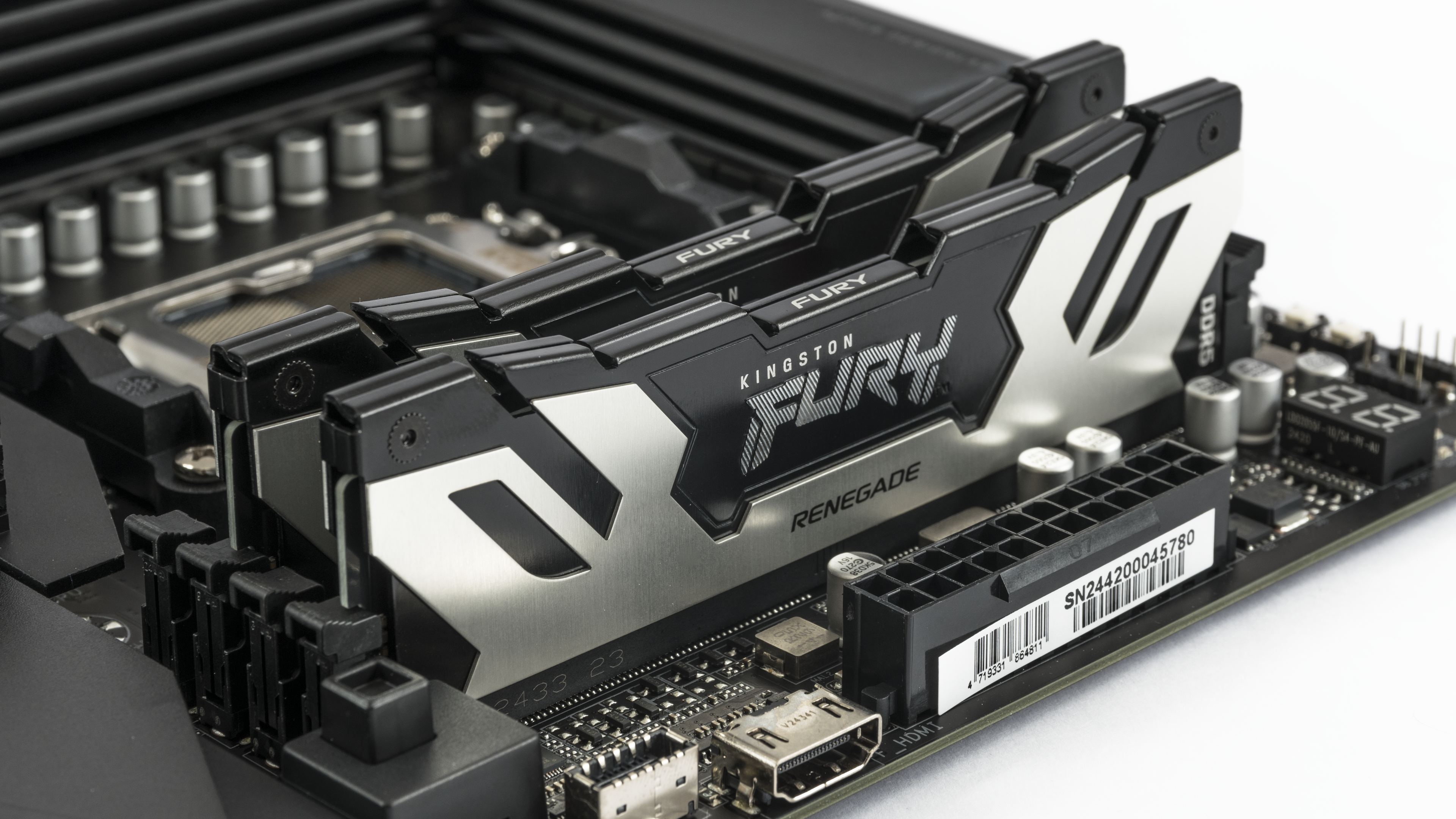

They support the following profiles:
- Default (JEDEC): DDR5-4800 CL40-39-39 @1.1V
- XMP Profile #1: DDR5-6000 CL32-38-38 @1.35V
- XMP Profile #2: DDR5-5600 CL40-40-40 @1.25V
- XMP Profile #3: DDR5-4800 CL38-38-38 @1.1V
In our build, it’s running on the highest EXPO profile with parameters DDR5-6000 32-38-38-38 at 1.350V. In the BIOS, XMP/EXPO High Bandwidth Support is enabled, Infinity Fabric Frequency and Dividers is manually set to 2000 MHz, and the UCLK DIV1 MODE divider is set to UCLK=MEMCLK.
Storage: SSD Kingston Fury Renegade PCIe 4.0 NVMe M.2
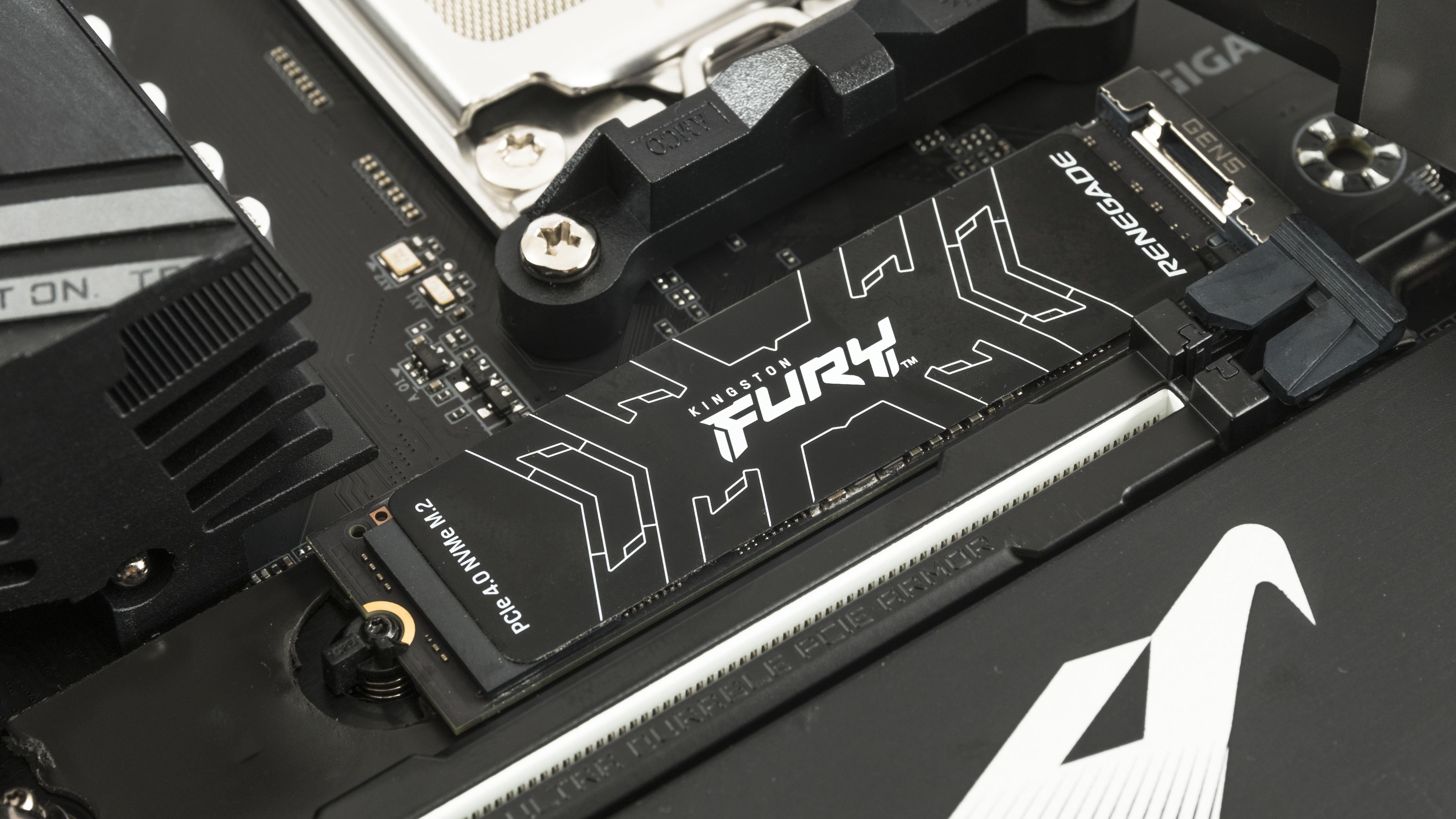
System and game data are stored on a fast Kingston Fury Renegade PCIe 4.0 NVMe M.2 SSD with 4TB capacity. It offers sequential read speeds of up to 7,300 MB/s and write speeds of up to 7,000 MB/s. The drive comes in two versions: one with a heatsink and one with a thin heat spreader. We’re using the thin-spreader version, cooled by the large M.2 heatsink included with the motherboard.
PSU: be quiet! Dark Power Pro 13.
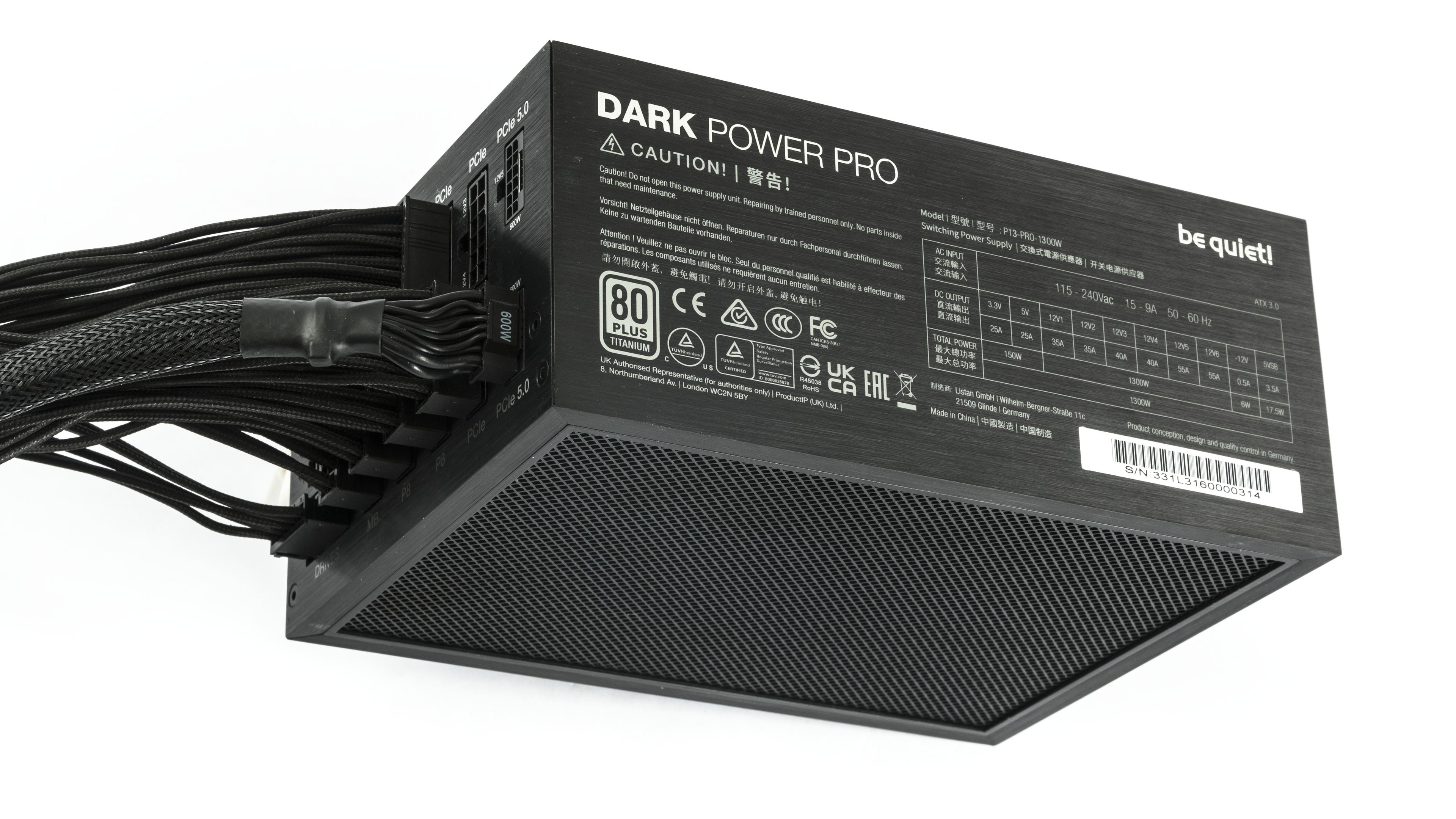
The entire system is powered by a top-tier 1300W PSU—the be quiet! Dark Power Pro 13. Be quiet! Dark Power Pro 13 1300 W is a fully modular ATX 3.0 power supply with 80 PLUS Titanium certification and up to 94.4 % efficiency. It supports PCIe 5.1 (2× 12VHPWR, 6× PCIe 6+2 pin) and features six 12V rails with an option to switch to single-rail mode. Cooling is provided by a 135 mm Silent Wings fan, and the manufacturer offers a 10-year warranty.
Monitor: MSI Optix MPG321UR-QD
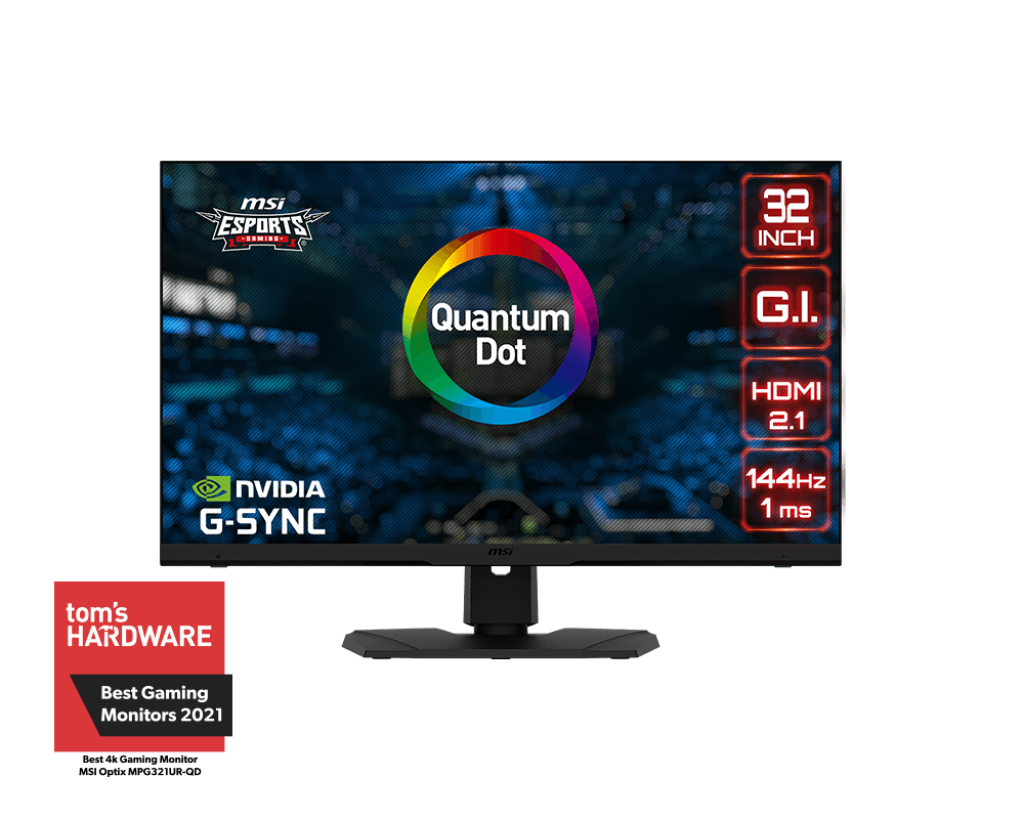
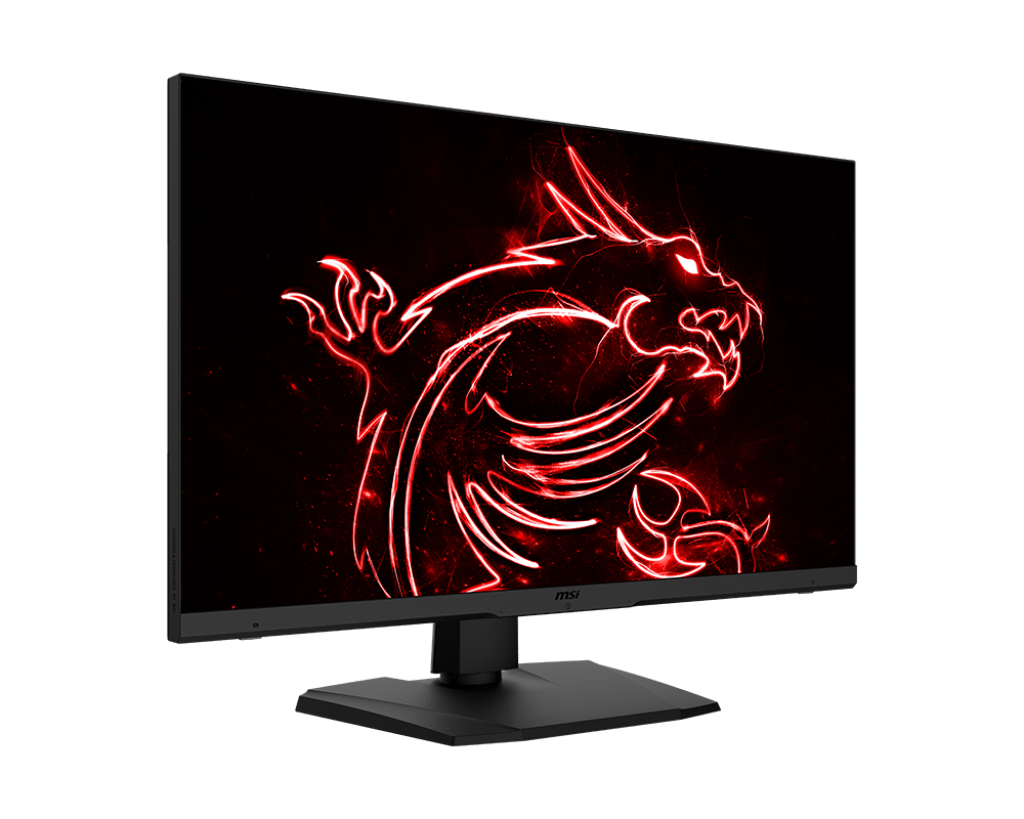
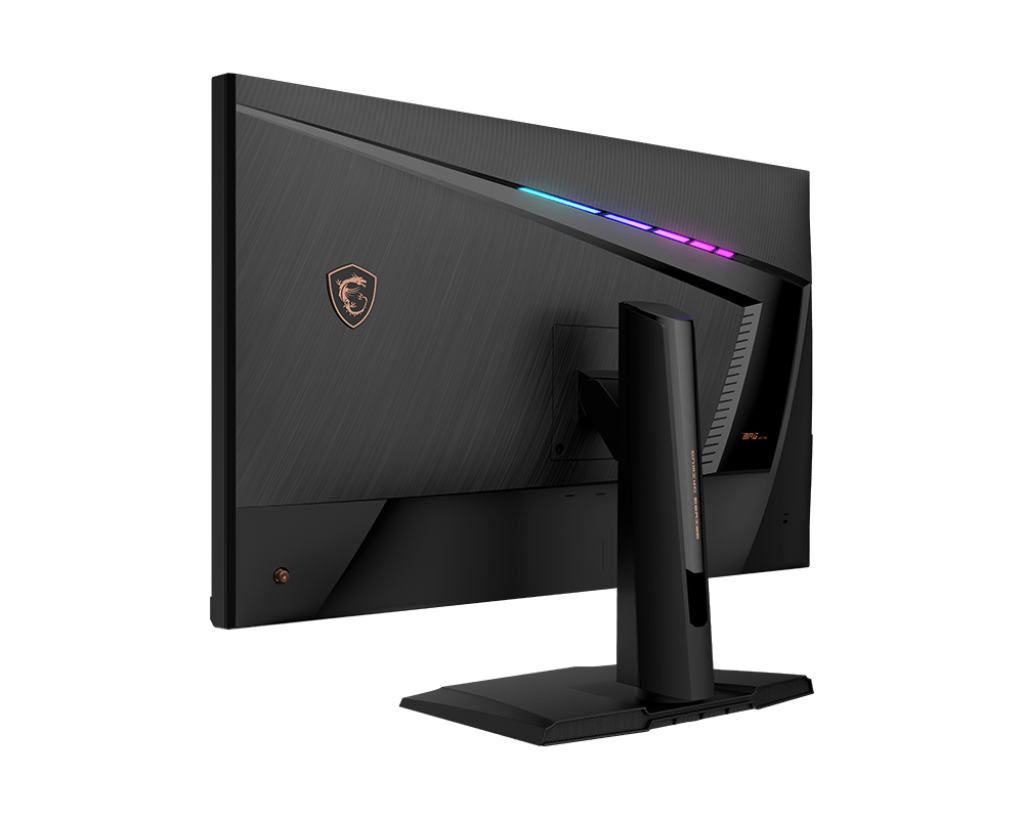
Our gaming performance tests are carried out using the MSI Optix MPG321UR-QD — a 32-inch 4K UHD gaming monitor with an IPS panel, 144 Hz refresh rate, and 1 ms response time. It uses Quantum Dot technology to deliver a wide color gamut (97 % DCI-P3, 99 % Adobe RGB). The monitor supports HDR600, offers HDMI 2.1 and DisplayPort 1.4 with DSC, includes USB-C connectivity, and comes with an integrated KVM switch for convenient control of multiple devices.
Monitor: Gigabyte AORUS FO27Q3
For specialized input lag tests we are using a top-tier gaming monitor, the AORUS FO27Q3 from Gigabyte. It features a Samsung Display QD-OLED panel at 2560 × 1440 with a 360 Hz refresh rate and 0.03 ms GtG response and is certified with VESA ClearMR 13000 and VESA DisplayHDR True Black 400. For gamers, the major advantage over LCD monitors is that OLED can redraw pixels with significantly faster response times.
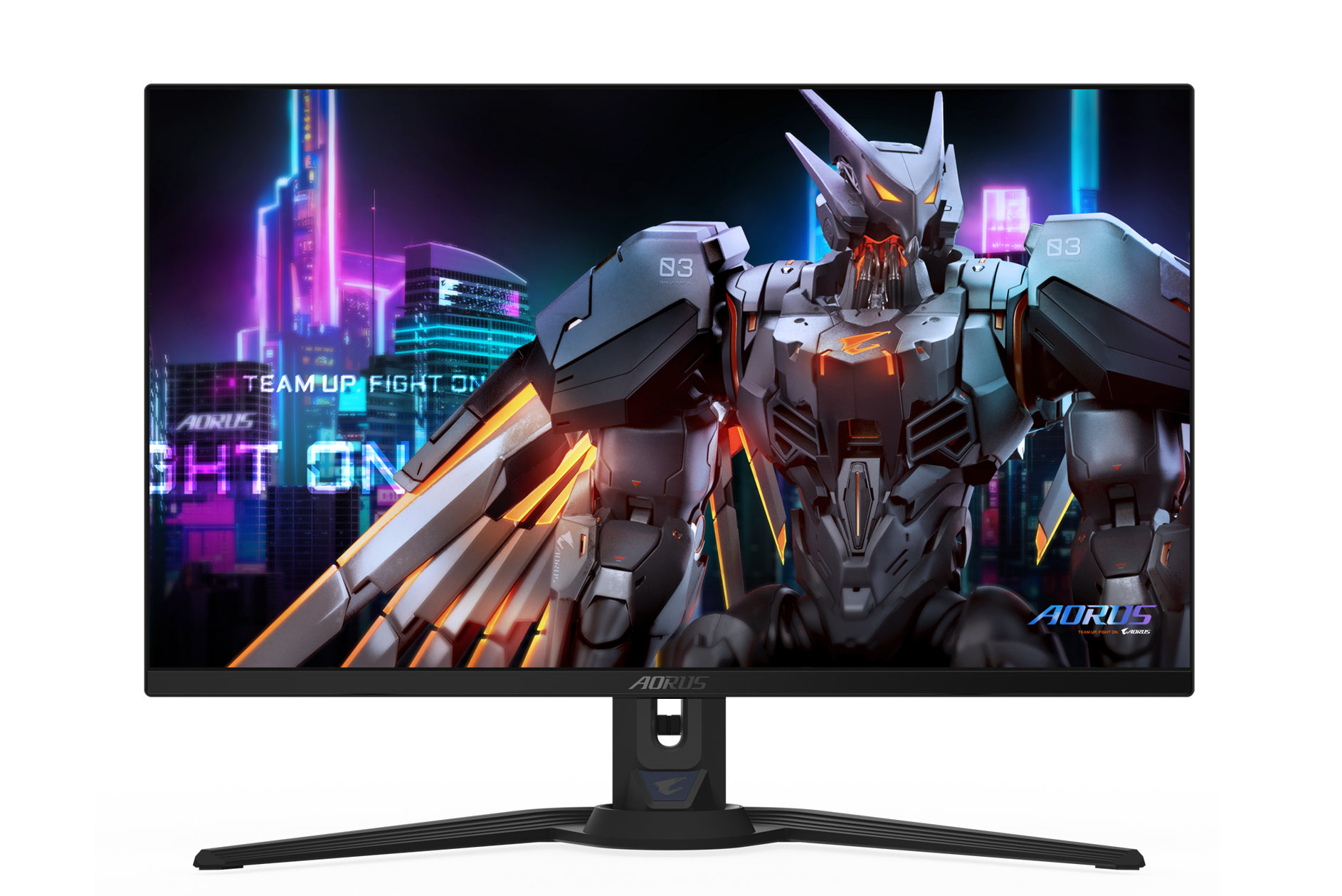
The basic monitor specifications are summarized below. For a detailed description and demonstrations of supported technologies, visit the monitor’s product page.
- Panel: 27″ QD-OLED, resolution 2560×1440 @ 360 Hz, 10-bit
- Adaptive v-sync: FreeSync Premium Pro, VRR
- Image parameters: viewing angles 178°, brightness 250 cd/m² (Typ, SDR APL 100%); 1000 nits (Typ, HDR APL 3%), 99% DCI-P3 coverage, GTG response 0.03 ms, factory calibration with △E< 2
- Certifications: VESA DisplayHDR True Black 400, motion clarity ClearMR 13000
- Connectors: 2× HDMI 2.1, 1× DisplayPort 1.4, 1× USB Type-C (DP Alt Mode; Upstream port; Power Delivery up to 18 W), 2× USB 3.2 (downstream), 1× USB 3.2 (upstream), 3.5 mm headphone out; 3.5 mm mic in
- Audio: 2× 5 W speakers
- Supported technologies: Tactical Switch, OSD Sidekick, Black Equalizer 2.0, Dashboard, Crosshair, Timer, Counter, Night Vision, Eagle Eye, PiP/PbP, Auto-Update, KVM, 6 axis Color Control, Apply Picture Mode, HDMI-CEC, RGB Fusion 2.0, pivot 0–90°, VESA Wall Mount 100×100 mm
⠀


Hi, interesting results 🙂
Do you plan to do it with 2 A12x25 ? There are some deshroud kit for the Asus prime 5070 ti available and I’m really curious 🙂
Auto reply I saw you did it with the Tuf, results will be closer i guess 🙂
Hi, I’m not sure what you mean. The results for the dual NF-A12x25 setup are in the third chapter of the previous article:
https://www.hwcooling.net/asus-tuf-geforce-rtx-5070-ti-2x-noctua-nf-a12x25-deshroud/
If you’re asking about the new NF-A12x25 G2, I plan to ask Noctua for samples to test both dual and triple NF-A12x25 G2 setups, and dual NF-A14x25 G2 setup, and possibly 3× NF-A9x14 for other cards, since that size would fit better on 30 cm cards.
The Prime 5070 Ti seems to have a slightly shorter heatsink, so the dual NF-A12x25 should fit better—although I don’t have one to try.
Anyway, for the Prime, I’m planning to deshroud the already-tested black variant of the RTX 5070 Prime. One of its fans was noticeably louder, so I expect the noise reduction to be more significant in this case.
https://www.hwcooling.net/en/asus-prime-geforce-rtx-5070-white-o12g-review-revisited/14/
Why are all your cards noise levels at minimum fan speed around 30dBA? Like here with 3x 12×15 it’s 28.5dBA, with stock TUF fans it’s 29.2 dBA, the Gigabyte Aero is 30.5 dBA. But the fan speed difference is really big 200rpm-700rpm-1000rpm.
I’m looking for a gpu with inaudible fans at minimum speed, the only point I have is that the Prime is still inaudible at 900rpm, but your review says that’s 33dBA?
I apologize—this probably isn’t something I can explain simply. It’s more suited for a longer article than a quick reply.
First, the TLDR, then more detail:
Below 29 dBA, I’m hitting the limit of the sound meter—readings of 28.5–29 dBA reflect the device’s own noise, not that of the fans. That’s why some fans show identical values even when their RPMs differ dramatically (e.g., 200 vs. 900 rpm). In reality, something like a Noctua at 250 rpm or a TUF fan at 700 rpm is actually quieter than what the sound level meter can detect.
Whether a card is considered “inaudible” is quite subjective—it depends on your personal experience with other cards, as well as your setup and environment.
With Prime cards, the issue is that fan quality varies more than usual, so even at the same speeds, the noise readings can differ. Under load, the differences become clearly measurable, as noise levels rise into the range where the meter works reliably.
In more detail:
A key limitation of the used CEM DT-8852 sound level meter is its measuring range of 30–80 dBA. With current calibration, readings around 28.6–28.8 dBA reflect the internal noise of the meter itself (microphone, power supply, etc.), not the fans.
https://www.hwcooling.net/wp-content/uploads/2025/08/3pcs-nf-a12-15-measured.png
Since you can’t simply add the meter’s own noise to the fan noise, here’s a rough idea: by subtracting the 28.5 dBA baseline using this Excel formula 10*IMLOG10(10^(value/10)-10^(28.5/10)) you can get an estimate of the actual fan noise levels. For deshrouded card with noctua NF-A12x15 fans that would look something like this:
https://www.hwcooling.net/wp-content/uploads/2025/08/3pcs-nf-a12-15-adjusted2.png
However, this is just an estimate. I only publish values that I can measure reliably. In my charts, I only show values that I can actually measure within the limits of my equipment.
Noise levels at minimum speed: around 30 dBA
Many graphics cards show minimum noise levels around 30 dBA mainly because their BIOS enforces a lower limit on fan RPM (usually between 1000 and 1300 rpm). If the card registers 30 dBA, it means that’s already within the sound meter’s detection threshold, measured at 25 cm.
If a graph starts off with an almost flat line at the lower noise limit of 28.6–28.8 dBA—such as with the TUF RTX 5070 running at a minimum of 700 rpm—it usually indicates that the card’s noise level is below the measurable range of the sound meter in that part of the curve. In other words, it’s quieter than the equipment can detect (but also likely quieter than you’d hear from a typical distance).
https://www.hwcooling.net/wp-content/uploads/2025/03/asus-tuf-geforce-rtx-5070-noise.png
For other cards like the TUF RTX 5070 Ti, noise increases visibly from around 900 rpm onward:
https://www.hwcooling.net/wp-content/uploads/2025/07/asus-tuf-gaming-geforce-rtx-5070-ti-16gb-oc-edition-o16g-test-recenze-review-noise.png
The Gigabyte Aero RTX 5070 Ti uses different fans, with a larger diameter and broader blades. Its minimum speed is 1000 rpm. The noise graph doesn’t begin with a flat line—instead, the curve rises smoothly in line with the fan speed.
https://www.hwcooling.net/wp-content/uploads/2025/02/gigabyte-geforce-rtx-5070-ti-aero-oc-noise.png
For cards like the Noctua (at 250 rpm) or the TUF RTX 5070 Ti (at 700 rpm), the measured noise level sits around 28.6–28.8 dBA simply because the equipment can’t detect anything lower.
It’s important to note that these low idle values were recorded with manual fan control. During typical load, automatic fan speeds increase significantly (usually between 1100–2200 rpm), pushing card’s noise into the measurable range. When idle, all modern cards go into zero RPM mode having inaudible cooler.
Re: “Prime is still inaudible at 900 rpm”
The biggest misunderstanding I’ve come across in noise testing over the years is how subjective “inaudible” is. People have very different standards for what they consider quiet or noisy. Some describe certain cards as quiet—even though I know from comparisons that they’re relatively loud—while silence-focused users might complain that a card I call “quiet” is clearly audible to them.
Context also matters: in a system with multiple 120–140mm fans running at 800–1200 rpm or an air CPU cooler ramping to 1500 rpm, the GPU may seem quiet simply because it’s masked by louder components. In a silent build, that same GPU would not be inauidible.
Environment plays a role too. Daytime ambient noise masks PC sounds, but at night in a quiet room, even subtle fan noise becomes noticeable.
I do all my fan noise measurements at night on an open, passively cooled test setup with nothing else running in the room. From 0.5 meters away, I can already hear some fans even when noise levels are below 29 dBA. At 600 rpm, low-airflow fans can be audible from 0.5 to 1 meter—mainly if they have lower-quality motors or bearings. With premium fans at the same distance and speed, I often can’t tell by ear if they’re running.
For higher-performance fans with no motor or bearing issues, the noise tends to come from blade shape and airflow. Cards like the Pulse RX 9060 XT or most TUF models—with high airflow, large fan blades, and densely packed heatsinks—generate aerodynamic noise that’s still audible even at 700 rpm. You can tell they’re running just by listening.
In general, when my sound meter shows around 28.7 dBA (likely even lower in reality), I can’t hear anything from 0.5 meters away. But once the noise level exceeds 28.8 dBA, it starts to become audible from 0.5–1 meter.
At a distance of 2–3 meters in a quiet space at night, measured noise levels around 34–36 dBA are clearly noticeable—you can easily tell whether the fans are spinning or not.
As for the Prime cards inconsistencies, the biggest issue is the widely varying noise levels of individual fans—even under identical test conditions. If a Prime card is described as inaudible, it’s likely meant in the context of a typical PC setup—where other components like case fans or CPU coolers are louder and mask the GPU noise. Or if someone else describes card as inaudible, he could received a unit where all the fans were exceptionally well-balanced and quiet.
I tested six fans across two different Prime 5070 cards also individually, and the results differed dramatically for each fan. On the black Prime 5070, the loudest fan (located near the I/O bracket) registered 32.1 dBA at 700 rpm, while the center fan on the same card measured just 29 dBA.
On the white Prime 5070, it was the center fan that stood out as the loudest, measuring 30.1 dBA at 700 rpm, compared to 29.2 dBA for the first fan near the I/O bracket.
These readings were taken at idle, at the lowest fan speeds. Under load, however, the measurements are more consistent. Fan speeds typically rise to between 1300 and 1500 rpm, where the CN-DT8852 sound level meter operates reliably and provides accurate results for this class of equipment.
To complicate things further, the white Prime 5070 behaved differently under load compared to the black version. Despite similar GPU temperatures, the white model’s fans spun faster. This card uses a newer BIOS, so the difference may be due to changed fan curve settings—or possibly due to GPU hotspot behavior, which Nvidia no longer displays in the RTX 50 series monitoring tools.
See the following graphs (measured using the Quiet BIOS setting) for fan speeds and temperatures:
Fan Speeds:
Black Prime 5070:
https://www.hwcooling.net/wp-content/uploads/2025/05/asus-prime-geforce-rtx-5070-o12g-test-recenze-review-quiet-cp-graf-gpufan1.png
White Prime 5070:
https://www.hwcooling.net/wp-content/uploads/2025/07/asus-prime-geforce-rtx-5070-white-oc-edition-o12g-12gb-test-recenze-review-quiet-cp-graf-gpufan1.png
Temperatures:
Black Prime 5070:
https://www.hwcooling.net/wp-content/uploads/2025/05/asus-prime-geforce-rtx-5070-o12g-test-recenze-review-quiet-cp-graf-gputemp.png
White Prime 5070:
https://www.hwcooling.net/wp-content/uploads/2025/07/asus-prime-geforce-rtx-5070-white-oc-edition-o12g-12gb-test-recenze-review-quiet-cp-graf-gputemp.png
Thank you for the extensive answer.
“When idle, all modern cards go into zero RPM mode having inaudible cooler.”
I know, but I mainly play games where zero RPM either cooks my ssd/chipset, fans constantly start and stop which is pretty annoying if it goes from 0 to 1000-1300rpm, or it runs at 1000rpm which is too loud if case fans(P14 Argb) run at 600rpm. I run my P14 Argb at 1000rpm max while gaming, but they are usually at 800rpm.
“Environment plays a role too.”
I have the same case as your test build, three P14 Argb front, one top and one rear exhaust. I test as night with closed doors and windows so it’s as quiet as possible, case side panel is on and 1 meter away from me on the desk. I run two tests one with case fans turned off and one with 600rpm.
“At 600 rpm, low-airflow fans can be audible from 0.5 to 1 meter—mainly if they have lower-quality motors or bearings. Cards like the Pulse RX 9060 XT or most TUF models—with high airflow, large fan blades, and densely packed heatsinks—generate aerodynamic noise that’s still audible even at 700 rpm. You can tell they’re running just by listening.”
The Gamerock and the Gaming Trio OC I had made this motor noise at minimum speed which is around 1100rpm, I could not hear this from the Prime.
The TUF had this bearing noise(like it had no lube) but fortunately I could not hear it from 1 meter. I had the 5070Ti Prime, I could not hear it at 500rpm over my case fans at the same rpm, it was silent up to 800rpm and I started to hear it at 1000rpm, was acceptable at 1100rpm, loud at 1300rpm and way too loud at 1500rpm(like a vacuum cleaner). The TUF had a more pleasant noise, aside from humming at certain speeds no weird noises from fan motor/bearings I could hear, but the coil whine was quite bad on my sample.