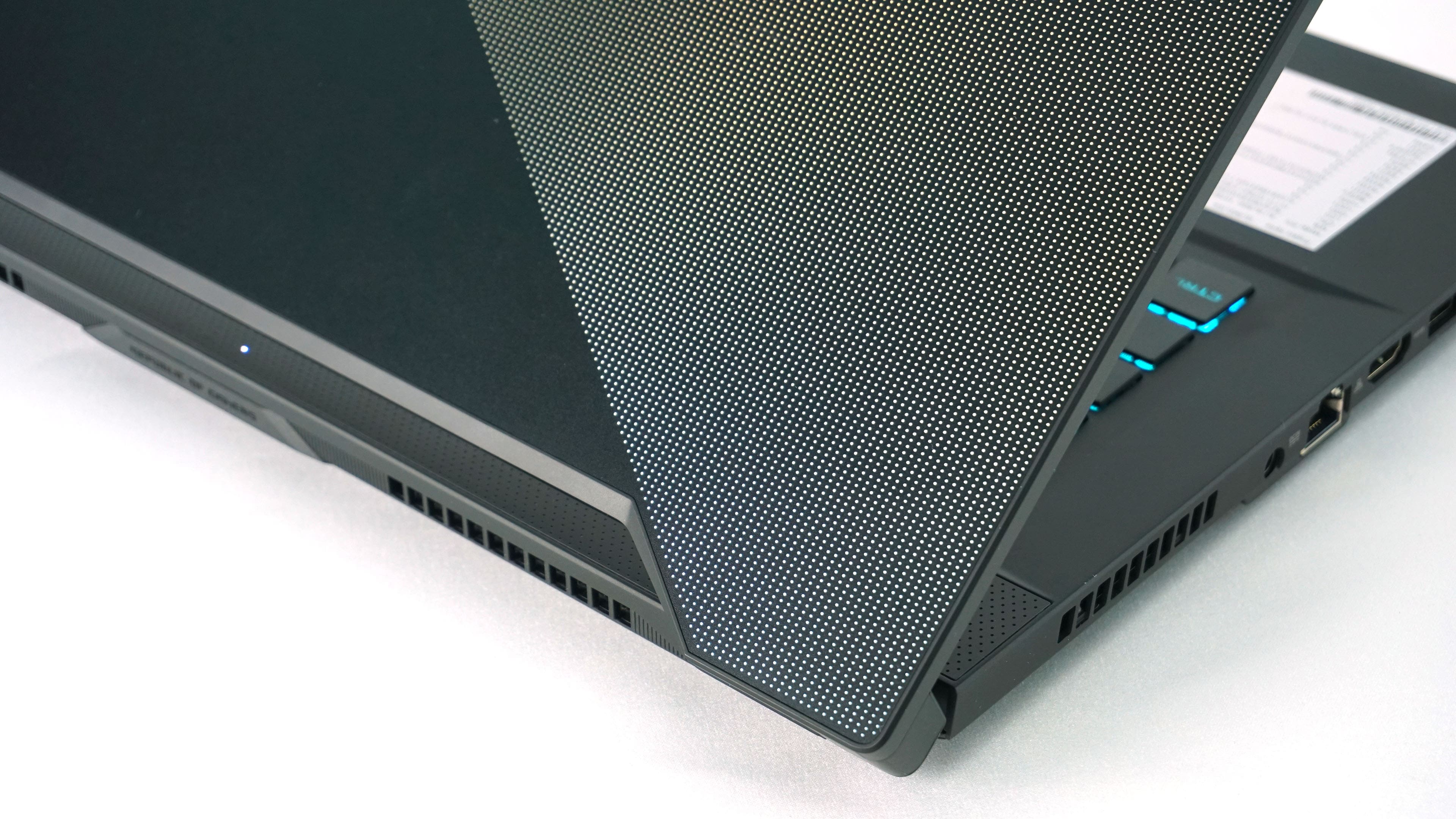
You definitely know the ROG Zephyrus gaming line by Asus well, as we only recently brought you a test of the top-notch model Duo 15. The Zephyrus line started with one product, but today several models bear this tag. One of them is the M15 which, however, has little in common with the original Zephyrus. On the outside, it looks like a regular laptop without gimmicks in the form of a secondary display or the AAS.
Blender – comparison of CPU and GPU
We are introducing a new type of test in which we want to show you the differences between CPU and GPU rendering and at the same time take a closer look at thermal management, clock speed and power draw in practice and not just the maximum or average values as in the previous pages.
We’re comparing the course of the BMW test in the latest version of Blender, where in addition to the classic CPU and GPU render using CUDA, we also have the opportunity to use new Nvidia OptiX, which uses new hardware resources for RTX graphics cards. While CUDA works with shaders, OptiX also uses RT cores and tensor cores for acceleration. Such a more complex involvement of computing units brings higher performance and efficiency is at a better level. At the same time, the application support is already quite decent and comprehensive. For an overview of the editors supported by the Optix API, see the Nvidia website. Nvidia is serious about this interface and has been developing “studio” drivers in addition to game controllers for some time now which are better and faster optimized for changes in supported applications.
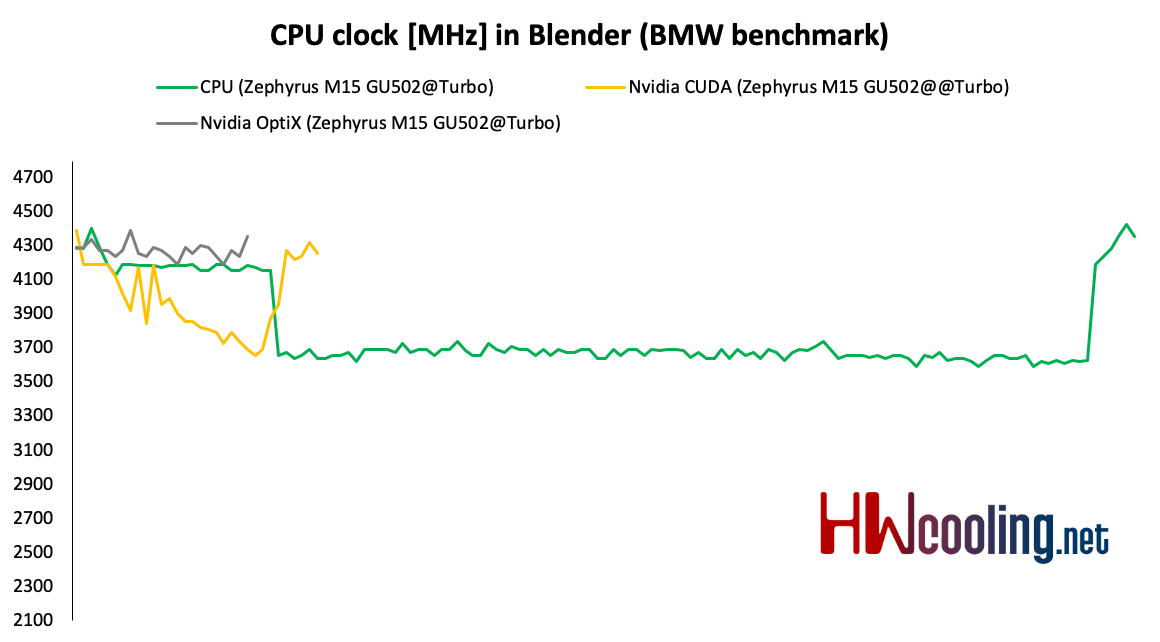
In the first graph, you look at the progress of CPU clock speed during rendering. The classic CPU mode starts somewhere around 4300 MHz and decreases towards 3700 MHz which is expected considering temperatures and power draw. With CUDA, you can see a faster drop in clock speed to the same 3700 MHz but then a return to 4.3 GHz. In OptiX mode, clock fluctuations are minimal and still around 4300 MHz.
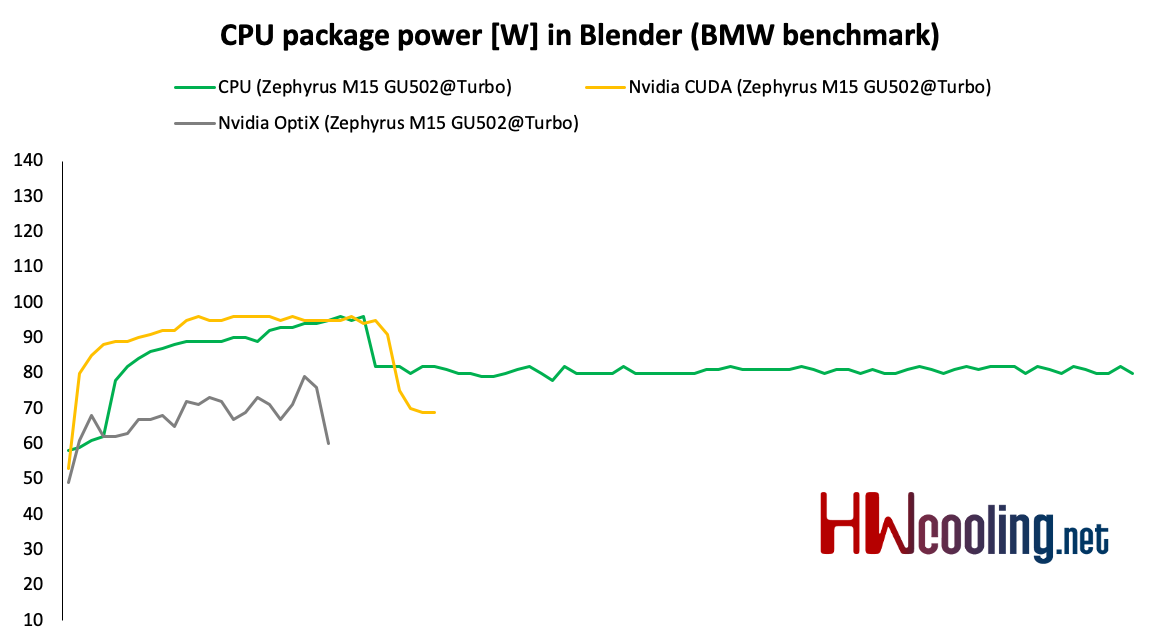
Power draw in CPU Package shows that the CPU and CUDA modes also make full use of the processor, and the maximum power draw reaches up to 100 W. With the CPU, we see a decrease to 80 W, which was reflected in the clock speed, as we saw above. In the OptiX mode, the power draw is not so high, it moves around 60 – 70 W.
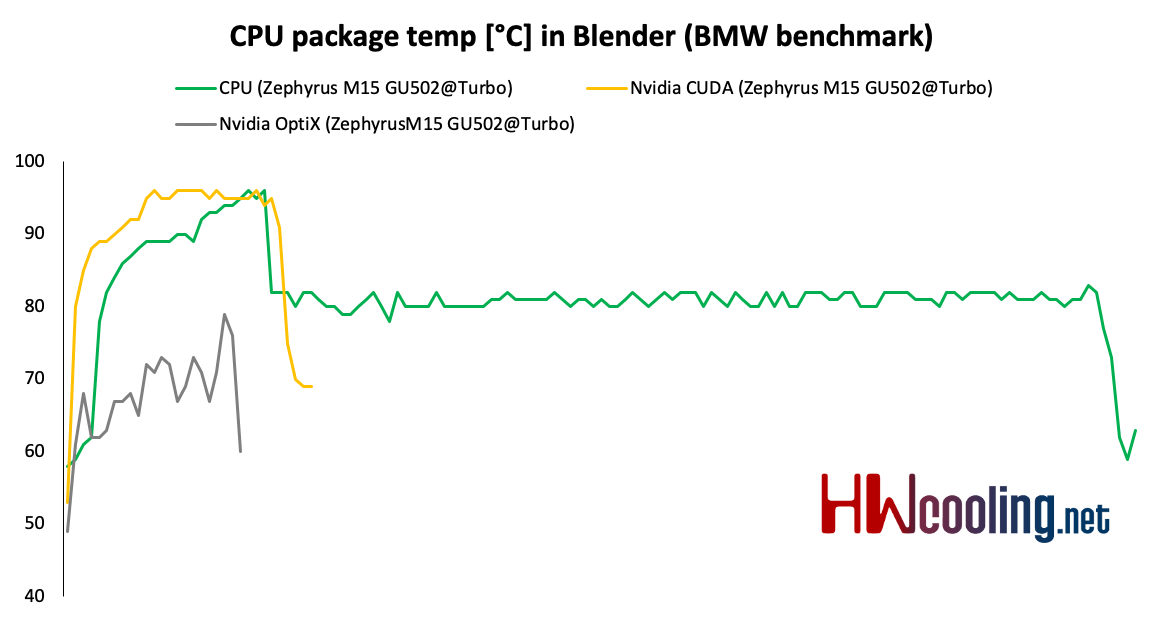
Processor temperatures copy the power draw graph, and in the first part, the CPU and CUDA modes rise rapidly to about 95 degrees. After a decrease in clock speed and power draw in the CPU mode, the temperature will also drop by approx. 15 degrees to 80 °C. OptiX again shows a significantly better result with temperatures around 70 to a maximum of 80 degrees Celsius.
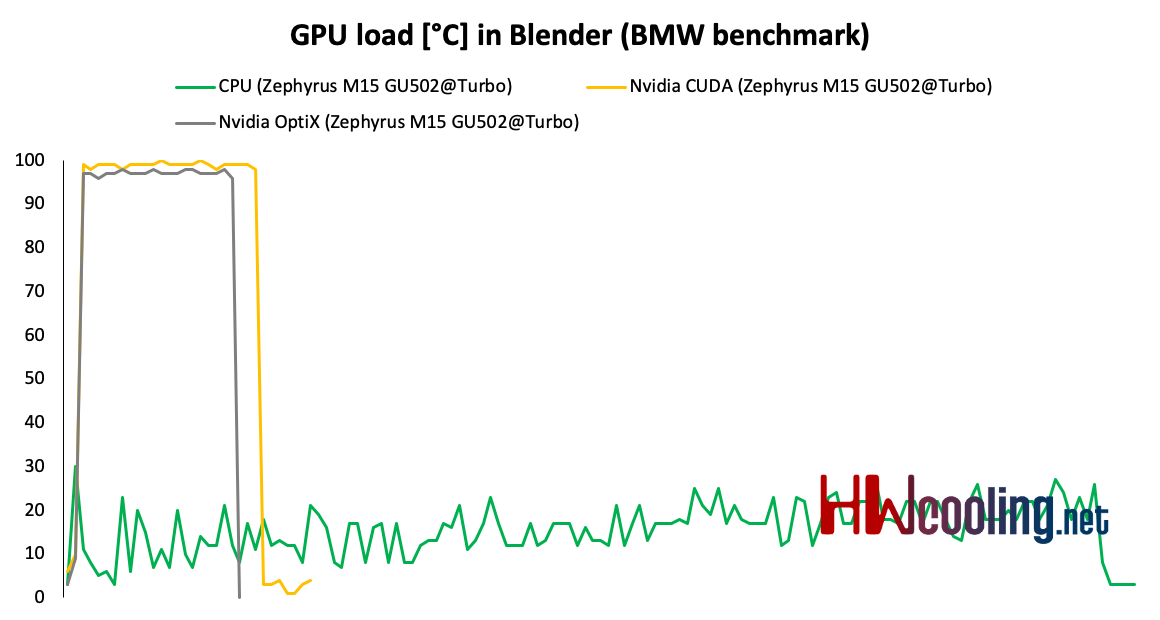
The load on the graphics in CPU mode is practically minimal, on the contrary, in both CUDA and OptiX you can see full load.
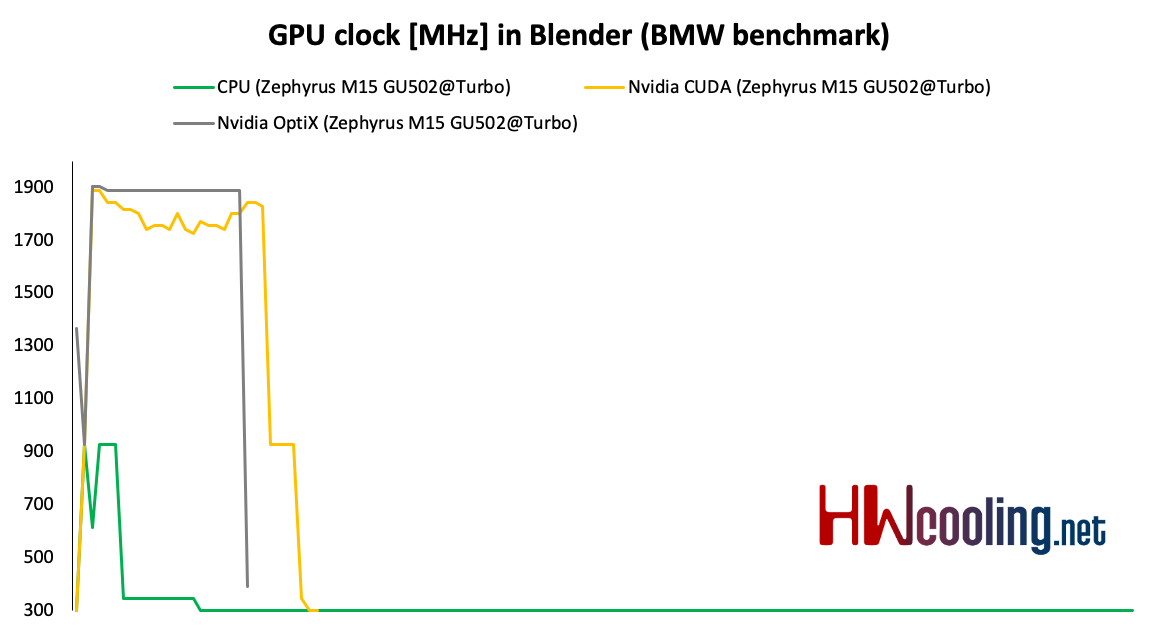
The load is also matched by clock speed, where it is interesting that with OptiX it holds firmly at 1900 MHz, while in Cuda you can see changes in clock speed up to 1.7 GHz. CPU mode is of course at a minimum as it is not used.
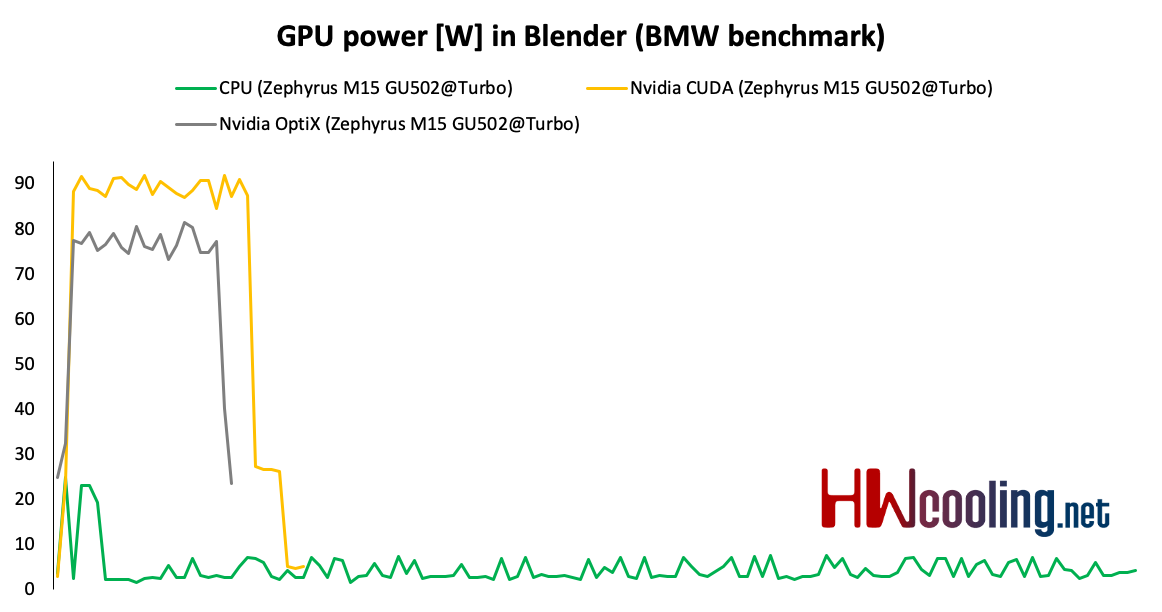
Power draw of graphics card copies graphs of load and clock speed, but with one difference. CUDA draws more power, around 90 W, while OptiX takes “only” 80 W and the CPU virtually takes nothing.
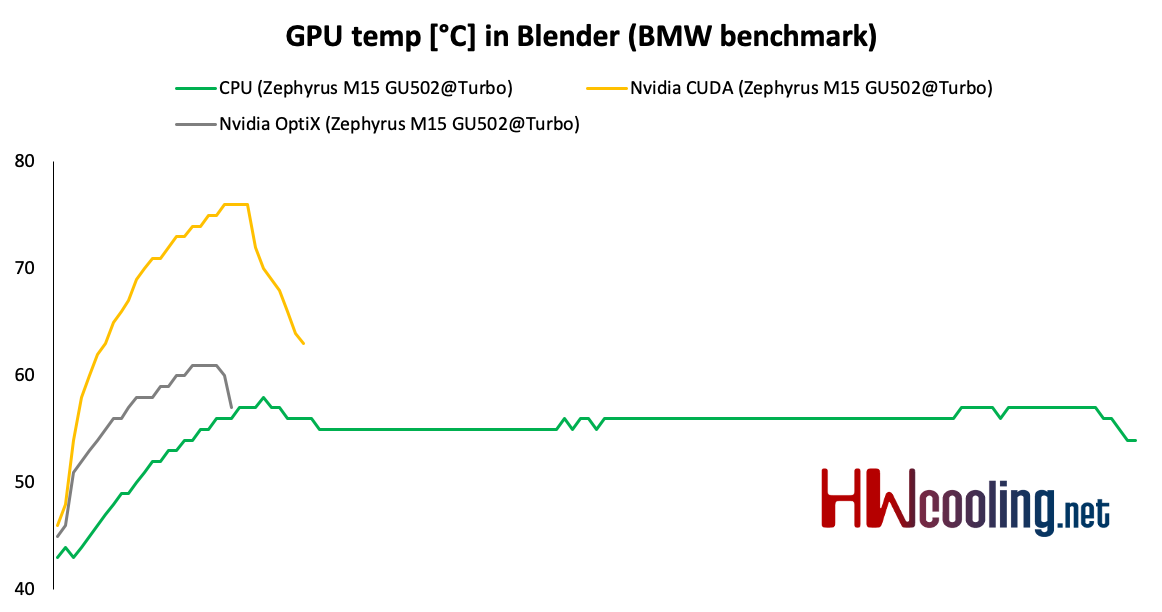
Finally, a look at GPU temperatures. With the CPU, the effect of influencing the second component by uniform cooling is again present. A large part of the chip works in CUDA and therefore the temperature rises to 75 degrees. In contrast, with OptiX, the curve stops just above 60 °C and the temperature curve itself is less steep. This is logical, as a smaller part of the chip is used, which does not create such a load.
The rendering times when using OptiX and CUDA are the same as the values measured on the Zephyrus Duo 15. However, the CPU takes longer time, as it has only 6 cores. This increases the differences between GPU accelerated renders from the CPU mode, which is an order of magnitude slower. Compared to OptiX up to 6.8× and compared to CUDA 4.7× slower.