




The new AMD Radeon RX 9000 cards with RDNA4 architecture bring higher performance and a suite of technologies to make gaming more enjoyable and improve responsiveness. We’ll focus on the technologies available to gamers and what stands behind names like Anti-Lag 2 or FidelityFX Super Resolution (FSR4). The videos show how Anti-Lag reduces latency and how FSR boosts frame rates with demanding detail settings.
Anti-Lag and Anti-Lag 2
Radeon Anti-Lag is integrated into the drivers, operates independently of the game, and can be enabled via the drivers. It reduces the delay between a mouse movement or keypress and the reaction on screen by dynamically adjusting frame timing. Its biggest benefit is in situations where game performance is GPU-bound.
The first generation of Anti-Lag is supported from Radeon RX 400 series and newer, as well as Ryzen 200 and newer APUs, and works with DX9, DX11, and DX12 APIs. This is the older generation of the technology.
AMD later introduced an improved variant called Anti-Lag+, followed by Anti-Lag 2.
Anti-Lag 2 builds on the original driver-based Anti-Lag technology, but is integrated directly into the game itself. It intervenes in the graphics pipeline at an ideal point – just before the game begins processing inputs from the mouse, keyboard, or gamepad.
This allows for better synchronization not only between the CPU and GPU, but also throughout the internal game loop. As a result, it’s possible to reduce latency more significantly than with driver-level interventions.
Naturally, for Anti-Lag 2 to work properly, developers need to integrate the technology directly into the game code using the available SDK. Ideally, they can also give players the option to enable or disable Anti-Lag 2 in the game settings. However, integrating it becomes more complicated when combined with Frame Generation, and in some games, you might run into issues such as stuttering when both technologies are active at the same time.
Radeon Anti-Lag – Global Settings
You can enable Anti-Lag globally for all supported games, or configure it individually for specific titles using application profiles in AMD Software: Adrenalin Edition.
In AMD Software, click the magnifying glass icon in the top right corner and enter “anti-lag” into the search field, or navigate manually via the Gaming section > Graphics > Radeon Anti-Lag.
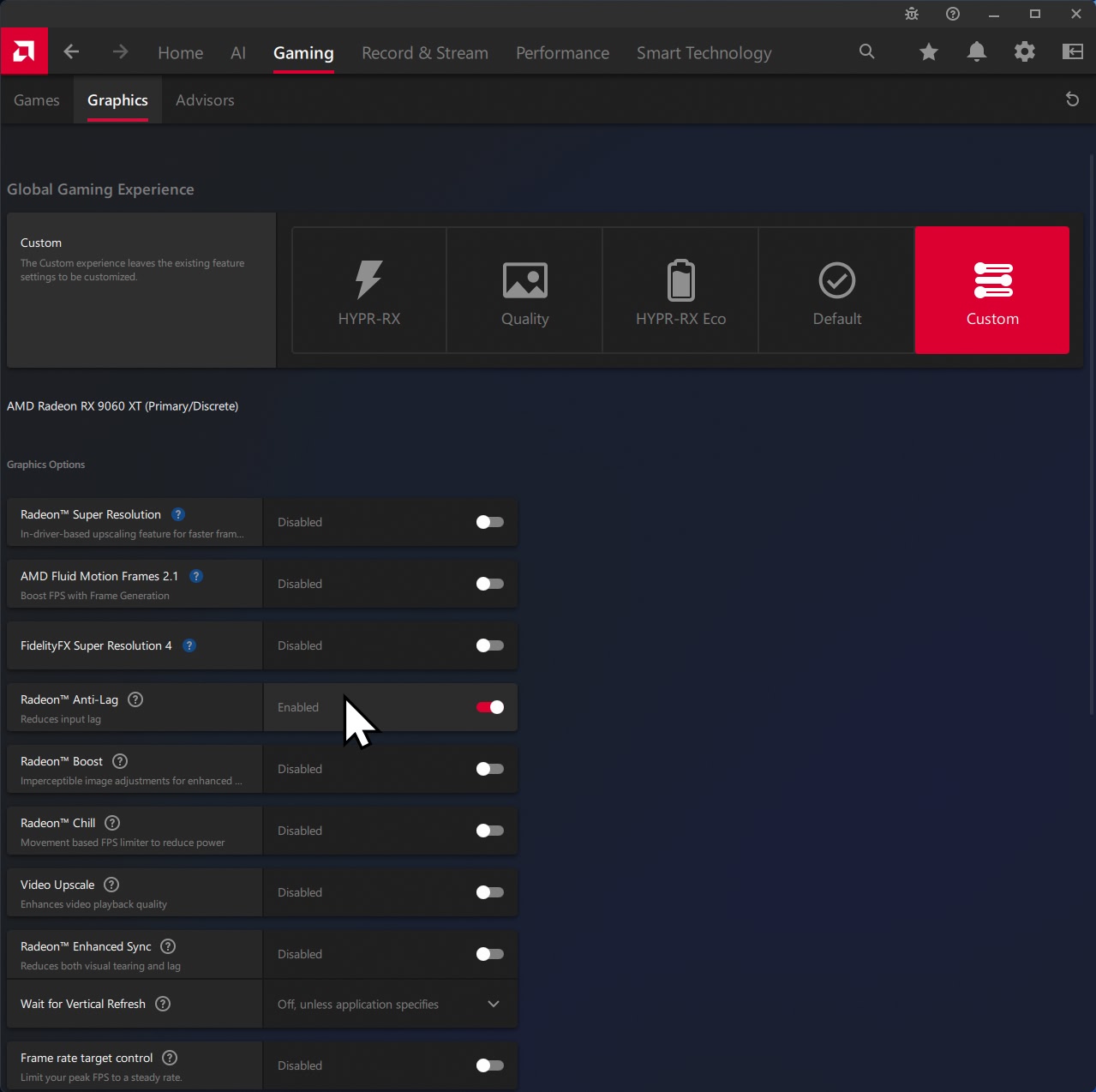
How to Configure Anti-Lag for Specific Games:
From the main menu of AMD Software, go to the Gaming section, select the Games tab, and choose the profile of the game where you want to configure Anti-Lag.
The local setting for that specific game will override the global setting.

Anti-Lag 2
Anti-Lag 2 should already be integrated directly into supported games. Typically, you’ll find it in the display or graphics settings of the game.
⠀



Some issues with your photos, the second photo from the first comparison doesn’t open at 1440p for me, the one with the arches seem to open the same fsr 3 photo for both of them. I stopped there.
Sorry about that — the thumbnails opened the correct images, but some text hyperlinks pointed to the wrong links. This should be fixed now. Thank you for letting me know.
FSR4 is a big improvement indeed, but, I own a 6800XT and whilst I will see an increase in framerates with the new cards I am afraid that comparing the price of the cards with a 20-30fps increase doesn’t add up for me especially when their new unified architecture is set to hit next year.